The Tech Support Mode or TSM is a sort of simple version of the system console that was available on the classic versions of ESX. Except that the TSM mode is not Linux based and does not have all the capabilities. But you can now access Tech Support Mode locally or via SSH if you follow the instructions below to enable them.
To enable local or remote TSM from the Direct Console User Interface (DCUI):
- At the DCUI of the ESXi host, press F2 and provide credentials when prompted.
- Scroll to Troubleshooting Options, and press Enter.
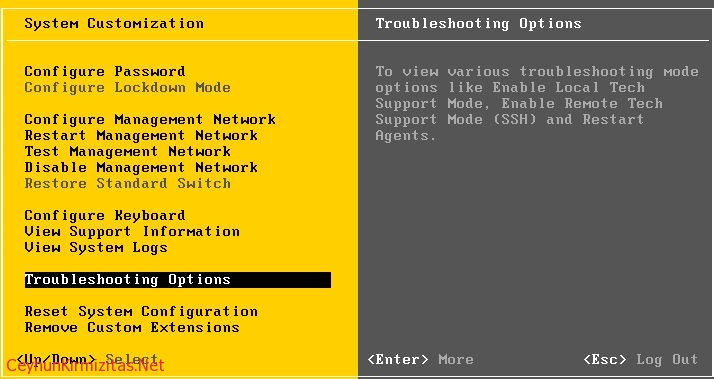
- If you want to enable local TSM, select Local Tech Support and press Enter once. This allows users to login on the virtual console of the ESXi host.If you want to enable remote TSM, select Remote Tech Support (SSH) and press Enter once. This allows users to login via SSH on the virtual console of the ESXi host.
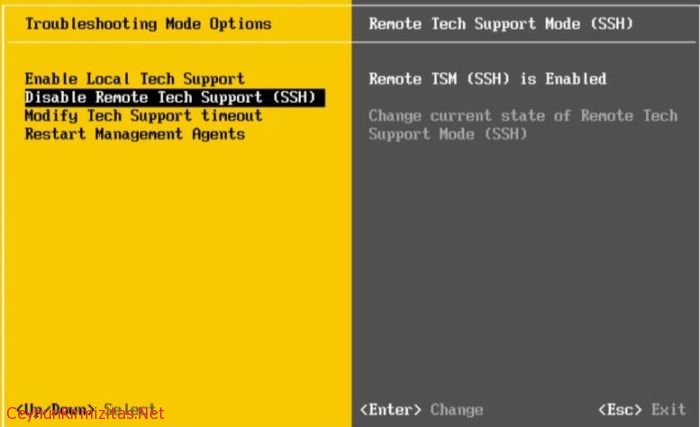
- Press Esc three times to return to the main DCUI screen.
To access the local TSM:
- At the main DCUI screen, press ALT+F1 simultaneously. This opens a virtual console window to the host.
- Provide credentials when prompted.Note: When typing the password, characters are not displayed on the console.
To access the remote TSM:
- Open an SSH client.
- Specify the IP address or domain name of the ESX host.