Moved Mailboxes Are Shown in Disconnected Mailbox – Exchange 2010 SP1 SP2 SP3

Moved Mailboxes Are Shown in Disconnected Mailbox – Exchange 2010 SP1 SP2 SP3

Exchange Server
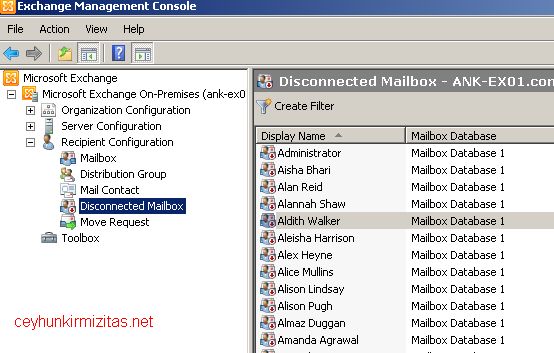
You have just moved some mailboxes from one Exchange 2010 SP1 ( or later ) mailbox database to another mailbox database but all the moved mailboxes are shown in disconnected mailboxes. This happens because of the "Soft Deleted mailboxes". Exchange doesn?t fully delete the mailbox from the source database immediately after completion of the move. Instead, the mailbox in the source mailbox database is switched to a soft-deleted state. The soft-deleted mailboxes are retained in the source database until either the deleted mailbox retention period expires or you use the Remove-StoreMailbox cmdlet to purge the mailbox.   You can see soft-deleted mailbox by running the following shell command Get-MailboxStatistics ?Database ?Mailbox Database Name? | Where-Object {$_.DisconnectReason ?eq ?Softdeleted?} You can delete all soft deleted mailboxes from a particular Mailbox Database by…
Read More
Installing and Configuring Data Protection Manager 2010 for Exchange Server 2010 SP2

Installing and Configuring Data Protection Manager 2010 for Exchange Server 2010 SP2

Exchange Server, System Center, Video Tutorials
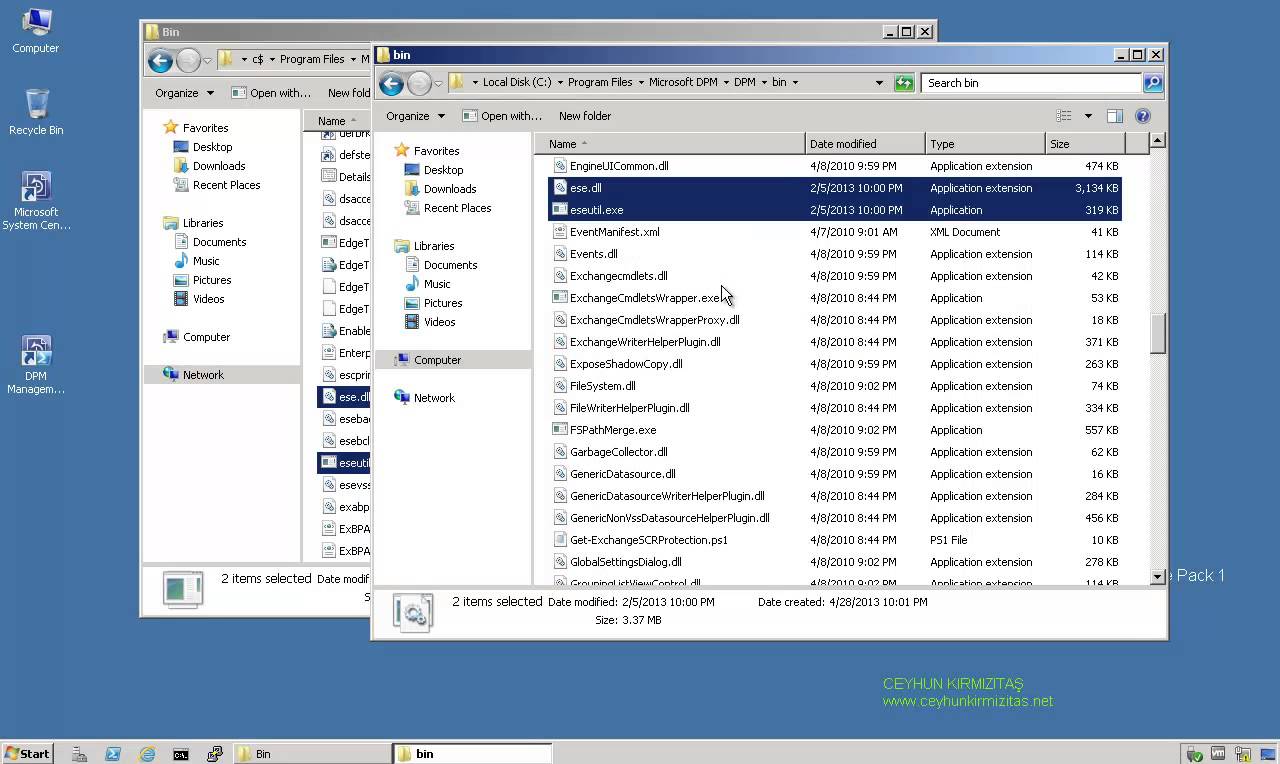
A System Center Data Protection Manager (DPM) 2010 installation includes two primary tasks: installing the DPM prerequisite software and installing the DPM application. The DPM Setup Wizard guides you through the process of specifying the DPM installation settings, and automatically installs the prerequisite software as part of an integrated DPM installation process. Important Note: DPM 2010 is not supported on the Turkish language version of Windows Server 2008 or Windows Server 2008 R2. If the automatic installation of one or more of the DPM prerequisite software products fails, you can install the prerequisite software manually. Before installing DPM, note the following: All computers that you use for your DPM installation must meet at least the minimum hardware and software requirements. DPM Setup stops the Removable Storage service before installing DPM. After you install DPM, you…
Read More
How to Restore Exchange 2010 Mailbox to Different Mailbox

How to Restore Exchange 2010 Mailbox to Different Mailbox

Exchange Server, Video Tutorials
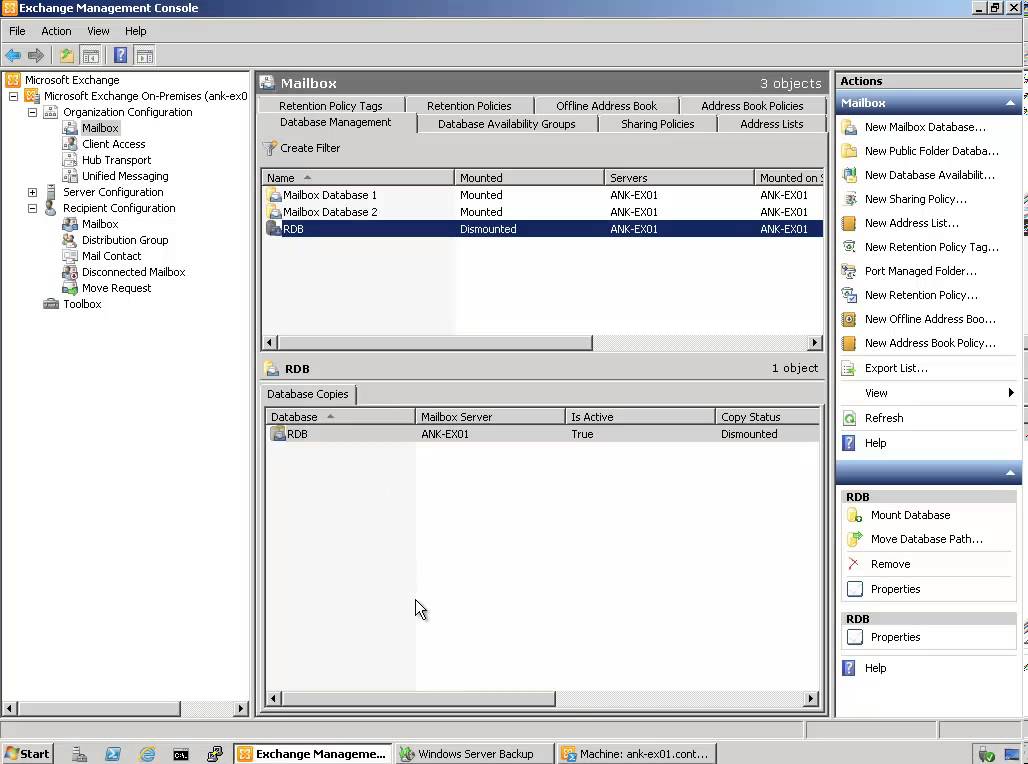
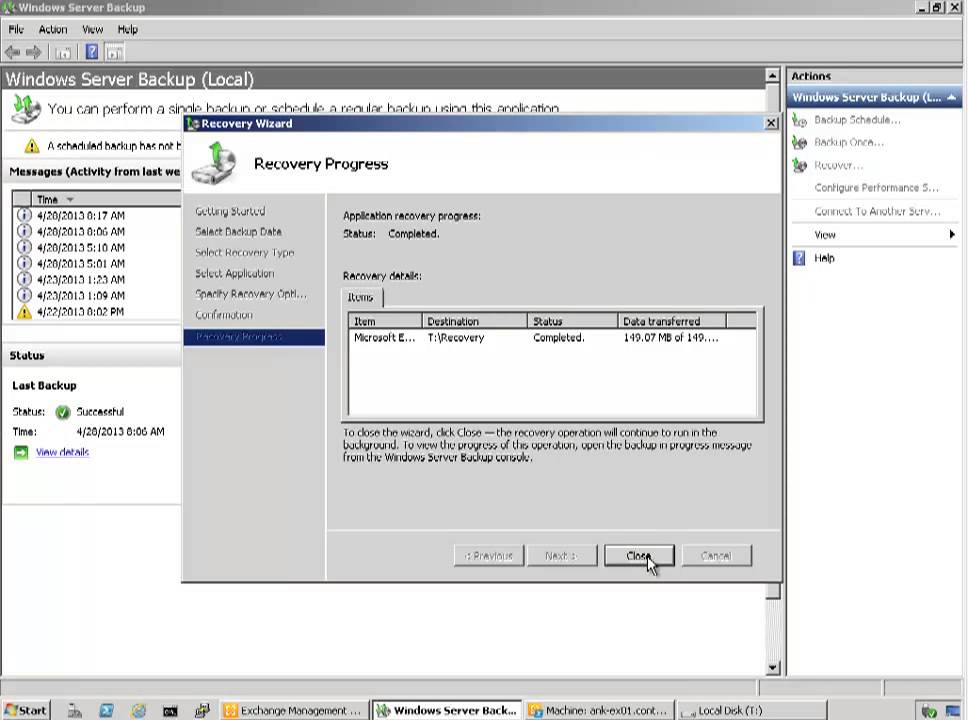
Exchange 2010 no longer has the notion of Storage Groups, which were used in Exchange 2007 and 2003 to contain logical groupings of databases. Exchange 2010 now simply lets you create databases on mailbox servers. The difference is that in Exchange 2003/2007, you created a Recover Storage Group (RSG) to restore the database into. In Exchange 2010, you simply restore the database and connect to it as a Recovery Database (RDB). First,  you have to have a good backup that contains the item to be recovered. Windows Server 2008 and Windows Server 2008 R2 have the built-in Windows Server Backup feature. I cover how to use Windows Server Backup to backup Exchange in this article. Without the ability to restore an individual mailbox, it is necessary to first restore an entire…
Read More
Microsoft Exchange POP3 service terminated with the following error: No site name is available for this machine

Microsoft Exchange POP3 service terminated with the following error: No site name is available for this machine

Exchange Server
Problem: The Microsoft Exchange POP3 service terminated with the following error: No site name is available for this machine. Solution Associate a Subnet with Default-First-Site-Name Open Active Directory Sites and Services Console. Double-click the Sites node that corresponds to the Site where the Exchange Server resides, and then right-click Subnets. Click New Subnet on the shortcut menu. Type the IP address, and the subnet mask of the subnet, and then click Default-First-Site-Name on the Site Name list. Click OK to close the New Object-Subnet dialog box. Set the Site Membership Start Registry Editor, Regedit.exe. Locate and click the following registry key: HKEY_LOCAL_MACHINE\System\CurrentControlSet\Services\Netlogon\Parameters On the Edit menu, point to New, and then click String Value. Type SiteName to change the name of the newly created value, and then press ENTER. Double-click the…
Read More
Exchange 2010 Event ID: 4113 MSExchangeRepl Database redundancy health check failed

Exchange 2010 Event ID: 4113 MSExchangeRepl Database redundancy health check failed

Exchange Server
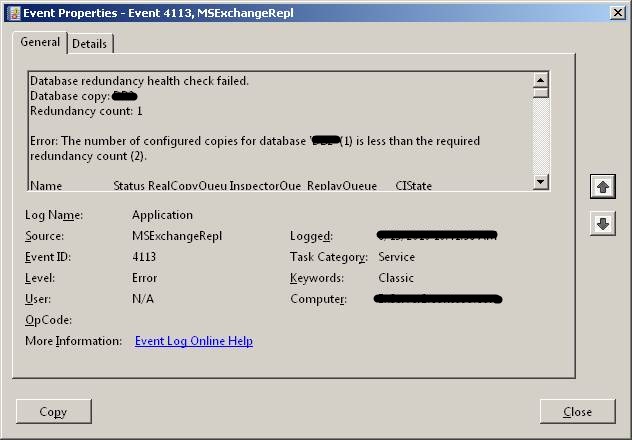
If you are using Database Availability Group (DAG), Microsoft Exchange Replication service monitors database redundancy by calling CheckDatabaseRedundancy.ps1 script in default script folder. It ensures that each replicated database has at least two copies and a healthy copy to make it redundant. CheckDatabaseRedundancy.ps1 script is run hourly by the Microsoft Exchange Replication service to perform a redundancy health check for replicated databases . If Exchange finds that a replicated database doesn?t have sufficient healthy copies, the Microsoft Exchange Replication Service - MSExchangeRepl - logs an event id: 4113 (Error: MSExchangeRepl Database redundancy health check failed) as shown below. The information captured in the event reports that only one copy exists, which is what I expected. The Replication Service will continue to check and log event 4113 for the database every twenty…
Read More
How to Perform Dial Tone Recovery in Exchange Server 2010 with Windows Server Backup

How to Perform Dial Tone Recovery in Exchange Server 2010 with Windows Server Backup

Exchange Server, Video Tutorials
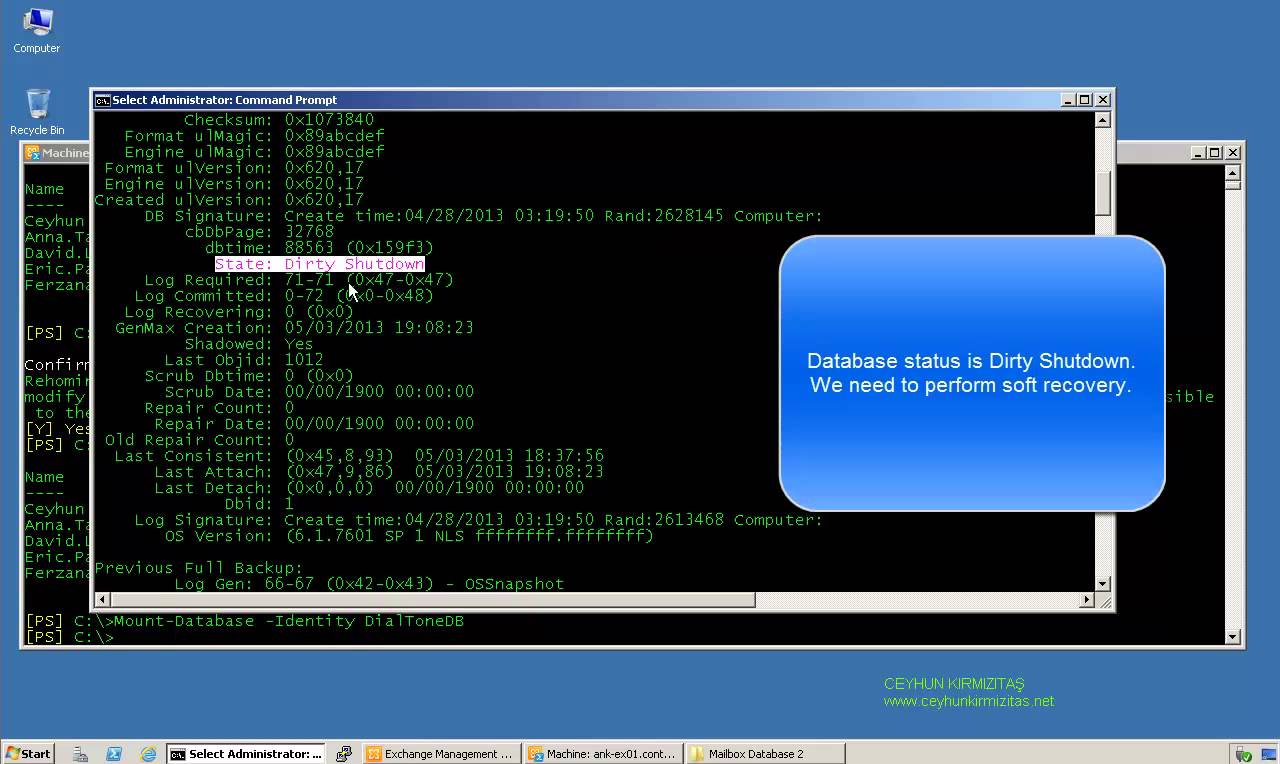
What is Exchange Dial Tone Recovery? Exchange 2010 has many updated and efficient features, which make it a very popular email server, but these useful features do not reduce the chances of data loss. Therefore, a need of a reliable recovery plan is always on the priority, during any disaster. Exchange offers an inbuilt feature to recover Exchange database, named dial tone portability. Using dial tone recovery, users can have a temporary mailbox for sending and receiving email while their original mailbox is being restored or repaired. The temporary mailbox can be on the same Exchange 2010 Mailbox server or on any other Exchange 2010 Mailbox server in your organization. The process for using dial tone portability is called a dial tone recovery, which involves creating an empty database on…
Read More

Installing Exchange Update Rollups on DAG (Database Availability Group) Members

Exchange Server
Installing update rollups on DAG members is a straight forward task. We have to make sure that all the active databases have been moved to a different DAG member, activation of all databases on the server to be patched is blocked, mailbox database copy is suspended etc. Basically, the procedure is straightforward and should be followed per DAG member: 1.Appoint (next) DAG member; 2.Move away all active copies on that DAG member; 3.Prevent copies from activating on that DAG member; 4.Perform maintenance, e.g. down or upgrade DAG member; 5.Enable possible activation on that DAG member again; 6.Optionally redistribute database copies. Microsoft has two new scripts in the ?C:\Program Files\Microsoft\Exchange Server\v14\Scripts? folder of Exchange 2010 SP1. StartDAGServerMaintenance.ps1 and StopDAGServerMaintenance.ps1. In order to install a rollup on 2010 SP1 , follow the…
Read More

How to Configure Manual Failover – Activation – for DAG Member Exchange Server 2010

Exchange Server
Configure Manuel Failover for Entire Mailbox Server Let?s say you want to disable entire DAG member node from being considered in the Automatic Activation Process. In other words, you want to configure manual failover for DAG member. You can use the following command to prevent any databases on a specific mailbox server in DAG from being considered in the Automatic Activation (automatic failover) Process: Set-MailboxServer -Identity MailboxServerName -DatabaseCopyAutoActivationPolicy Blocked To allow database copies to be activated again, I would replace ?Blocked? with ?Unrestricted?: Set-MailboxServer -Identity MailboxServerName -DatabaseCopyAutoActivationPolicy Unrestricted  
Read More
How to Configure Local Continuous Replication (LCR) in Exchange Server 2007

How to Configure Local Continuous Replication (LCR) in Exchange Server 2007

Exchange Server
Local Continuous Replication (LCR) is a single server solution that provides high availability for Exchange Server 2007. Once you enable a local replica of a storage group, LCR copies any changes to the storage group to the replica. This process is called Log Shipping. In this how-to, you will learn how to configure Local Continuous Replication (LCR) in Exchange Server 2007 Mailbox Server Role. Log on to Exchange Server 2007. Click Start, and then point to All Programs, then Microsoft Exchange and click Exchange Management Console. Expand Microsoft Exchange and click the Server Configuration in the Console Tree. Click the server name that has mailbox server role in the results pane. And in the action page, click Manage Mailbox Role. In the work pane, right click  First Sorage Group and click…
Read More