Microsoft Excel Password Recovery Instructions with Office Password Recovery Utility

Office
Often when an employee departs, they take important Excel passwords with them. This guide outlines how to use a simple Excel password recovery application to crack lost or forgotten passwords, allowing you to unlock password-encrypted Microsoft Excel documents quickly as possible. To perform the following recovery steps, you'll need to get the download of Office Password Recovery, available directly here. (2.1Mb). Once you've downloaded the program, run the install with the default options. 1- Click the Open button on the top left, navigate to the protected spreadsheet file. 2- The Open button launches the Recovery Wizard. The Wizard gives you the option of simply decrypting the spreadsheet or displaying the original document password.   Recovery Option 1: 100% Instant Document Decryption This option is the quickest way to access your…
Read More
Exchange 2010 Event ID: 4113 MSExchangeRepl Database redundancy health check failed

Exchange 2010 Event ID: 4113 MSExchangeRepl Database redundancy health check failed

Exchange Server
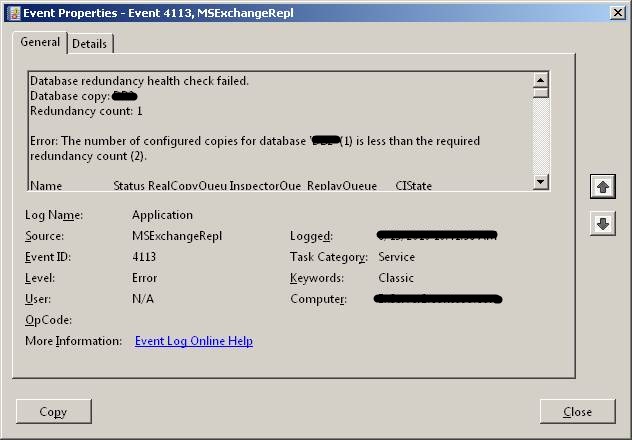
If you are using Database Availability Group (DAG), Microsoft Exchange Replication service monitors database redundancy by calling CheckDatabaseRedundancy.ps1 script in default script folder. It ensures that each replicated database has at least two copies and a healthy copy to make it redundant. CheckDatabaseRedundancy.ps1 script is run hourly by the Microsoft Exchange Replication service to perform a redundancy health check for replicated databases . If Exchange finds that a replicated database doesn?t have sufficient healthy copies, the Microsoft Exchange Replication Service - MSExchangeRepl - logs an event id: 4113 (Error: MSExchangeRepl Database redundancy health check failed) as shown below. The information captured in the event reports that only one copy exists, which is what I expected. The Replication Service will continue to check and log event 4113 for the database every twenty…
Read More

How to Install Service Pack in Windows Server Failover Cluster for Windows 2008 R2, Windows 2008 and Windows 2003

Windows Server
The process of applying a service pack to a server failover cluster is almost the same as applying it to Windows 2008 R2, Windows 2008 and Windows 2003. You can install Windows service packs on Windows Server Failover Cluster nodes using the following procedure. Always install the same service packs or hotfixes to each node. Use this procedure to install the service packs unless otherwise directed by a particular service pack version. Open Failover Cluster Manager, and then click Nodes then right-click Node A, and then click Pause. Expand Node A. In the right pane, right-click each Services or applications and then click Move this service or application to another node to move them to Node B. Install the service pack on Node A, and then restart the Node A. In Failover Cluster Manager, right-click Node A,…
Read More
How to Perform Dial Tone Recovery in Exchange Server 2010 with Windows Server Backup

How to Perform Dial Tone Recovery in Exchange Server 2010 with Windows Server Backup

Exchange Server, Video Tutorials
What is Exchange Dial Tone Recovery? Exchange 2010 has many updated and efficient features, which make it a very popular email server, but these useful features do not reduce the chances of data loss. Therefore, a need of a reliable recovery plan is always on the priority, during any disaster. Exchange offers an inbuilt feature to recover Exchange database, named dial tone portability. Using dial tone recovery, users can have a temporary mailbox for sending and receiving email while their original mailbox is being restored or repaired. The temporary mailbox can be on the same Exchange 2010 Mailbox server or on any other Exchange 2010 Mailbox server in your organization. The process for using dial tone portability is called a dial tone recovery, which involves creating an empty database on…
Read More
How to Uninstall Windows Internal Database

How to Uninstall Windows Internal Database

Microsoft
It is not usually necessary to uninstall Windows Internal Database, but sometimes you may need to uninstall or remove Windows Internal Database. It is not possible to remove this application with Add or Remove Programs, and it will not be uninstalled. Because multiple applications and services use the same instance of Windows Internal Database, removing these applications and services does not remove the data store. Important: Uninstalling Windows Internal Database is not recommended, because it may affect other applications that may be using the same database instance. To uninstall Windows Internal Database Open a command shell. On 32-bit platforms: msiexec /x {CEB5780F-1A70-44A9-850F-DE6C4F6AA8FB} callerid=ocsetup.exe On 64-bit platforms: msiexec /x {BDD79957-5801-4A2D-B09E-852E7FA64D01} callerid=ocsetup.exe
Read More

Installing Exchange Update Rollups on DAG (Database Availability Group) Members

Exchange Server
Installing update rollups on DAG members is a straight forward task. We have to make sure that all the active databases have been moved to a different DAG member, activation of all databases on the server to be patched is blocked, mailbox database copy is suspended etc. Basically, the procedure is straightforward and should be followed per DAG member: 1.Appoint (next) DAG member; 2.Move away all active copies on that DAG member; 3.Prevent copies from activating on that DAG member; 4.Perform maintenance, e.g. down or upgrade DAG member; 5.Enable possible activation on that DAG member again; 6.Optionally redistribute database copies. Microsoft has two new scripts in the ?C:\Program Files\Microsoft\Exchange Server\v14\Scripts? folder of Exchange 2010 SP1. StartDAGServerMaintenance.ps1 and StopDAGServerMaintenance.ps1. In order to install a rollup on 2010 SP1 , follow the…
Read More

How to Configure Manual Failover – Activation – for DAG Member Exchange Server 2010

Exchange Server
Configure Manuel Failover for Entire Mailbox Server Let?s say you want to disable entire DAG member node from being considered in the Automatic Activation Process. In other words, you want to configure manual failover for DAG member. You can use the following command to prevent any databases on a specific mailbox server in DAG from being considered in the Automatic Activation (automatic failover) Process: Set-MailboxServer -Identity MailboxServerName -DatabaseCopyAutoActivationPolicy Blocked To allow database copies to be activated again, I would replace ?Blocked? with ?Unrestricted?: Set-MailboxServer -Identity MailboxServerName -DatabaseCopyAutoActivationPolicy Unrestricted  
Read More
How to Configure Local Continuous Replication (LCR) in Exchange Server 2007

How to Configure Local Continuous Replication (LCR) in Exchange Server 2007

Exchange Server
Local Continuous Replication (LCR) is a single server solution that provides high availability for Exchange Server 2007. Once you enable a local replica of a storage group, LCR copies any changes to the storage group to the replica. This process is called Log Shipping. In this how-to, you will learn how to configure Local Continuous Replication (LCR) in Exchange Server 2007 Mailbox Server Role. Log on to Exchange Server 2007. Click Start, and then point to All Programs, then Microsoft Exchange and click Exchange Management Console. Expand Microsoft Exchange and click the Server Configuration in the Console Tree. Click the server name that has mailbox server role in the results pane. And in the action page, click Manage Mailbox Role. In the work pane, right click  First Sorage Group and click…
Read More
How to Change Command Prompt CMD Default Startup Directory

How to Change Command Prompt CMD Default Startup Directory

Microsoft
The default Command Prompt (CMD.exe) directory is usually your Documents and Settings \ Username directory. Most of the time you navigate away from it because you need to access files that cannot be accessed from there. If you wish to change the default startup directory for Command Prompt, use the steps listed below To change the default Command Prompt directory: 1- Click Start, Run and type Regedit.exe 2- Navigate to the path HKEY_CURRENT_USER \ Software \ Microsoft \ Command Processor 3- In the right-pane, double-click Autorun and set the startup folder path, for example by " CD /d C:\ " without quotes. If Autorun value is missing, you need to create one, of type REG_SZ (String Value) in the above location. Example1: To set the startup directory to C:\Windows, set the Autorun…
Read More