How to Install SQL Server 2008 R2 SP1 for Data Protection Manager 2010

System Center, Video Tutorials
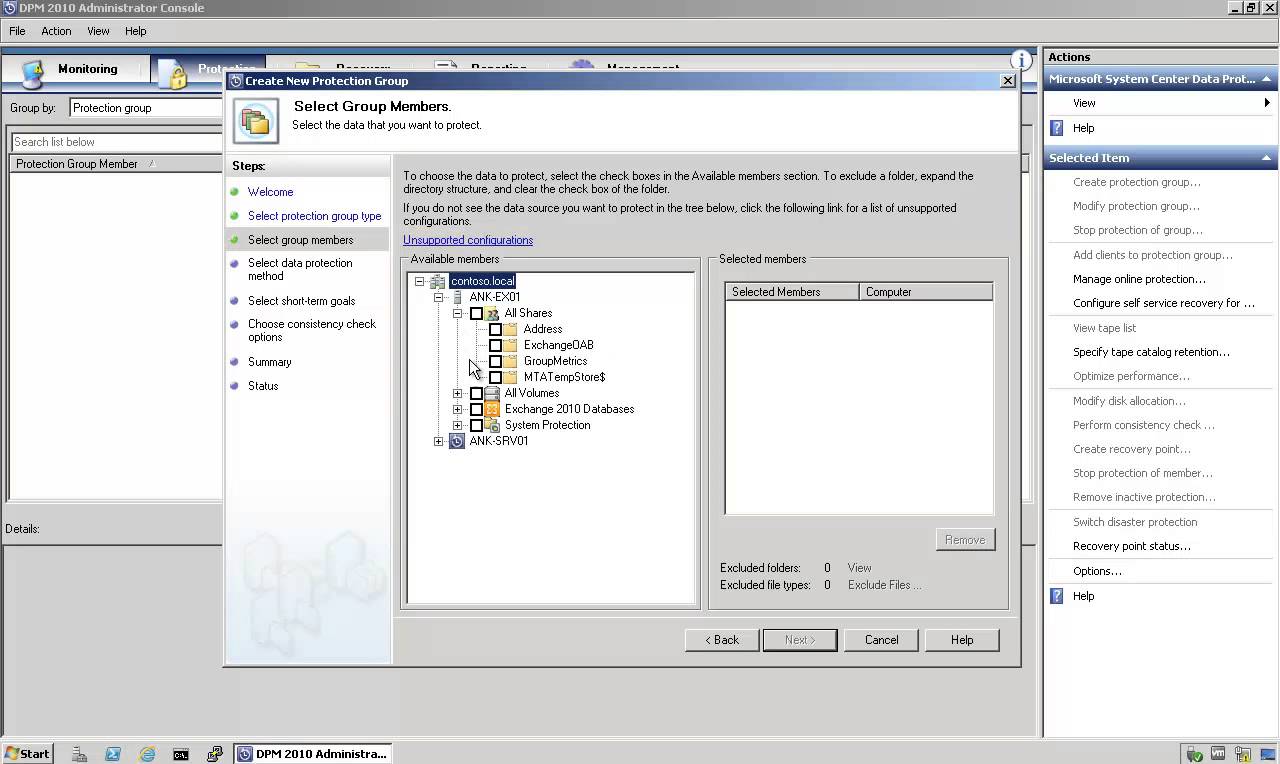
A System Center Data Protection Manager (DPM) 2010 installation includes two primary tasks: installing the DPM prerequisite software and installing the DPM application. The DPM Setup Wizard guides you through the process of specifying the DPM installation settings, and automatically installs the prerequisite software as part of an integrated DPM installation process. Important Note: DPM 2010 is not supported on the Turkish language version of Windows Server 2008 or Windows Server 2008 R2. Supported Databases For the DPM database, DPM 2010 requires a dedicated instance of the 64-bit or 32-bit version of any of the following SQL Server versions: SQL Server 2008 with Service Pack 3 SQL Server 2008 R2 with Service Pack 1 When you use a remote instance of SQL Server with the DPM 2010 installation, you must install the remote instance of SQL Server before you install DPM 2010.
Read More
EMC cannot Close after Installing IE9 – You must close all dialog boxes before you can close Exchange Management Console

EMC cannot Close after Installing IE9 – You must close all dialog boxes before you can close Exchange Management Console

Exchange Server
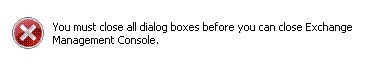
After Internet Explorer 9 is installed on the server, you can not close the EMC. Instead you will have a dialog box saying "You must close all dialog boxes before you can close Exchange Management Console". However, you can't find any open dialog boxes for Exchange Management Console. Only way to close it is via task manager. Solution: 1. Turn off "Internet Explorer Enhanced Security Configuration" for Administrators and Users 2. Add " https://localhost "  and " http://localhost " to the "trusted sites" in IE9 3. Reboot your server UPDATE Interm  fixes are not needed anymore. Fix is now included within the official Internet Explorer Update  
Read More
How to Backup and Restore Exchange 2010 Mailbox Database with DPM 2010

How to Backup and Restore Exchange 2010 Mailbox Database with DPM 2010

Exchange Server, System Center, Video Tutorials
DPM 2010 supports the following five types of recovery for Exchange Server 2010 mailbox databases: Recover the database to its original location: Overwrite the existing copy of the database. Recover the database to an alternate database: Restore to another database on an Exchange Server. Recover to an Exchange Recovery database: Recover to an Exchange Recovery database instead of a standard mailbox database. Recover to network location: Copy the database to a network folder. Copy to tape: Create an on-tape copy of the database.
Read More
Do you want to go to http://SiteName? – Disable One-word Intranet Site Suggestion – Internet Explorer

Do you want to go to http://SiteName? – Disable One-word Intranet Site Suggestion – Internet Explorer

Microsoft
Internet Explorer 9 will not navigate directly to an intranet site for a one-word entry in the Address bar. When you attempt to browse to this site using Internet Explorer 9, it responds by taking you to your default search engine to look for that word. Cause: Internet Explorer 9 combines the address bar and the search box. The default behavior is to use a single word entry as search criteria. This can be changed by Users or Group Policy Settings as described in the Solution section. Solution 1  - Using Tools Menu in IE9 : 1-  Click Internet Options 2- click the Advanced tab, check the option Go to an intranet site for a single word entry in the Address bar. Solution 2 - Using Group Policy : 1- Expand User Configuration,…
Read More

KB373931- Srv2.sys SMB 2.0 Server Driver Fix – Windows Server 2008 R2 BSoD Problem – Windows6.1-KB373931-x64

Windows Server
Some Windows 2008 R2 servers may experience BlueScreen and Reboot problem. If these servers are using File Share or SMB v.2, srv2.sys may cause this problem. There is problem related to Srv2.sys driver. This is SMB 2.0 server driver. You can install this hotfix KB373931 for Windows Server 2008 R2 SP1 with your own risk.  
Read More
WinRM service failed to create the following SPNs: WSMAN – Event ID:10154

WinRM service failed to create the following SPNs: WSMAN – Event ID:10154

Linux, Windows Server
I was getting an error " The WinRM service failed to create the following SPNs: WSMAN/hostname; WSMAN/hostname. " at startup on Windows 2008 R2 Domain Controllers. Additional Data Log Name: System Source:  Microsoft-Windows-WinRM Event ID: 10154 Level:  Warning Solution: WinRM runs under " Network Service " account. You can eliminate this problem by giving Validated Write to Service Principal Name  permission to the NETWORK SERVICE using the ADSIEDIT.msc. This will allow WinRM to auto create the necessary SPNs on that domain controller. After granting this permission, re-sync all DCs and do a reboot to each domain controller where you did the change,  after that reboot you will see that the warning is gone and the required SPNs were created successfully. Steps: 1- Use ADSIEDIT.msc 2- Choose Default naming context and…
Read More