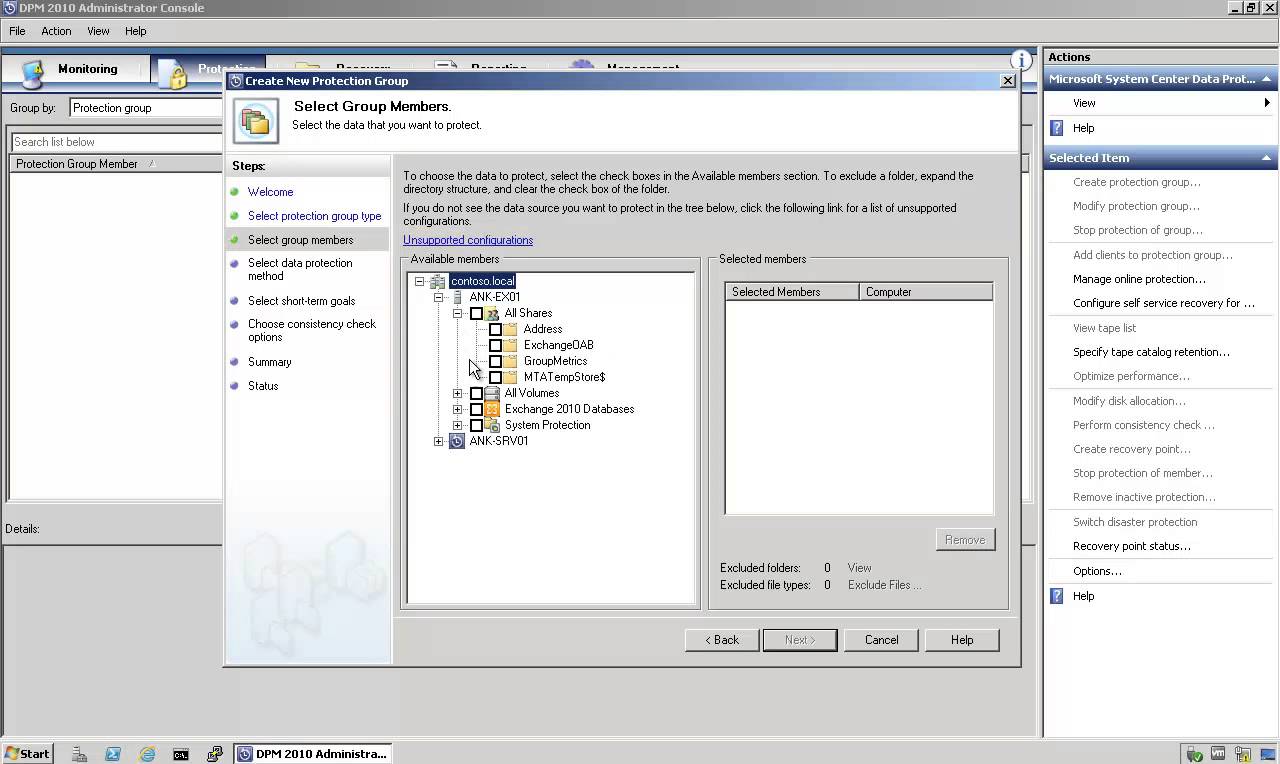
Installing and Configuring Data Protection Manager 2010 for Exchange Server 2010 SP2

Installing and Configuring Data Protection Manager 2010 for Exchange Server 2010 SP2

Exchange Server, System Center, Video Tutorials
A System Center Data Protection Manager (DPM) 2010 installation includes two primary tasks: installing the DPM prerequisite software and installing the DPM application. The DPM Setup Wizard guides you through the process of specifying the DPM installation settings, and automatically installs the prerequisite software as part of an integrated DPM installation process. Important Note: DPM 2010 is not supported on the Turkish language version of Windows Server 2008 or Windows Server 2008 R2. If the automatic installation of one or more of the DPM prerequisite software products fails, you can install the prerequisite software manually. Before installing DPM, note the following: All computers that you use for your DPM installation must meet at least the minimum hardware and software requirements. DPM Setup stops the Removable Storage service before installing DPM. After you install DPM, you…

Read More
The replica of Exchange Mailbox Database is inconsistent – Data Protection Manager 2010

The replica of Exchange Mailbox Database is inconsistent – Data Protection Manager 2010

System Center
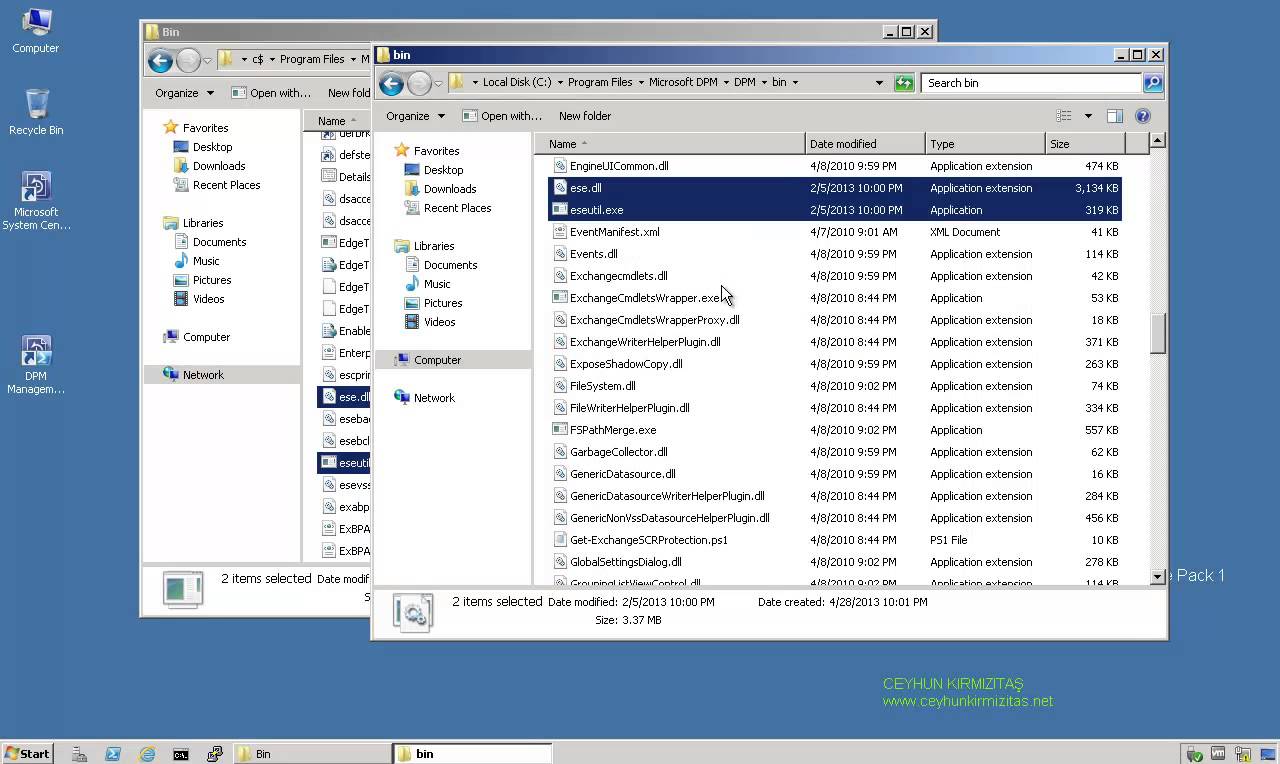
Description: The replica of Exchange Mailbox Database on ExchangeServerNameFQDN is inconsistent with the protected data source. All protection activities for data source will fail until the replica is synchronized with consistency check. You can recover data from existing recovery points, but new recovery points cannot be created until the replica is consistent. Data consistency verification check failed for LOGS of Exchange Mailbox Database on ExchangeServerNameFQDN. (ID 30146 Details: Unknown error (0xc0000135) (0xC0000135)) Recommended action: Copy " eseutil.exe and ese.dll " from Exchange Server " C:\Program Files\Microsoft\Exchange Server\V14\Bin " to the DPM server " C:\Program Files\Microsoft DPM\DPM\bin " folder.
Read More
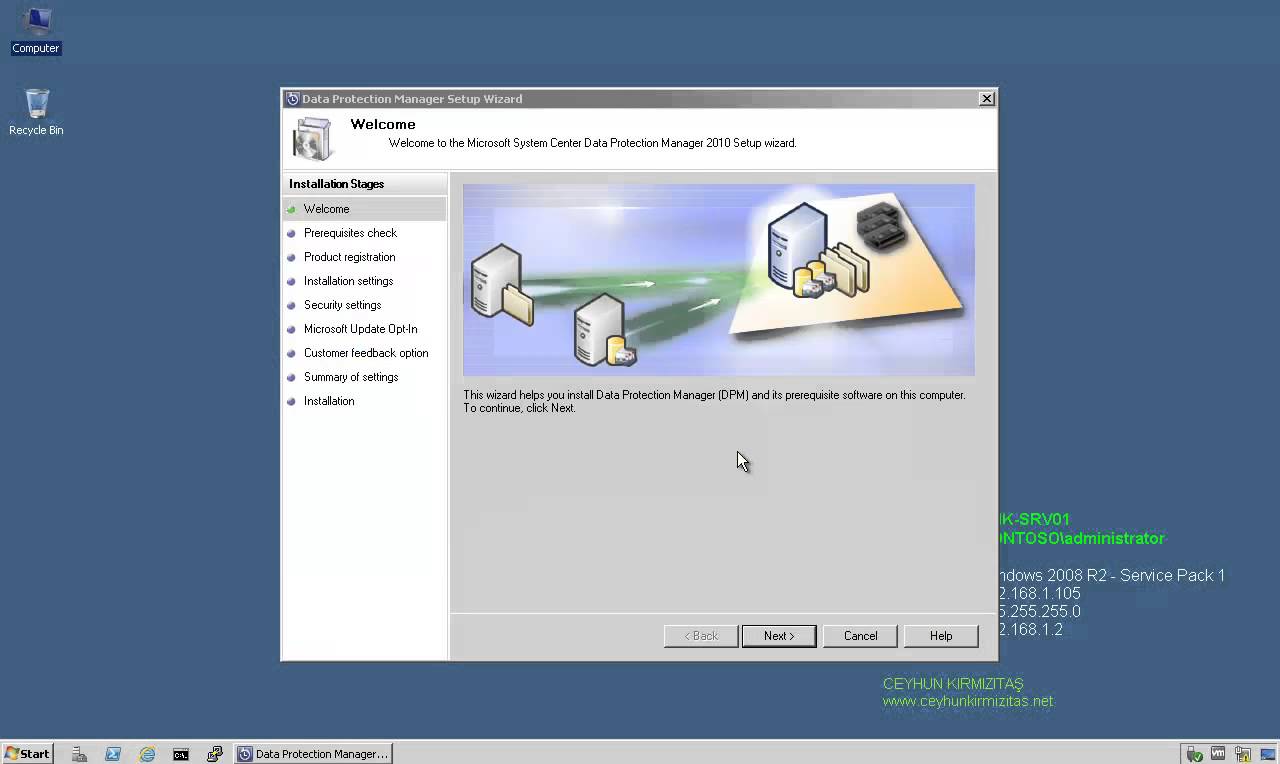
How to Install Data Protection Manager 2010 on Windows Server 2008 R2 SP1

How to Install Data Protection Manager 2010 on Windows Server 2008 R2 SP1

System Center, Video Tutorials
A System Center Data Protection Manager (DPM) 2010 installation includes two primary tasks: installing the DPM prerequisite software and installing the DPM application. The DPM Setup Wizard guides you through the process of specifying the DPM installation settings, and automatically installs the prerequisite software as part of an integrated DPM installation process. Important Note: DPM 2010 is not supported on the Turkish language version of Windows Server 2008 or Windows Server 2008 R2. If the automatic installation of one or more of the DPM prerequisite software products fails, you can install the prerequisite software manually. Before installing DPM, note the following: All computers that you use for your DPM installation must meet at least the minimum hardware and software requirements. DPM Setup stops the Removable Storage service before installing DPM. After you install DPM, you…
Read More

How to Install SQL Server 2008 R2 SP1 for Data Protection Manager 2010

System Center, Video Tutorials
A System Center Data Protection Manager (DPM) 2010 installation includes two primary tasks: installing the DPM prerequisite software and installing the DPM application. The DPM Setup Wizard guides you through the process of specifying the DPM installation settings, and automatically installs the prerequisite software as part of an integrated DPM installation process. Important Note: DPM 2010 is not supported on the Turkish language version of Windows Server 2008 or Windows Server 2008 R2. Supported Databases For the DPM database, DPM 2010 requires a dedicated instance of the 64-bit or 32-bit version of any of the following SQL Server versions: SQL Server 2008 with Service Pack 3 SQL Server 2008 R2 with Service Pack 1 When you use a remote instance of SQL Server with the DPM 2010 installation, you must install the remote instance of SQL Server before you install DPM 2010.
Read More
How to Backup and Restore Exchange 2010 Mailbox Database with DPM 2010

How to Backup and Restore Exchange 2010 Mailbox Database with DPM 2010

Exchange Server, System Center, Video Tutorials
DPM 2010 supports the following five types of recovery for Exchange Server 2010 mailbox databases: Recover the database to its original location: Overwrite the existing copy of the database. Recover the database to an alternate database: Restore to another database on an Exchange Server. Recover to an Exchange Recovery database: Recover to an Exchange Recovery database instead of a standard mailbox database. Recover to network location: Copy the database to a network folder. Copy to tape: Create an on-tape copy of the database.
Read More