How to Deploy Windows Server 2008 Read Only Domain Controller (RODC)

How to Deploy Windows Server 2008 Read Only Domain Controller (RODC)

Video Tutorials, Windows Server
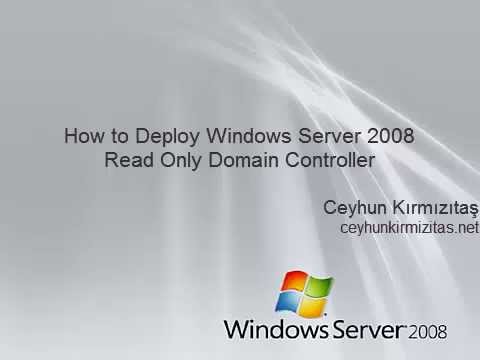
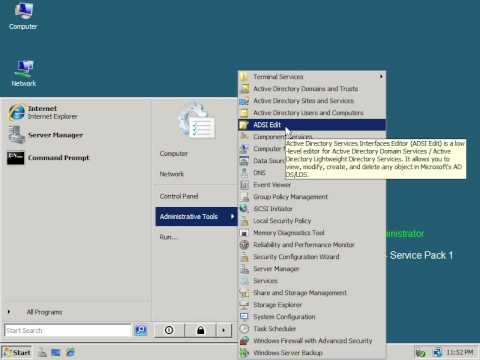
Read-Only Domain Controller (RODC) is an additional domain controller for a domain that hosts read-only partitions of the Active Directory database. An RODC is designed primarily to be deployed in a branch office environment. Branch offices typically have relatively few users, poor physical security, relatively poor network bandwidth to a hub site, and little local IT knowledge. RODC is primarily aimed at providing additional security on an Active Directory Database for a server that is not physically secured. In this video we'll deploy Windows Server 2008 Read Only Domain Controller (RODC).
Read More
How to Configure Windows 2008 Fine-Grained Password Policy

How to Configure Windows 2008 Fine-Grained Password Policy

Video Tutorials, Windows Server
In previous versions of Active Directory, we had only one password policy for the entire domain. Some companies had to use multiple domains to place different password policies on different users or buy third party solutions. In Windows Server 2008, you can use fine-grained password policies to specify multiple password policies and apply different password restrictions and account lockout policies to different sets of users within a single domain. Password polices are designed to control what kind of password a user can have and how often the user needs to change it. Strong password policies are important to help protect your system and data.
Read More
How to Manage Local Password Policy on Windows Server 2008 Core

How to Manage Local Password Policy on Windows Server 2008 Core

Video Tutorials, Windows Server
Windows Server 2008 Core is a minimal server installation option for computers running on the Windows Server 2008 operating system. Server Core provides a low-maintenance server environment with limited functionality. Windows Server 2008 Core supports the following server roles: Active Directory Domain Services (AD DS) Active Directory Lightweight Directory Services (AD LDS) DHCP Server DNS Server File Services Print Services Streaming Media Services Internet Information Services (IIS) Virtualization Local Security Policy allows enforcing many system, user and security-related settings, such as password policy, audit policy and user rights. Event Viewer can then be used to check log events.
Read More

How to Install Service Pack in Windows Server Failover Cluster for Windows 2008 R2, Windows 2008 and Windows 2003

Windows Server
The process of applying a service pack to a server failover cluster is almost the same as applying it to Windows 2008 R2, Windows 2008 and Windows 2003. You can install Windows service packs on Windows Server Failover Cluster nodes using the following procedure. Always install the same service packs or hotfixes to each node. Use this procedure to install the service packs unless otherwise directed by a particular service pack version. Open Failover Cluster Manager, and then click Nodes then right-click Node A, and then click Pause. Expand Node A. In the right pane, right-click each Services or applications and then click Move this service or application to another node to move them to Node B. Install the service pack on Node A, and then restart the Node A. In Failover Cluster Manager, right-click Node A,…
Read More
How to Perform SYSVOL Migration from FRS to DFRS Replication

How to Perform SYSVOL Migration from FRS to DFRS Replication

Video Tutorials, Windows Server
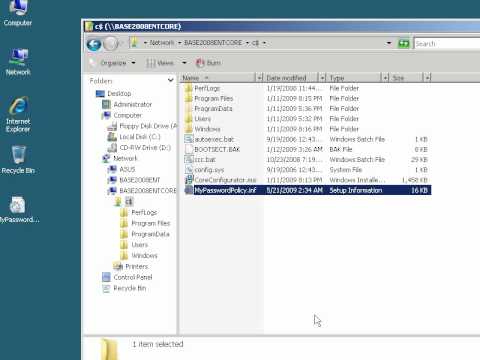
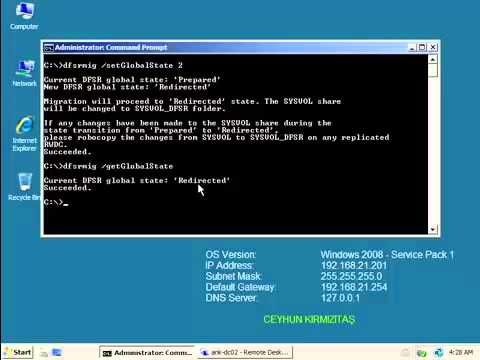
Domain controllers use a special shared folder named SYSVOL to replicate logon scripts and Group Policy object files to other domain controllers. Windows 2000 Server and Windows Server 2003 use File Replication Service (FRS) to replicate SYSVOL, whereas Windows Server 2008 uses the newer DFS Replication service when in domains that use the Windows Server 2008 domain functional level, and FRS for domains that run older domain functional levels. To use DFS Replication to replicate the SYSVOL folder, you can use the procedure that is discussed in this video tutorial to migrate replication to DFS Replication. Pre-Requisites: Check Active Directory health using DCDiag and Repadmin and make sure there are not errors. Use net share from elevated command prompt on all DCs to check Netlogon and SYSVOL share status. Change…
Read More
Error 0x80092013: The revocation function was unable to check revocation because the revocation server was offline

Error 0x80092013: The revocation function was unable to check revocation because the revocation server was offline

Windows Server
Problem: You followed all steps from a Deploying SSTP Remote Access Step by Step Guide. However, when vista or windows 7 client tries to connect VPN server you get this error: " The revocation function was unable to check revocation because the revocation server was offline. " Workaround: The SSL VPN client needs to be able to download the CRL to confirm that the server certificate on the VPN server has not been revoked. You must either publish the CRL on a server that is accessible on the Internet or configure the client to not require CRL checking.. Because it exposes a private server name to the Internet, you can do the following as an alternative solution. Solution: Disable CRL Checking on VPN Client To disable CRL checking, create a…
Read More

How to Perform Authoritative DC Restore for Windows Server 2008

Video Tutorials, Windows Server
When a domain contains more than one domain controller, Active Directory replicates directory objects, such as users, groups, organizational units, and computers, to all the domain controllers in that domain. Authoritative restore is a method to recover objects and containers that have been deleted for AD DS. An authoritative restore marks specific data as current and prevents the replication from overwriting that data. The authoritative data is then replicated throughout the domain. The process for performing an authoritative restore of AD is the same as a Non-authoritative restore except for one step. After the restore of AD is complete in DSRM and then, before restarting, you manually run Ntdsutil, and the mark the object that you want to restore as Authoritative.
Read More

Windows Server 2008 R2 Best Practices in VMware vSphere 4.X

VMware, Windows Server
Be sure the virtual machine has at least 2GB of RAM. Hard drive for the virtual machine must be 20GB or larger. Single VCPU works better for Windows 2008, Because Windows 2008 uses high bit rate address space for context switching when compared with Windows 2003, which creates multiple cycles of high bit range contexts and these are better addressed by Single VCPU. (this again vary if it is a DB server). VCPU will get hit, when VMware have wide variety of hardware components attached to VM (Majorly Serial and Parallel COM ports, USB controllers, Sound Cards etc), if any of these components are not required, remove them and disable them from VM BIOS. Zeroed Thick: Space required for the virtual disk is allocated at creation time, hoVMwarever the data…
Read More

KB373931- Srv2.sys SMB 2.0 Server Driver Fix – Windows Server 2008 R2 BSoD Problem – Windows6.1-KB373931-x64

Windows Server
Some Windows 2008 R2 servers may experience BlueScreen and Reboot problem. If these servers are using File Share or SMB v.2, srv2.sys may cause this problem. There is problem related to Srv2.sys driver. This is SMB 2.0 server driver. You can install this hotfix KB373931 for Windows Server 2008 R2 SP1 with your own risk.  
Read More