Installing CentOS 6.4 in VMware Workstation 9.0.2

Installing CentOS 6.4 in VMware Workstation 9.0.2

Linux, Video Tutorials, Workstation
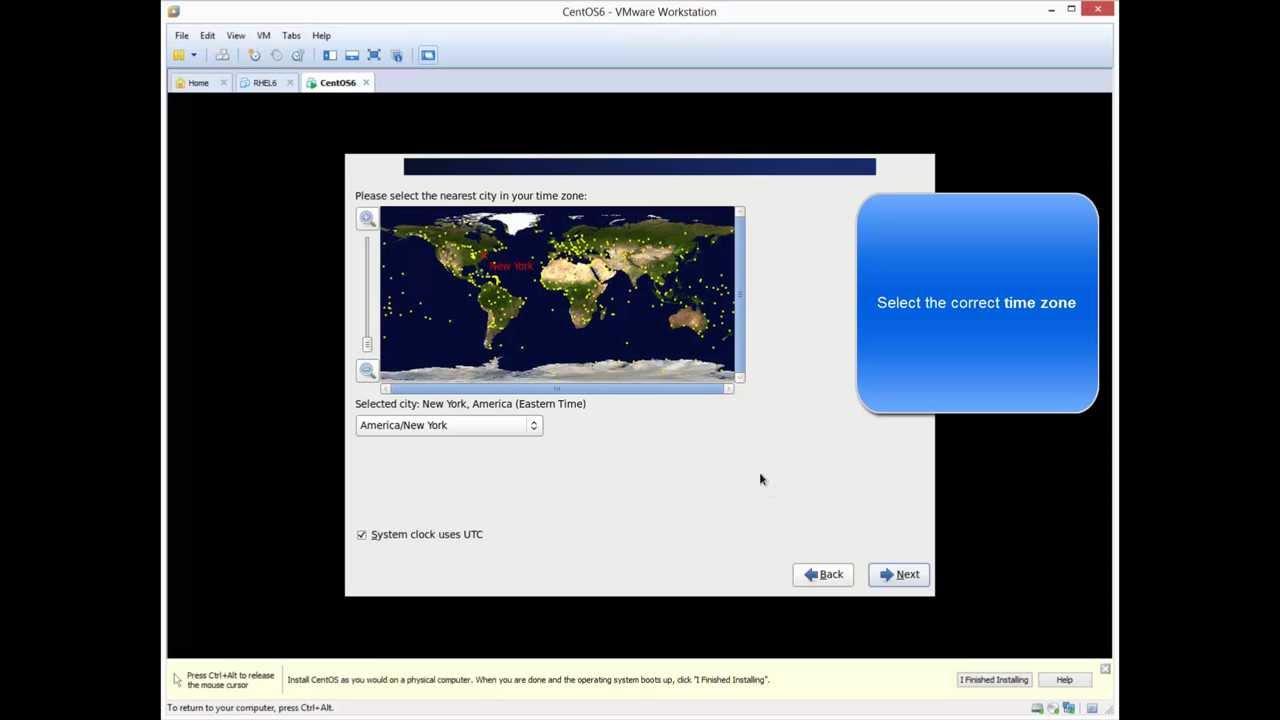
What is CentOS? CentOS, which stands for the Community Enterprise Operating System, is a distribution of the Linux operating system based on Red Hat Enterprise Linux (RHEL). It is currently the most popular Linux distribution for web servers. CentOS uses the Red Hat source code base to create a product similar to RHEL. Unlike RHEL however, CentOS does not require a paid subscription. In January 2014, Red Hat announced that it would sponsor the CentOS project. As the result of these changes, ownership of CentOS trademarks was transferred to Red Hat. Related Video:  https://www.youtube.com/watch?v=pO7iZbuTYJU
Read More

How to Install VMware vCenter Server 5.1 Update 1 on Windows Server 2008 R2 SP1

Video Tutorials, vSphere
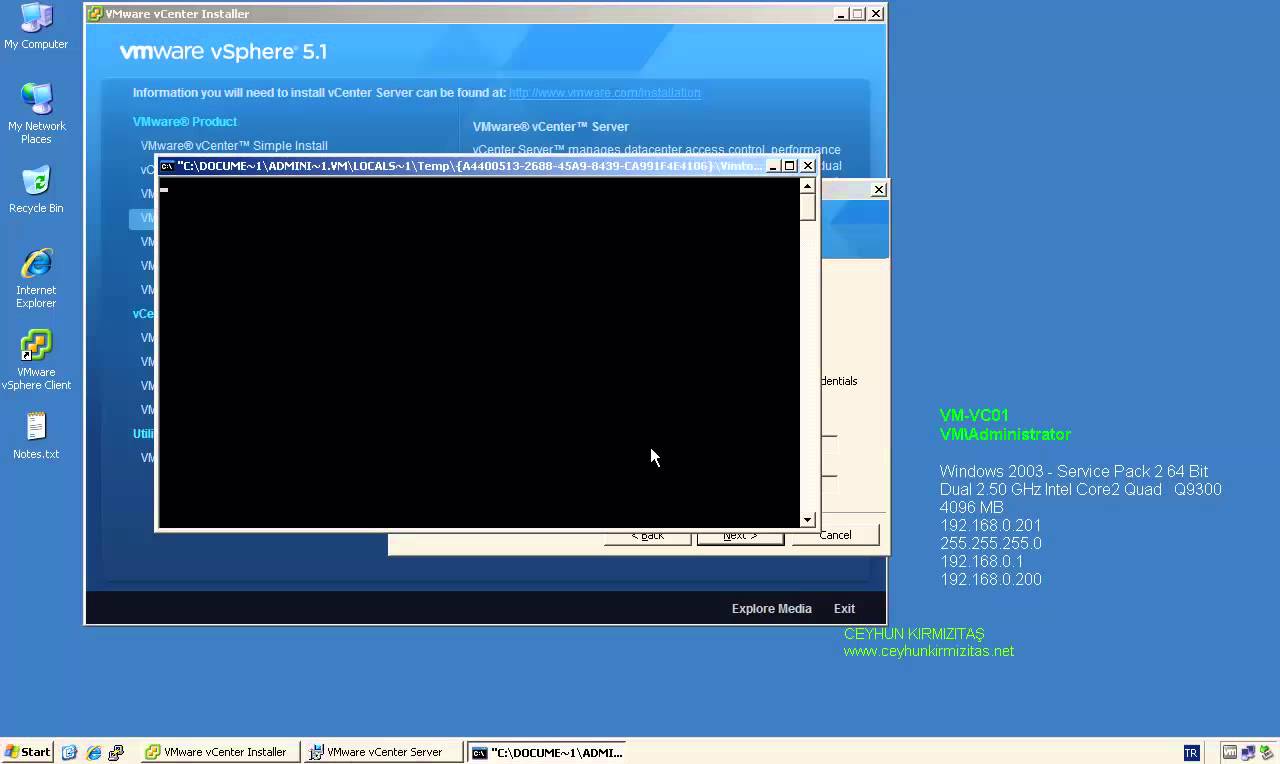
VMware released the new version of vCenter server which is 5.1 update 1, with new improvements and features. Such as: vCenter Server is now supported on Windows Server 2012 Additional vCenter Server Database Support: vCenter Server now supports the following databases. Microsoft SQL Server 2012 Microsoft SQL Server 2008 R2 SP2 vCenter Essentials no longer enforces vRAM usage limit of 192 GB vCenter 5.1 Requirements VMware recommends 10GB of RAM if you are planning to install all components on a single server (which is what the simple install does). 64-bit dual logical CPU cores have been required since vSphere 4.1, so no change here. You will also need at least 40-60GB of free disk space after installation (100GB recommended). vCenter Server supports IBM DB2, Oracle, and Microsoft SQL Server databases.…
Read More
Installing and Configuring Data Protection Manager 2010 for Exchange Server 2010 SP2

Installing and Configuring Data Protection Manager 2010 for Exchange Server 2010 SP2

Exchange Server, System Center, Video Tutorials
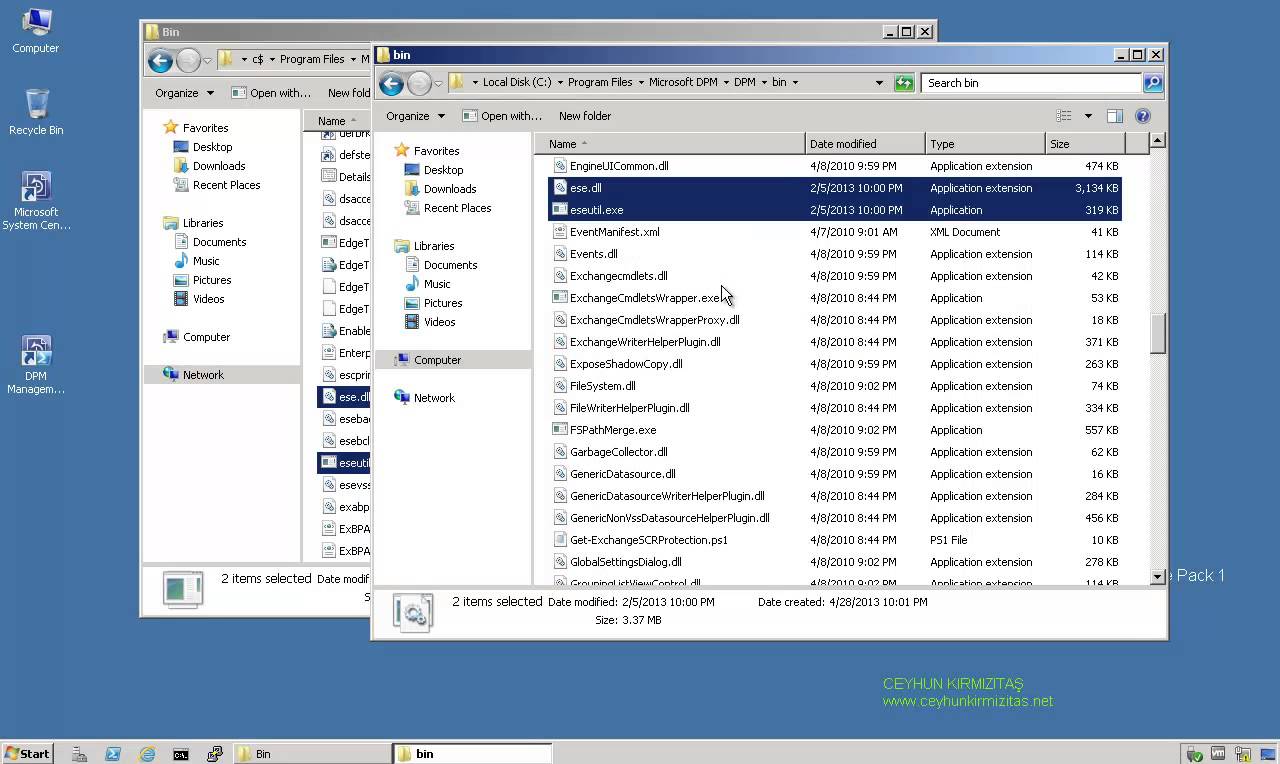
A System Center Data Protection Manager (DPM) 2010 installation includes two primary tasks: installing the DPM prerequisite software and installing the DPM application. The DPM Setup Wizard guides you through the process of specifying the DPM installation settings, and automatically installs the prerequisite software as part of an integrated DPM installation process. Important Note: DPM 2010 is not supported on the Turkish language version of Windows Server 2008 or Windows Server 2008 R2. If the automatic installation of one or more of the DPM prerequisite software products fails, you can install the prerequisite software manually. Before installing DPM, note the following: All computers that you use for your DPM installation must meet at least the minimum hardware and software requirements. DPM Setup stops the Removable Storage service before installing DPM. After you install DPM, you…
Read More
Step by Step Upgrade from VMware vCenter Server 5.0 to vCenter Server 5.1.0b

Step by Step Upgrade from VMware vCenter Server 5.0 to vCenter Server 5.1.0b

Video Tutorials, vSphere
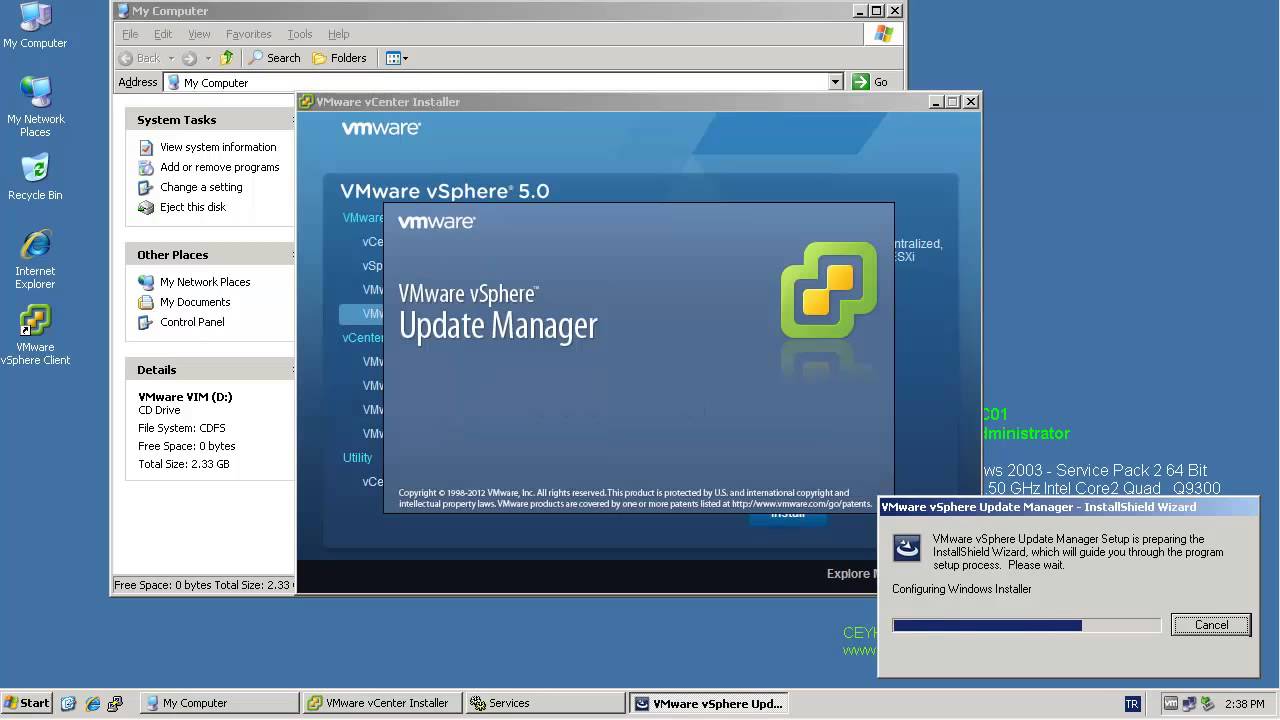
All vCenter Server Components have to be patched separately. The update process itself if strait forward and can usually been clicked through without answering much questions. Recommended Upgrade Sequence for VMware vCenter: Update vCenter Single Sign On Reboot Update VMware vCenter Inventory Service Update VMware vCenter Server Update VMware vSphere Web Client Update VMware vSphere Update Manager Update ESXi Hosts
Read More
How to Install VMware vCenter Server 5.0 on Windows Server 2003 X64 R2 SP2

How to Install VMware vCenter Server 5.0 on Windows Server 2003 X64 R2 SP2

Video Tutorials, vSphere
VMware vCenter Server is centralized management application and framework that serves as a proxy for managing ESXi hosts an their virtual machines. VMware vCenter Server allows you to centrally manage hosts from either a physical or virtual Windows machine, and enables the use of advanced features such as vSphere Distributed Resource Scheduler (DRS), vSphere High Availability (HA), vSphere vMotion, vSphere Storage vMotion, and vSphere Auto Deploy. VMware vCenter 5.0 comes in two flavors, one that is an “all-included” virtual appliance, and one that is a regular Windows installation package. Let’s take a look at vCenter installation. If you compare it to the vCenter 4 installation procedure you’ll see that VMware has added quite a few more things that can be installed. vCenter Server performs the following two key functions: Scalability:…
Read More

How to Install and Configure Microsoft SQL Server 2012 for VMware vCenter Server 5.1 Update 1

Video Tutorials, vSphere
Since vSphere 5.1 U1 it’s possible to install vCenter Server on Windows Server 2012. Also a Microsoft SQL 2012 is supported as an external database. Since the vSphere 5.1, the architecture of vCenter has changed and another database which name is Single Sign On is present. So there are three databases for vCenter: VMware vSphere 5.1 Single Sign-On VMware vSphere vCenter server VMware Update Manager All those database can be installed on a separate Microsoft SQL Server 2012 (this post) or on the same VM as vCenter server. SQL 2008R2 Express is still the database which is bundled with the VMware vSphere.
Read More
Install and Configure DHCP Server on CentOS 6.x – RHEL 6.x

Install and Configure DHCP Server on CentOS 6.x – RHEL 6.x

Red Hat - CentOS - Fedora, Video Tutorials
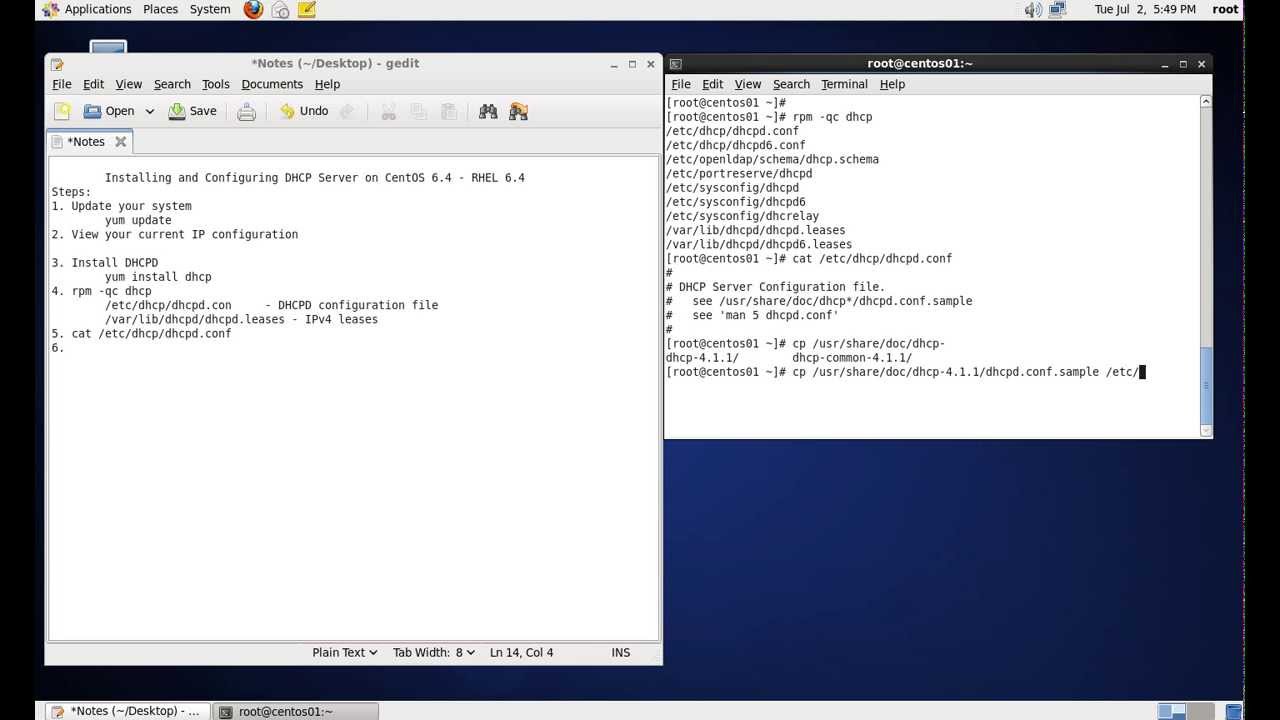
What is DHCP? DHCP stands for Dynamic Host Configuration Protocol. DHCP is a standardized network protocol used on Internet Protocol networks for dynamically distributing network configuration parameters, such as IP addresses for interfaces and services. DHCP is configured in a server-client model. DHCP server is the one assigning IP Addresses to client computers on the network. Each client is assigned a unique IP Address. DHCP server has a number of IP Addresses available in it’s pool. Steps: 1. Install DHCP yum install dhcp rpm -qc dhcp /etc/dhcp/ - container for DHCPD configuration /etc/dhcp/dhcpd.conf - IPv4 config /var/lib/dhcpd - container for leases /var/lib/dhcpd/dhcpd.leases - IPv4 leases 2. Enable DHCPD service chkconfig dhcpd on 3. View dhcpd.conf file cat /etc/dhcp/dhcpd.conf 4. Copy sample conf file to /etc/ cp /usr/share/doc/dhcp-4.1.1/dhcpd.conf.sample  /etc/dhcp/dhcpd.conf 5. Edit the…
Read More
How to Restore Exchange 2010 Mailbox to Different Mailbox

How to Restore Exchange 2010 Mailbox to Different Mailbox

Exchange Server, Video Tutorials
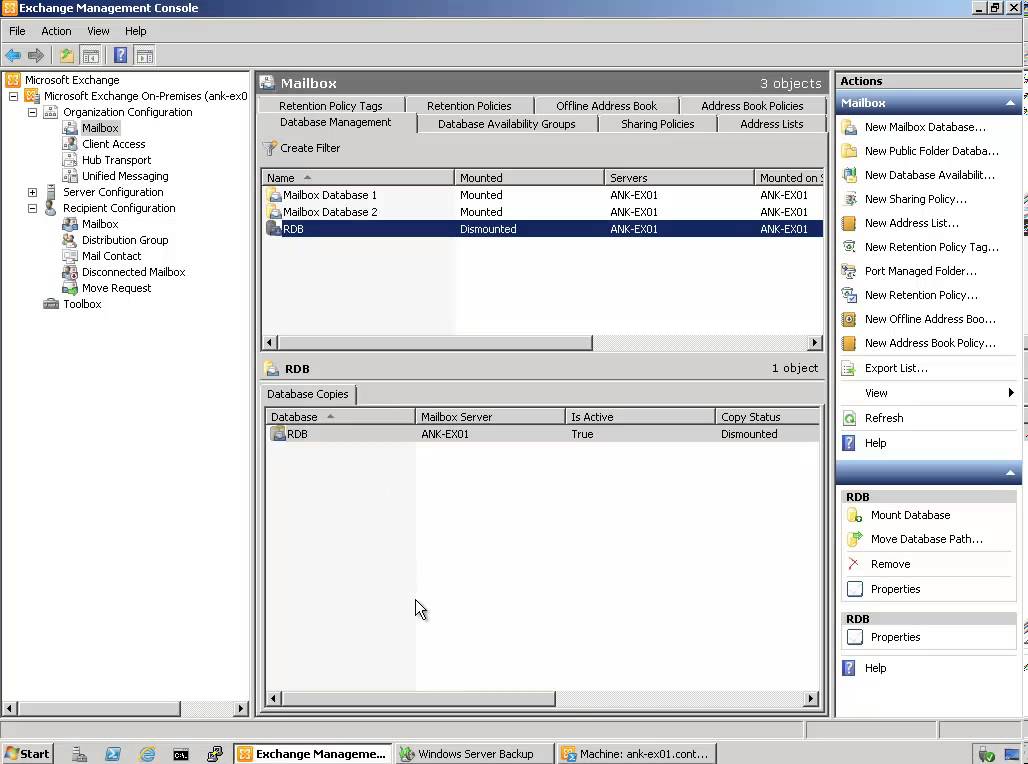
Exchange 2010 no longer has the notion of Storage Groups, which were used in Exchange 2007 and 2003 to contain logical groupings of databases. Exchange 2010 now simply lets you create databases on mailbox servers. The difference is that in Exchange 2003/2007, you created a Recover Storage Group (RSG) to restore the database into. In Exchange 2010, you simply restore the database and connect to it as a Recovery Database (RDB). First,  you have to have a good backup that contains the item to be recovered. Windows Server 2008 and Windows Server 2008 R2 have the built-in Windows Server Backup feature. I cover how to use Windows Server Backup to backup Exchange in this article. Without the ability to restore an individual mailbox, it is necessary to first restore an entire…
Read More
How to Configure Windows 2008 Fine-Grained Password Policy

How to Configure Windows 2008 Fine-Grained Password Policy

Video Tutorials, Windows Server
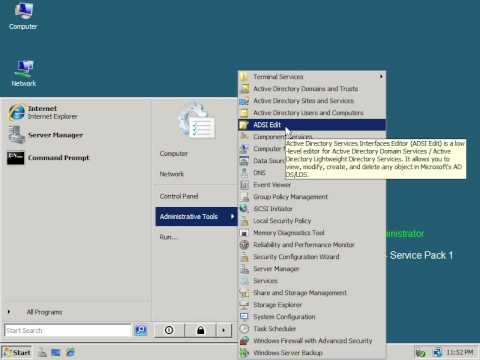
In previous versions of Active Directory, we had only one password policy for the entire domain. Some companies had to use multiple domains to place different password policies on different users or buy third party solutions. In Windows Server 2008, you can use fine-grained password policies to specify multiple password policies and apply different password restrictions and account lockout policies to different sets of users within a single domain. Password polices are designed to control what kind of password a user can have and how often the user needs to change it. Strong password policies are important to help protect your system and data.
Read More
Install and Configure VSFTPD FTP Server – RHEL 6 – CentOS 6

Install and Configure VSFTPD FTP Server – RHEL 6 – CentOS 6

Red Hat - CentOS - Fedora, Video Tutorials
When you think of transferring files, you probably think of the File Transfer Protocol (FTP) because it has been around for so long. While simple to use, FTP has become obsolete because it lacks the ability for secure file transfers. vsftpd (Very Secure File Transport Protocol Daemon) is a secure, fast FTP server for Unix/Linux systems. Steps: 1. Install vsftpd yum install vsftpd 2. Enable vsftpd service chkconfig vsftpd on 3. Start vsftpd service service vsftpd start 4. Check ftp port netstat -ntl | grep 21 5. Test ftp server access FTP server is running and anonymous access is enabled by default 6. Disable anonymous access Edit /etc/vsftd/vsftpd.conf anonymous_enable=NO 7. Enable dual logging dual_log_enable=YES It created /var/log/vsftpd.log file which uses vsftpd log format 8. Enable server time for display of…
Read More