How to Perform Windows Server 2008 DC Deployment from IFM Media

How to Perform Windows Server 2008 DC Deployment from IFM Media

Video Tutorials
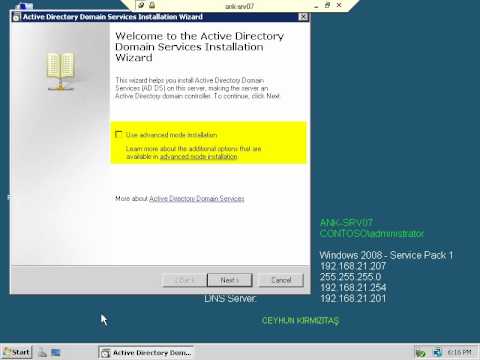
Install from media (IFM) was first introduced in Windows Server 2003. We can use the Install from media (IFM) option to install an Additional Domain Controller in an existing domain is the best option such as a branch office scenario. IFM option is the best for deployment Additional Domain Controller at the branch office which will minimize replication traffic during the Installation. Using the IFM method, you can dramatically reduce the amount of replication traffic that is introduced during the installation of an additional DC. Only objects that were modified, added, or deleted since the installation media was created will be replicated.
Read More
How to Manage Local Password Policy on Windows Server 2008 Core

How to Manage Local Password Policy on Windows Server 2008 Core

Video Tutorials, Windows Server
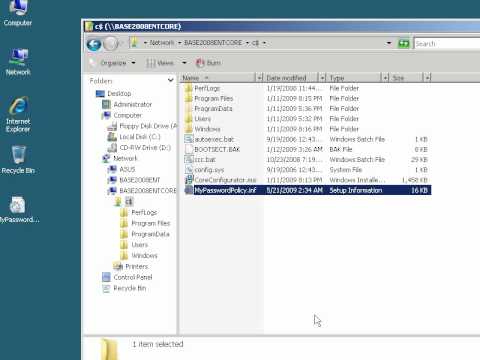
Windows Server 2008 Core is a minimal server installation option for computers running on the Windows Server 2008 operating system. Server Core provides a low-maintenance server environment with limited functionality. Windows Server 2008 Core supports the following server roles: Active Directory Domain Services (AD DS) Active Directory Lightweight Directory Services (AD LDS) DHCP Server DNS Server File Services Print Services Streaming Media Services Internet Information Services (IIS) Virtualization Local Security Policy allows enforcing many system, user and security-related settings, such as password policy, audit policy and user rights. Event Viewer can then be used to check log events.
Read More
How to Install VMware vSphere vCenter Server 5.1.0b on Windows Server 2003 R2 X64 SP2

How to Install VMware vSphere vCenter Server 5.1.0b on Windows Server 2003 R2 X64 SP2

Video Tutorials, vSphere
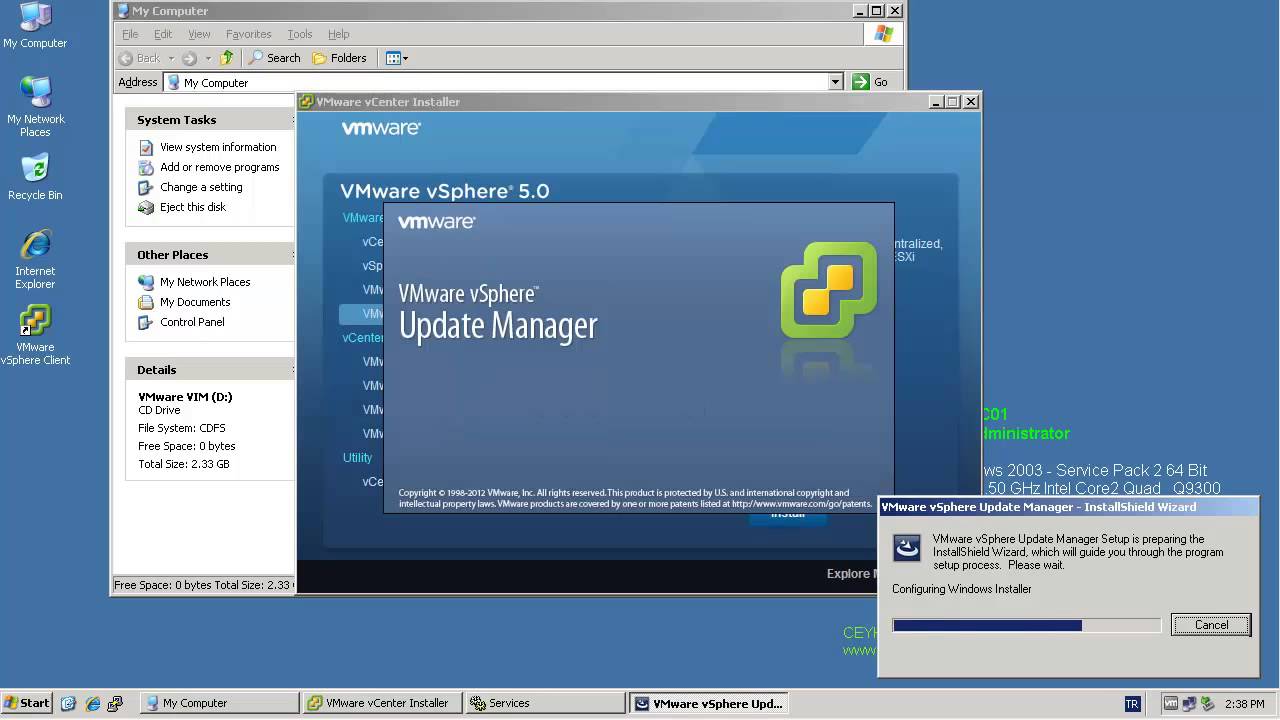
One of most important components of the vSphere environment is vCenter Server. vCenter Server acts as a central management point for managing ESXi hosts. In this video we will install VMware vSphere vCenter Server 5.1.0b using the Simple Install method on Windows Server 2003 R2 X64 SP2. Minimum requirements for the vCenter server Processor: Intel or AMD x86 processor with two or more logical cores, each with a speed of at least 2GHz. Memory: 4GB RAM. RAM requirements may be higher if your database runs on the same machine. Disk storage: 4GB. Disk requirements may be higher if the vCenter Server database runs on the same machine. Supported operating systems Microsoft Windows Server 2003 SP2 64bit Microsoft Windows Server 2003 SP2 64bit Microsoft Windows Server 2008 SP2 64bit Microsoft Windows…
Read More
Installing Debian 7.0 Wheezy in VMware Workstation 9

Installing Debian 7.0 Wheezy in VMware Workstation 9

Linux, Video Tutorials
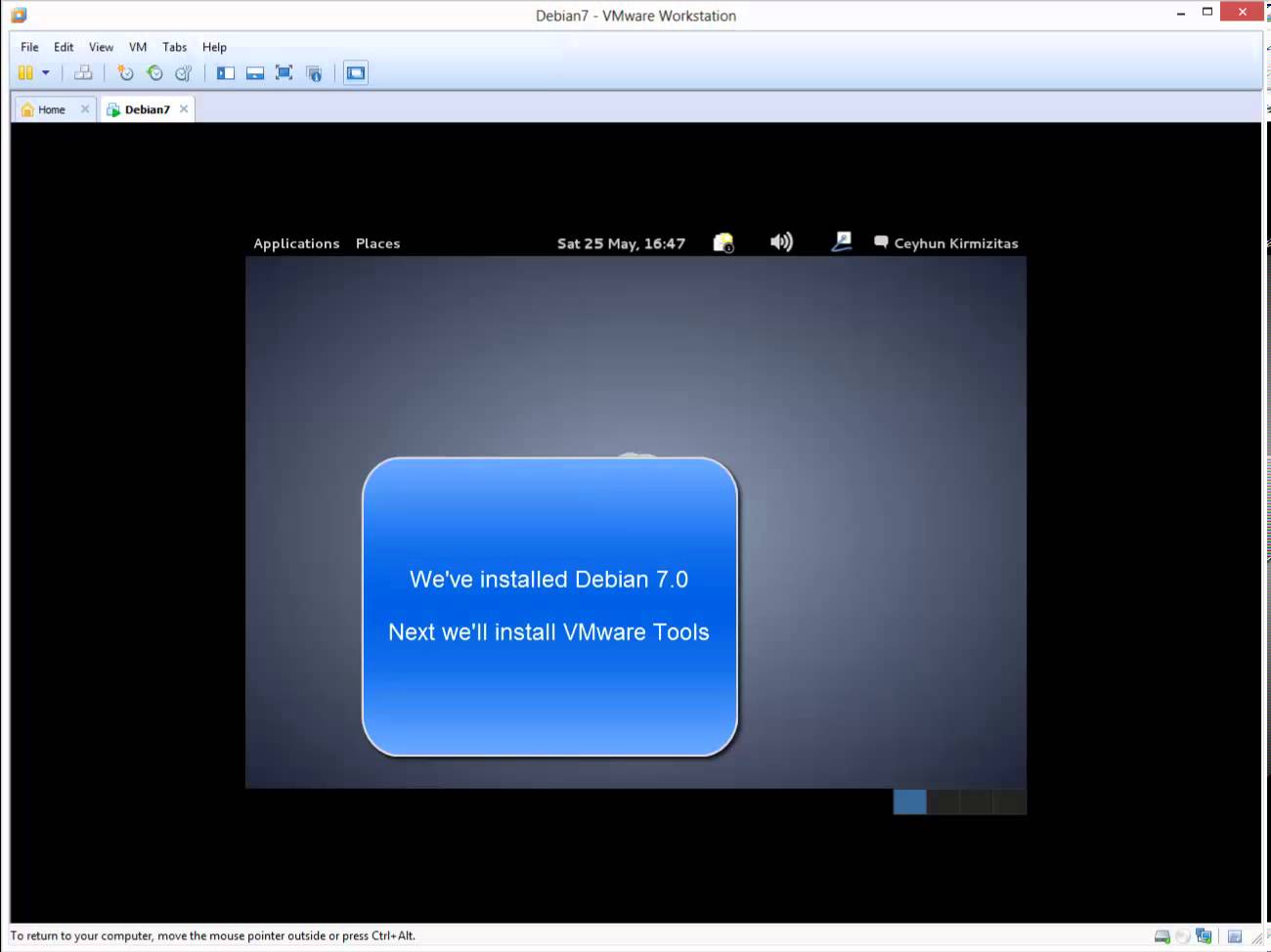
Debian is the most stable and popular non-commercial Linux distribution. It is maintained by a global community of over 1,200 registered developers dedicated to improving and enhancing its functionality. So, new versions of Debian are released only when they are ready. The package management tools in Debian are so well-developed that even commercial Linux distributions such as Red Hat have implemented Debian's technology to handle their packages. Related Video: https://www.youtube.com/watch?v=CdzIzCckr2A Hope you found it informative and useful.Any questions or comments are welcomed.
Read More
How to Install Linux Mint 15 Cinnamon (Olivia) in VMware Workstation 9.0.2

How to Install Linux Mint 15 Cinnamon (Olivia) in VMware Workstation 9.0.2

Linux, Video Tutorials
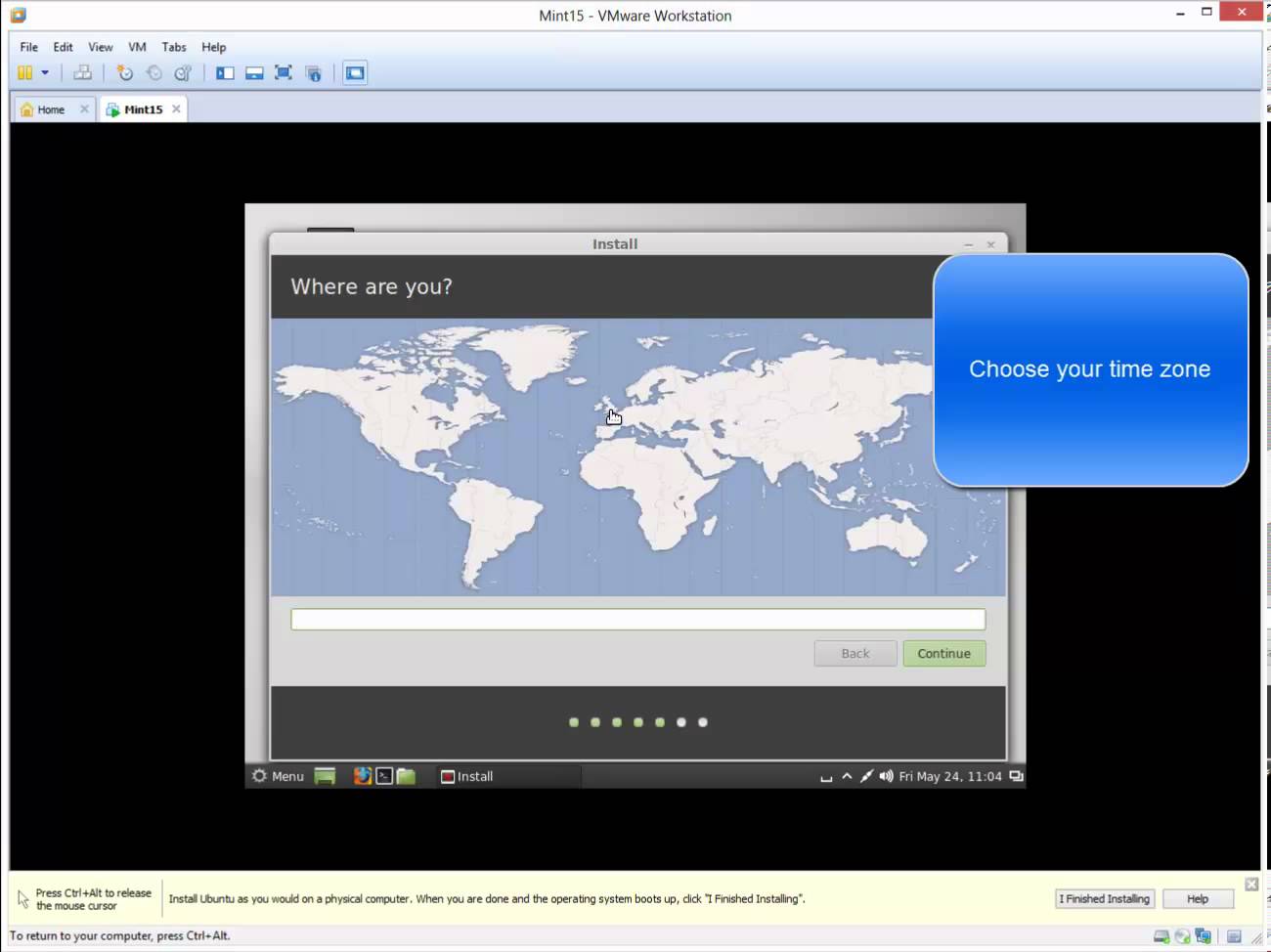
The purpose of Linux Mint is to produce a modern, elegant and comfortable operating system which is both powerful and easy to use. Linux Mint is the most popular desktop Linux distribution and the 3rd most widely used home operating system. Why Linux Mint? These are some reasons for the success of Linux Mint: Free and open source. Community-driven. Based on Debian and Ubuntu, it provides about 30,000 packages. Works out of the box, with full multimedia support and is extremely easy to use. Safe and reliable. Related Video: https://www.youtube.com/watch?v=MMMcwAUi9BA
Read More
Installing VMware ESXi 5.1 Update 1 in VMware Workstation 9.0.2

Installing VMware ESXi 5.1 Update 1 in VMware Workstation 9.0.2

Video Tutorials, vSphere
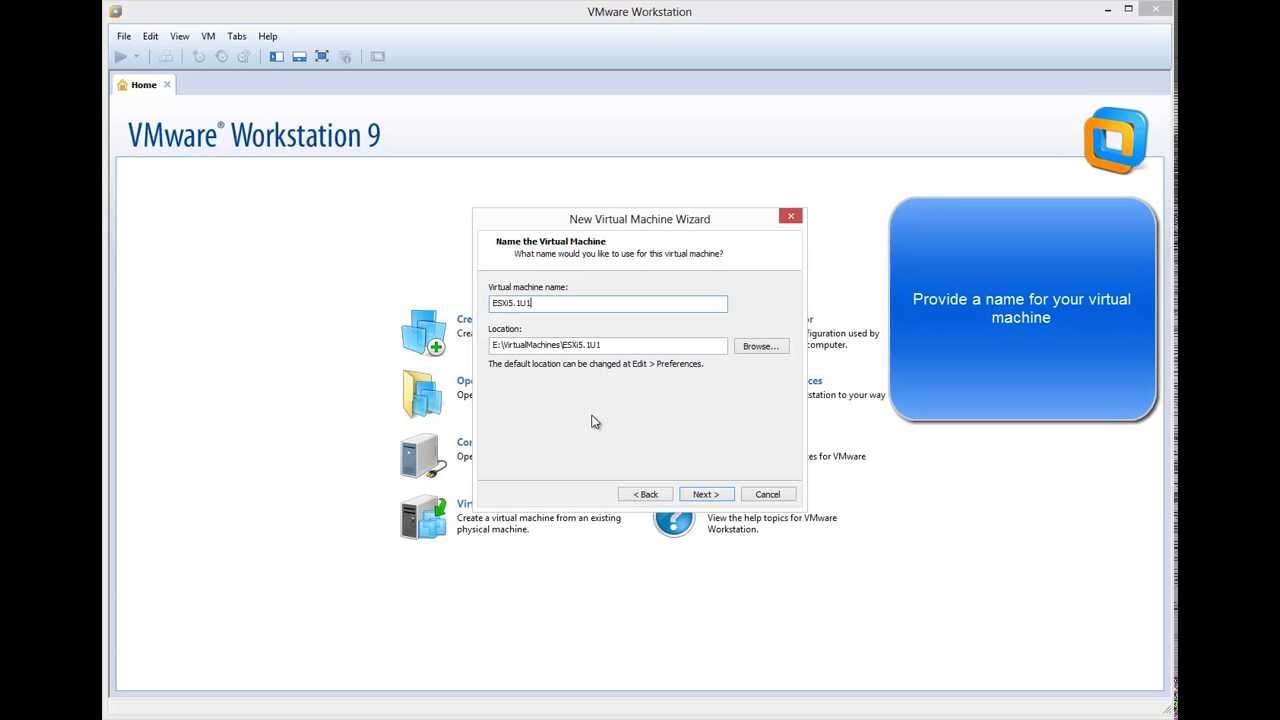
VMware Wosktation allows to run ESXi as virtual machine (virtual environment as virtual machine). It can be very useful to evaluate, experiment and learn vSphere at home.  I will show how easy is to install ESXi 5.1 as virtual machine on VMware Workstation 9. When you run ESXi 5.1 in a VMware Workstation 9 virtual machine you can run virtual machines in that virtualized ESXi-host if your CPU has virtualization support. (You might need to enable it in the BIOS) You will always be able to run 32 bit vm's in the virtual ESXi-host. But running 64 bit virtual machine requires the EPT feature in your Intel-processor (for AMD it's called RVI). Related Video: https://www.youtube.com/watch?v=DMkTJc7ivfQ Hope you found this informative and useful
Read More
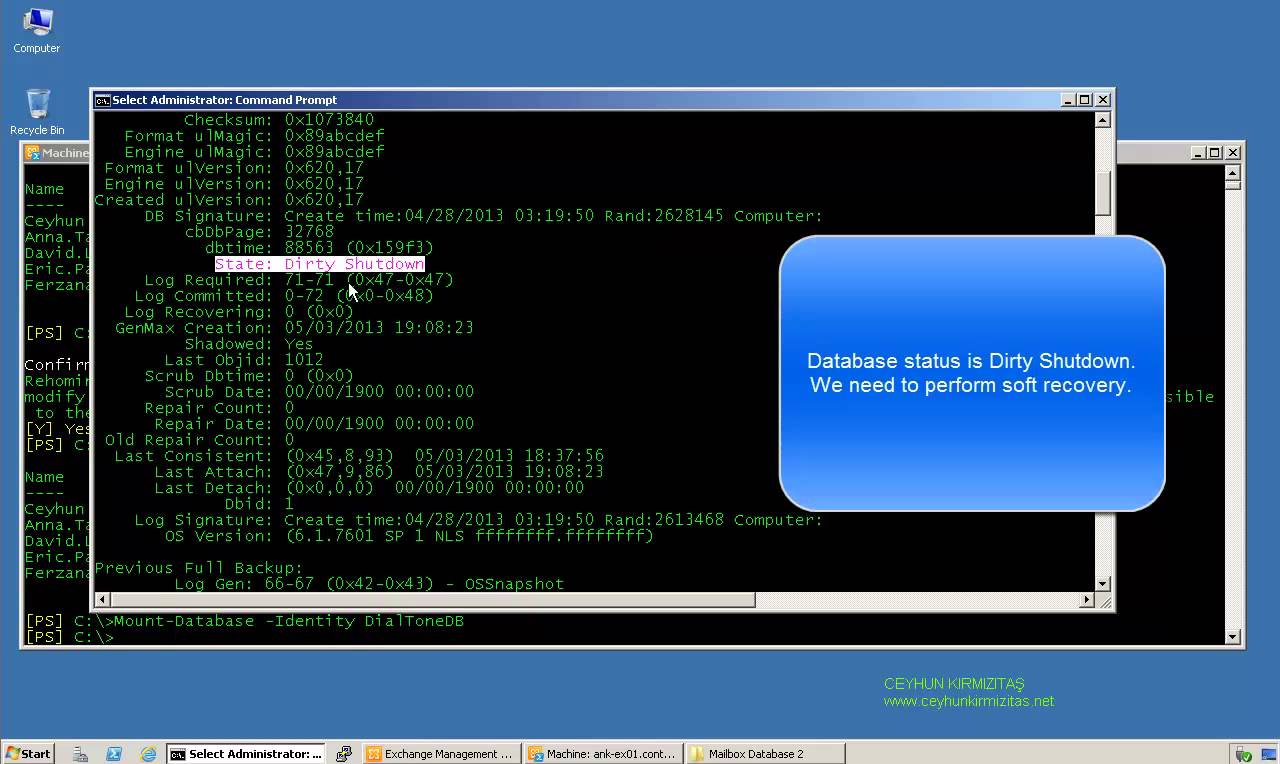
How to Perform Dial Tone Recovery in Exchange Server 2010 with Windows Server Backup

How to Perform Dial Tone Recovery in Exchange Server 2010 with Windows Server Backup

Exchange Server, Video Tutorials
What is Exchange Dial Tone Recovery? Exchange 2010 has many updated and efficient features, which make it a very popular email server, but these useful features do not reduce the chances of data loss. Therefore, a need of a reliable recovery plan is always on the priority, during any disaster. Exchange offers an inbuilt feature to recover Exchange database, named dial tone portability. Using dial tone recovery, users can have a temporary mailbox for sending and receiving email while their original mailbox is being restored or repaired. The temporary mailbox can be on the same Exchange 2010 Mailbox server or on any other Exchange 2010 Mailbox server in your organization. The process for using dial tone portability is called a dial tone recovery, which involves creating an empty database on…
Read More
Managing SWAP Partitions – RHEL 6.x – CentOS 6.x

Managing SWAP Partitions – RHEL 6.x – CentOS 6.x

Red Hat - CentOS - Fedora, Video Tutorials
If the system needs more memory resources and the RAM is full, inactive pages in memory are moved to the swap space. Swap space is a portion of a hard disk drive (HDD) that is used for virtual memory. It can be whole disk partition or just a file inside an existing partition or a combination of swap partitions and swap files. We will see how to manage SWAP Partitions on RHEL 6.x or CentOS 6.x Steps: 1. Show current SWAP allocation free -m swapon -s 2. Create additional SWAP space from new partition Reboot is required at this step 3. Make swap mkswap /dev/sdb2 UUID=8bced662-e967-4861-9bac-6df8957b3eb5 4. Update /etc/fstab UUID=8bced662-e967-4861-9bac-6df8957b3eb5 swap swap defaults 0 0 5. Re-reads /etc/fstab for swap swapon -a 6. Show swap usage summary by device swapon -s free…
Read More
Install and Configure Secondary (Slave) BIND DNS Server – RHEL 6 – CentOS 6

Install and Configure Secondary (Slave) BIND DNS Server – RHEL 6 – CentOS 6

Red Hat - CentOS - Fedora, Video Tutorials
After we have installed BIND as a master DNS server (centos01) (as explained in my recent video), we can now set up a secondary DNS server (centos02) with BIND on CentOS. centos02 acts as a backup if there are problems with centos01. This tutorial will show you how to setup and configure Secondary (Slave) BIND DNS Server on RHEL 6.x or CentOS 6.x Note: centos01.linuxlab.local is Primary (Master) DNS server for linuxlab.local domain We'll make centos02.linuxlab.local ( 192.168.0.22) as secondary dns server for linuxlab.local domain Steps: 1. Define centos02 as Name Server in the primary zone 2. Install bind on other server 3. Configure /etc/named.conf on centos02 (secondary dns server) 4. Allow zone transfer to only our secondary dns server in primary dns server allow-transfer { 192.168.0.22; }; 5. start…
Read More
How to Perform SYSVOL Migration from FRS to DFRS Replication

How to Perform SYSVOL Migration from FRS to DFRS Replication

Video Tutorials, Windows Server
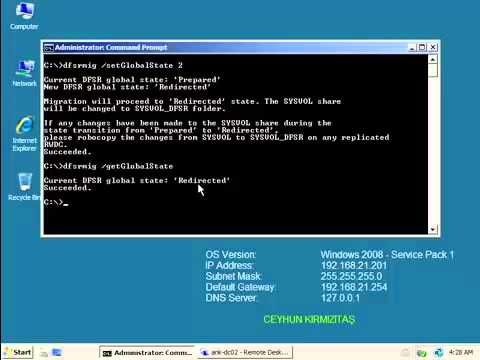
Domain controllers use a special shared folder named SYSVOL to replicate logon scripts and Group Policy object files to other domain controllers. Windows 2000 Server and Windows Server 2003 use File Replication Service (FRS) to replicate SYSVOL, whereas Windows Server 2008 uses the newer DFS Replication service when in domains that use the Windows Server 2008 domain functional level, and FRS for domains that run older domain functional levels. To use DFS Replication to replicate the SYSVOL folder, you can use the procedure that is discussed in this video tutorial to migrate replication to DFS Replication. Pre-Requisites: Check Active Directory health using DCDiag and Repadmin and make sure there are not errors. Use net share from elevated command prompt on all DCs to check Netlogon and SYSVOL share status. Change…
Read More