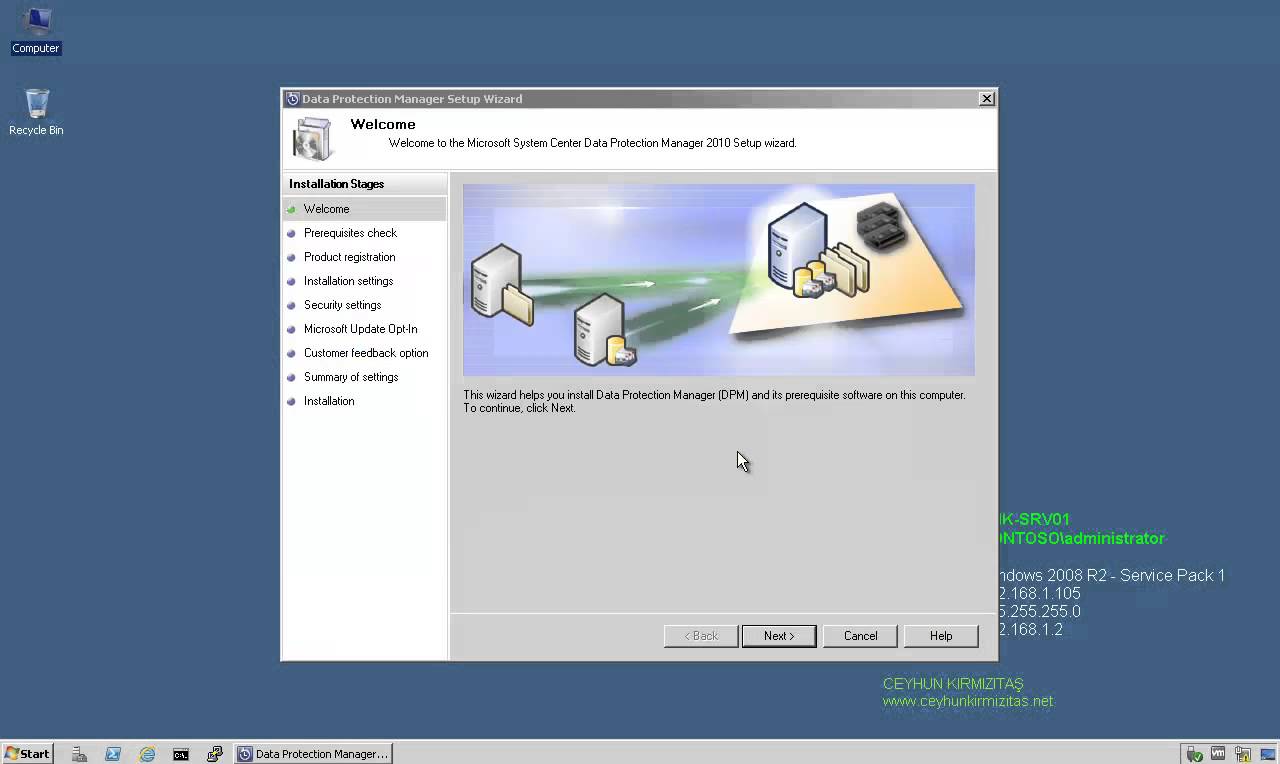
How to Install Data Protection Manager 2010 on Windows Server 2008 R2 SP1

How to Install Data Protection Manager 2010 on Windows Server 2008 R2 SP1

System Center, Video Tutorials
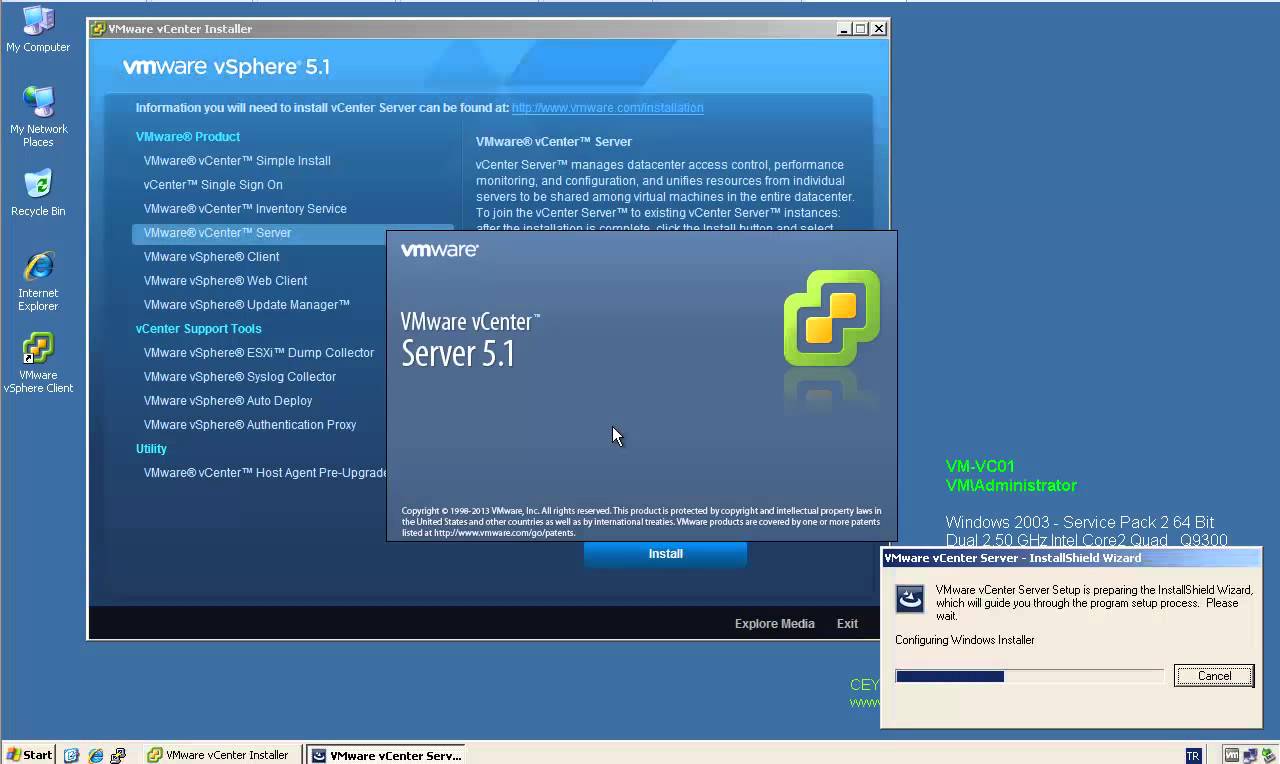
A System Center Data Protection Manager (DPM) 2010 installation includes two primary tasks: installing the DPM prerequisite software and installing the DPM application. The DPM Setup Wizard guides you through the process of specifying the DPM installation settings, and automatically installs the prerequisite software as part of an integrated DPM installation process. Important Note: DPM 2010 is not supported on the Turkish language version of Windows Server 2008 or Windows Server 2008 R2. If the automatic installation of one or more of the DPM prerequisite software products fails, you can install the prerequisite software manually. Before installing DPM, note the following: All computers that you use for your DPM installation must meet at least the minimum hardware and software requirements. DPM Setup stops the Removable Storage service before installing DPM. After you install DPM, you…
Read More
How to Join VMware ESXi 5.1 to Active Directory Domain

How to Join VMware ESXi 5.1 to Active Directory Domain

Video Tutorials, vSphere
It’s important to join your ESXi host to a Windows domain if there is one present in your architecture. By allowing AD to authenticate, you can simply delegate permissions based on your AD groups such as the Domain Admins’ group. Steps to enable Active Directory authentication: Log in to your ESXi hosts locally and click on Configuration. On the left side of the dialog, select Authentication Services and then click Properties. From the Select Directory Services Type drop-down, choose Active Directory. In the domain settings, you can add your domain in one of two ways: Simply add mydomain.local; this will add the computer account for ESXi in the default Computers OU. To specify a different OU where you want the ESXi computer account to be located, use this format: mydomain.local/vsphere.…
Read More
Step by Step Upgrade from VMware vCenter Server 5.1 to vCenter Server 5.1 Update 1

Step by Step Upgrade from VMware vCenter Server 5.1 to vCenter Server 5.1 Update 1

Video Tutorials, vSphere
VMware vCenter Server has been split into 4 services: Single-Sign On, Inventory Service, vCenter Server and the vSphere Web Client. That makes the update process a little bit more more complex. All vCenter Server Components have to be patched separately. The update process itself if strait forward and can usually been clicked through without answering much questions. Recommended Upgrade Sequence for VMware vCenter: Update vCenter Single Sign On Reboot Update VMware vCenter Inventory Service Update VMware vCenter Server Update VMware vSphere Web Client Update VMware vSphere Update Manager Update ESXi Hosts
Read More
How to Install PCLinuxOS KDE 2013.04 in VMware Workstation 9

How to Install PCLinuxOS KDE 2013.04 in VMware Workstation 9

Linux, Video Tutorials
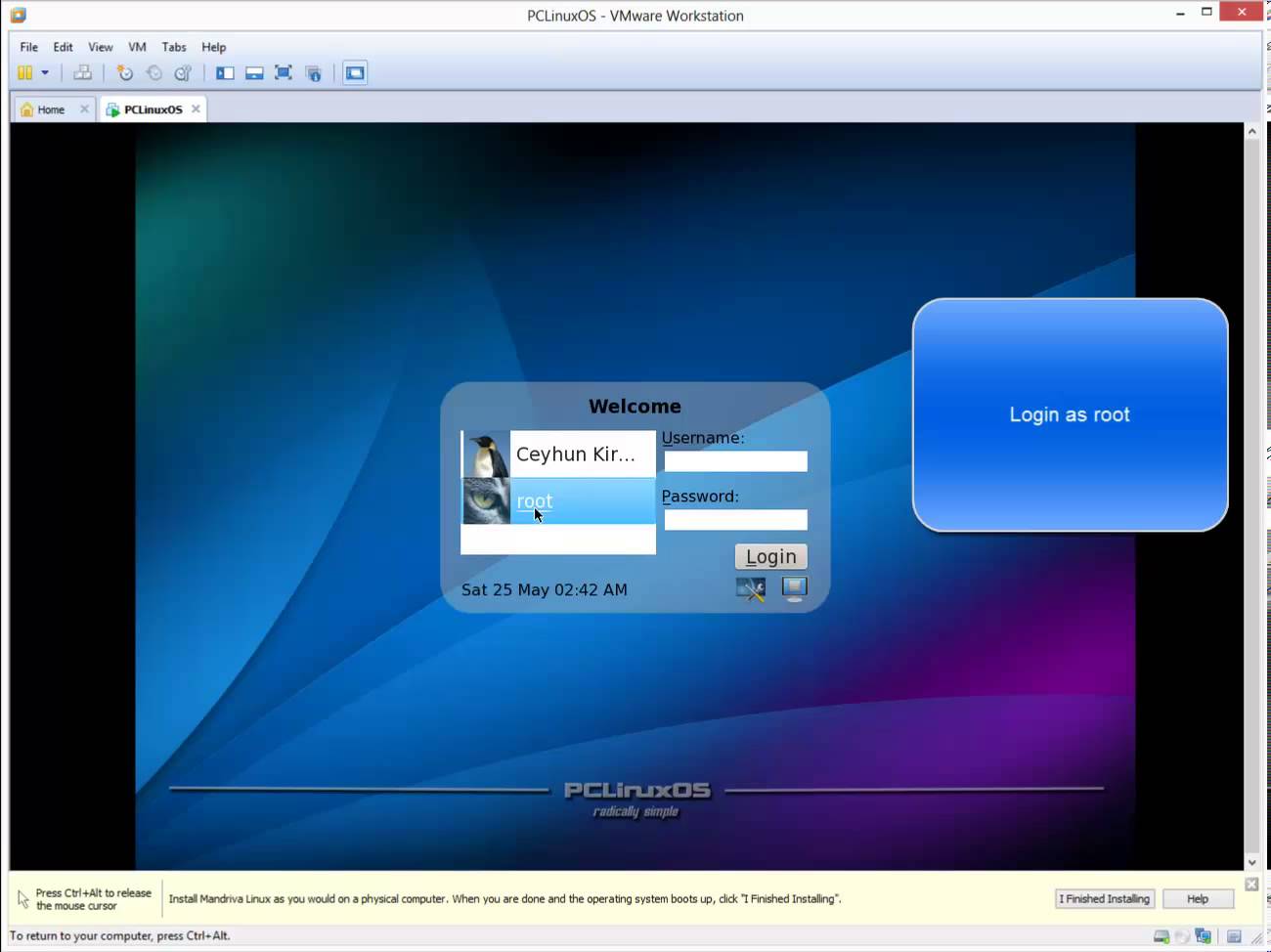
Why PCLinuxOS? PCLinuxOS is based on Mandriva. PCLinuxOS aims to be a simple distribution that reaches to the masses, allowing Windows users to easily and painlessly convert. It uses Synaptic as the frontend for the APT package management system, also used in Ubuntu. On the other hand, it retains many of the GUI-oriented functions that Mandriva has, making it suitable for Linux newbies. In following video tutorial, we will see: - Installing PCLinuxOS KDE 2013.04 in VMware Workstation 9.0.2 - Installing VMware Tools Related Video: https://www.youtube.com/watch?v=o9GXjStuwiY Hope you found it useful. Any questions or comments are welcomed.
Read More
Install Fedora 19 KDE Desktop Edition in VMware Workstation 9

Install Fedora 19 KDE Desktop Edition in VMware Workstation 9

Red Hat - CentOS - Fedora, Video Tutorials, Workstation
Anaconda installer for Fedora 18 was a complete mess after its installer user-interface was redone. The Fedora 19 KDE installation is fairly simple and easy process. The Best Features Of Fedora 19 Fedora 18 is one of the first major tier-one Linux distributions shipping the GCC 4.8 compiler by default. GCC 4.8 has a whole lot of improvements from faster performance for some workloads to better instruction set coverage on new processors and full C++11 support. GNOME 3.8, KDE Plasma 4.10, and MATE 1.6 are among the Linux desktop environment options available on Fedora 19. GNOME 3.8, of course, is the default desktop environment for Fedora Linux 19. RPM 4.11 is now in use for package management and it brings better performance, lower memory usage, better file conflict detection, and…
Read More

How to Perform Authoritative DC Restore for Windows Server 2008

Video Tutorials, Windows Server
When a domain contains more than one domain controller, Active Directory replicates directory objects, such as users, groups, organizational units, and computers, to all the domain controllers in that domain. Authoritative restore is a method to recover objects and containers that have been deleted for AD DS. An authoritative restore marks specific data as current and prevents the replication from overwriting that data. The authoritative data is then replicated throughout the domain. The process for performing an authoritative restore of AD is the same as a Non-authoritative restore except for one step. After the restore of AD is complete in DSRM and then, before restarting, you manually run Ntdsutil, and the mark the object that you want to restore as Authoritative.
Read More
How to Enable SSL Support for VSFTPD – RHEL 6 – CentOS 6

How to Enable SSL Support for VSFTPD – RHEL 6 – CentOS 6

Red Hat - CentOS - Fedora, Video Tutorials
FTP, or file transfer protocol, was a popular way to transfer files between local and remote computers in the past. Traditional FTP is rather insecure. When you login, your username and password are transmitted in clear text, raising the possibility of your credentials being sniffed. If you still want to use FTP instead of a more secure alternative like SFTP, which uses the SSH protocol to implement file transfers, you can secure it somewhat by configuring FTP to use SSL. You can quite easily configure your vsftpd server to use OpenSSL encryption, so that usernames & password, and even data files, are encrypted during transfer. It takes just a few simple steps. Steps: 1. Check whether the latest mod_ssl installed locate mod_ssl 2. Install the latest mod_ssl via yum yum…
Read More
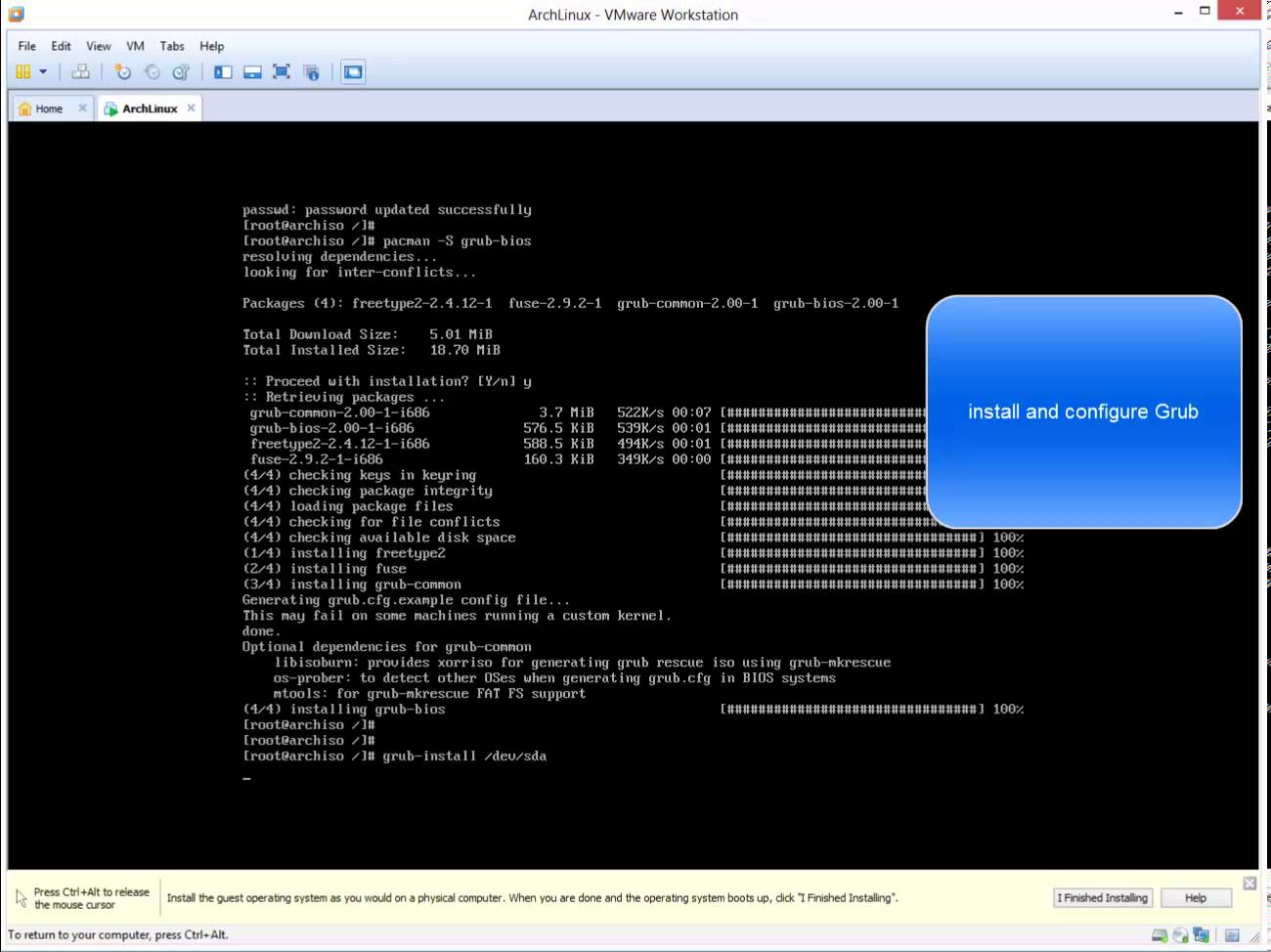
Installing Arch Linux 2013.05.01 + Xfce 4.10 in VMware Workstation 9

Installing Arch Linux 2013.05.01 + Xfce 4.10 in VMware Workstation 9

Linux, Video Tutorials
What is Arch Linux? Arch Linux is an independently developed general purpose GNU/Linux distribution. Development focuses on simplicity, minimalism. Arch Linux was founded by Canadian programmer Judd Vinet. Its first formal release, Arch Linux 0.1, was on March 11, 2002. Although Arch is completely independent, it draws inspiration from the simplicity of other distributions including Slackware, CRUX and BSD. Arch Linux is one of my favorite GNU/Linux distributions, however it is not as easy to install as are other Linux distributions. Related Video: https://www.youtube.com/watch?v=8ILPjsZvs8Y Hope you found it informative and useful. Any questions or comments are welcomed.
Read More
How to Perform Windows Server 2008 Complete Server Backup and Restore

How to Perform Windows Server 2008 Complete Server Backup and Restore

Video Tutorials
Windows Server 2008 contains new and updated features to help you create backups and, if needed, perform a recovery of your operating system, applications, and data. You can recover your server operating system or full server by using Windows Recovery Environment and a backup that you created earlier with Windows Server Backup. Using the Windows Recovery Environment on Windows Server 2008 you can perform a bare-metal restore to recover your server operating system or the entire server itself. An operating system restore will only recover critical drive volumes that contain system components. If you would like to restore all volumes, you will need to conduct a full server recovery.
Read More

How to Perform Step by Step Exchange 2010 Single Mailbox Item Restore with Windows Server Backup

Exchange Server, Video Tutorials
Exchange Server 2010 no longer has the notion of Storage Groups, which were used in Exchange 2007 and 2003 to contain logical groupings of databases. Exchange 2010 now simply lets you create databases on mailbox servers. The difference is that in Exchange 2003/2007, you created a Recover Storage Group (RSG) to restore the database into. In Exchange 2010, you simply restore the database and connect to it as a Recovery Database (RDB). While the main purpose of Exchange backup is to enable server, storage, and datacenter disaster recovery scenarios, a common and routine request of Exchange admins is to restore an individual mailbox. Microsoft does not provide a native and fully automated way to granularly restore a single mailbox from an Exchange database backup. In this video I'll demonstrate the…
Read More