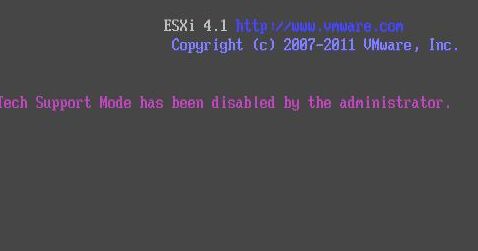
Tech Support Mode has been disabled by the Administrator on ESXi 4.1

Tech Support Mode has been disabled by the Administrator on ESXi 4.1

VMware
Tech Support Mode (TSM) provides a command-line interface that can be used by the administrator to troubleshoot and correct abnormal conditions on VMware ESXi hosts. To access the local TSM: At the main DCUI screen, press ALT+F1 simultaneously. This opens a virtual console window to the host. Provide credentials when prompted.Note: When typing the password, characters are not displayed on the console. Tech Support Mode has been disabled by the Administrator on ESXi 4.1 If " Local Tech Support " daemon does not running, you get " Tech Support Mode has been disabled by the Administrator " when accessing to the local TSM. To enable local TSM from the vSphere Client: Select the host and click the Configuration tab. Click Security profile > Properties. Click Local Tech Support and click…
Read More
How to Install VMware vSphere vCenter Server 5.1.0b on Windows Server 2003 R2 X64 SP2

How to Install VMware vSphere vCenter Server 5.1.0b on Windows Server 2003 R2 X64 SP2

Video Tutorials, vSphere
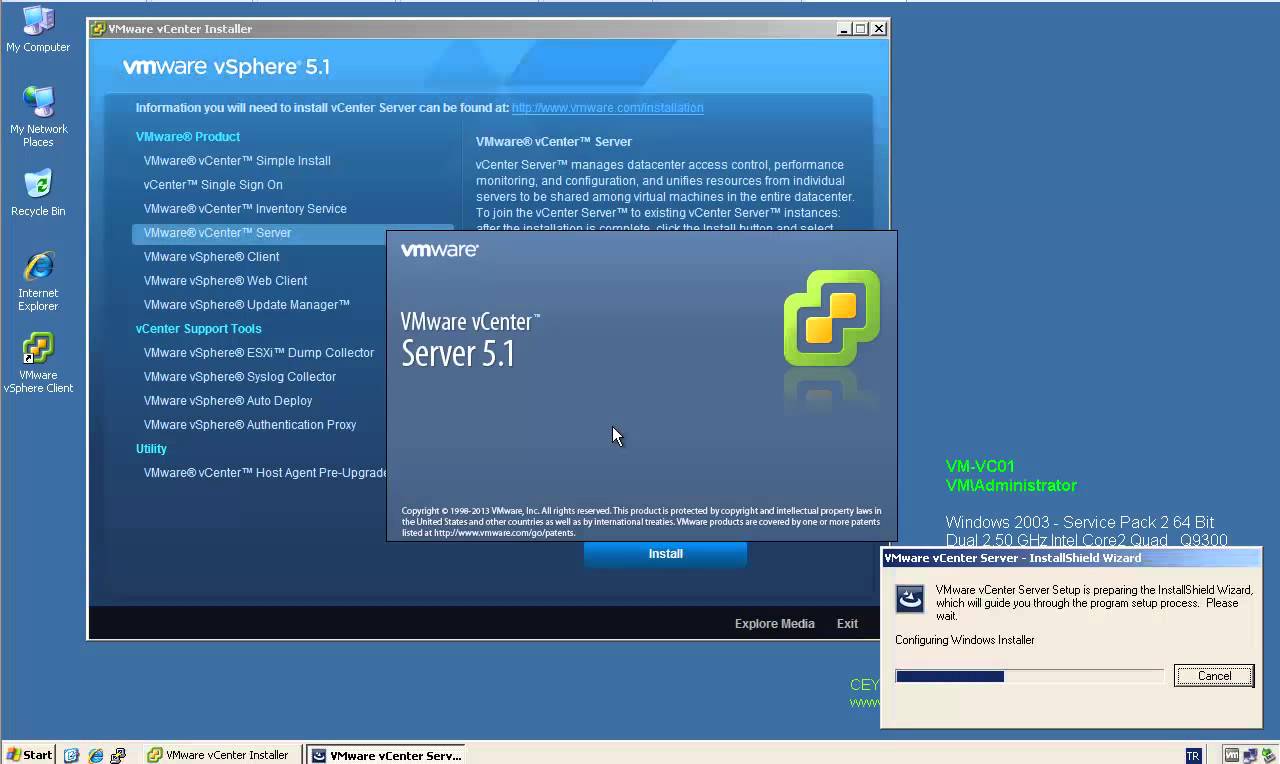
One of most important components of the vSphere environment is vCenter Server. vCenter Server acts as a central management point for managing ESXi hosts. In this video we will install VMware vSphere vCenter Server 5.1.0b using the Simple Install method on Windows Server 2003 R2 X64 SP2. Minimum requirements for the vCenter server Processor: Intel or AMD x86 processor with two or more logical cores, each with a speed of at least 2GHz. Memory: 4GB RAM. RAM requirements may be higher if your database runs on the same machine. Disk storage: 4GB. Disk requirements may be higher if the vCenter Server database runs on the same machine. Supported operating systems Microsoft Windows Server 2003 SP2 64bit Microsoft Windows Server 2003 SP2 64bit Microsoft Windows Server 2008 SP2 64bit Microsoft Windows…
Read More
VMware vCenter Server 5.1 Update 1 and ESXi 5.1 Update 1 Released

VMware vCenter Server 5.1 Update 1 and ESXi 5.1 Update 1 Released

vSphere
[caption id="attachment_561" align="alignnone" width="303"] VMware vSphere 5.1 Update 1[/caption]   April 25th, VMware released vCenter Server 5.1 Update 1 and ESXi 5.1 Update 1. This release offers the following improvements: vCenter Server is now supported on Windows Server 2012 Additional vCenter Server Database Support: Microsoft SQL Server 2012 Microsoft SQL Server 2008 R2 SP2 Additional Guest Operating System Customization Support: Windows 8 Windows Server 2012 Ubuntu12.04 RHEL 5.9 Resolved Issues: This release delivers a number of bug fixes that have been documented in the Resolved Issues section in release notes. All new vSphere features are available only through the vSphere Web Client.  vSphere Client will continue to operate,  but not exposing any of the new features in vSphere 5.1. vSphere 5.1 and its subsequent update and patch releases are the…
Read More
Installing VMware ESXi 5.1 Update 1 in VMware Workstation 9.0.2

Installing VMware ESXi 5.1 Update 1 in VMware Workstation 9.0.2

Video Tutorials, vSphere
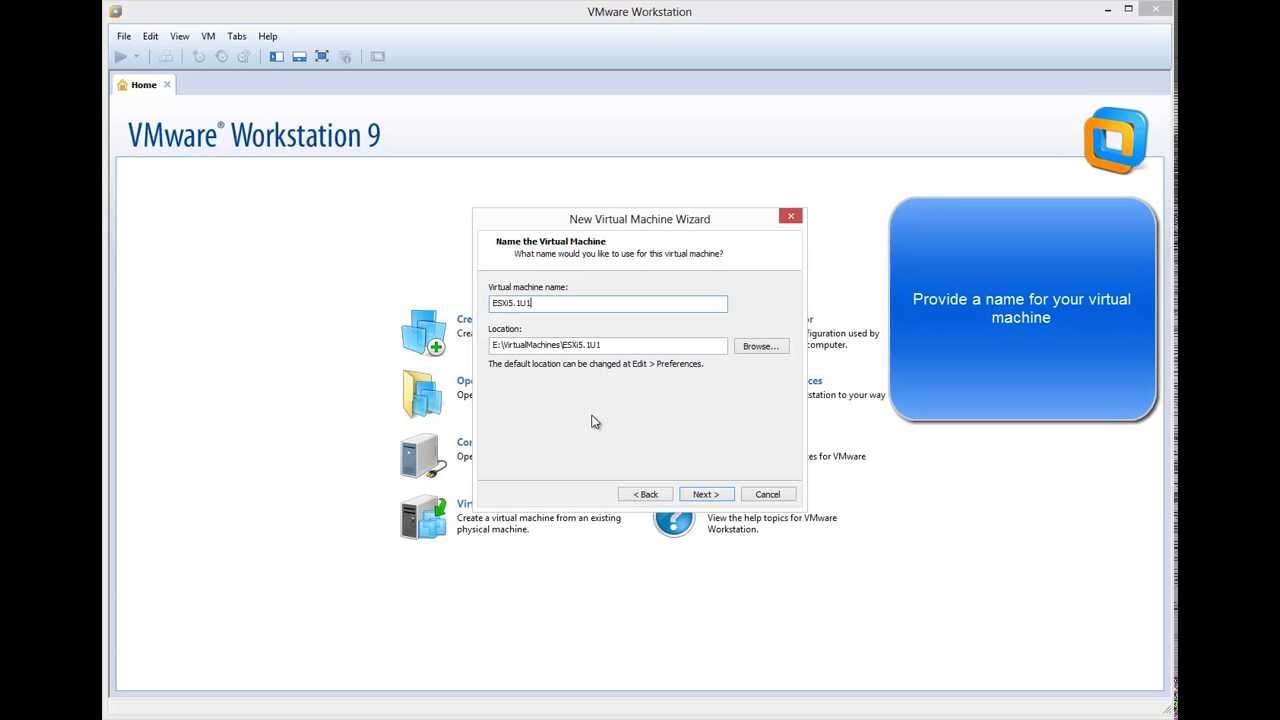
VMware Wosktation allows to run ESXi as virtual machine (virtual environment as virtual machine). It can be very useful to evaluate, experiment and learn vSphere at home.  I will show how easy is to install ESXi 5.1 as virtual machine on VMware Workstation 9. When you run ESXi 5.1 in a VMware Workstation 9 virtual machine you can run virtual machines in that virtualized ESXi-host if your CPU has virtualization support. (You might need to enable it in the BIOS) You will always be able to run 32 bit vm's in the virtual ESXi-host. But running 64 bit virtual machine requires the EPT feature in your Intel-processor (for AMD it's called RVI). Related Video: https://www.youtube.com/watch?v=DMkTJc7ivfQ Hope you found this informative and useful
Read More
How to Enable Local or Remote Tech Support Mode TSM from the Direct Console User Interface (DCUI) on ESXi 4.1

How to Enable Local or Remote Tech Support Mode TSM from the Direct Console User Interface (DCUI) on ESXi 4.1

VMware
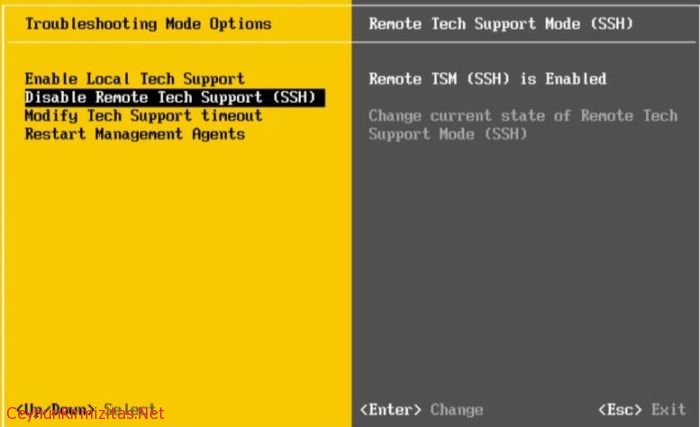
The Tech Support Mode or TSM is a sort of simple version of the system console that was available on the classic versions of ESX. Except that the TSM mode is not Linux based and does not have all the capabilities. But you can now access Tech Support Mode locally or via SSH if you follow the instructions below to enable them. To enable local or remote TSM from the Direct Console User  Interface (DCUI): At the DCUI of the ESXi host, press F2 and provide credentials when prompted. Scroll to Troubleshooting Options, and press  Enter. If you want to enable local TSM, select Local Tech  Support and press Enter once. This allows users to login on the  virtual console of the ESXi host.If you want to enable remote  TSM,…
Read More
How to Enable Local or Remote Tech Support Mode TSM from vSphere Client

How to Enable Local or Remote Tech Support Mode TSM from vSphere Client

VMware
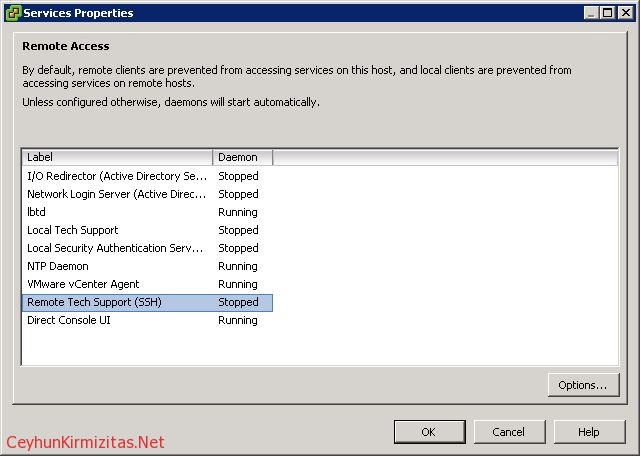
Tech Support Mode or TSM is a sort of simple version of the system console that was available on the classic versions of ESX. Except that the TSM mode is not Linux based and does not have all the capabilities that the old COS had. But you can now access Tech Support Mode locally or via SSH if you follow the instructions below to enable them. To Enable Local or Remote Tech Support Mode - TSM - From vSphere Client: Select the host and click the Configuration tab. Click Security profile > Properties. Click Local Tech Support or Remote  Tech Support (SSH) and click Options. Choose the desired startup policy and click Start,  then click OK. Verify that the daemon selected in step 3 shows as running in  the Services Properties window.…
Read More
How to Join VMware ESXi 5.1 to Active Directory Domain

How to Join VMware ESXi 5.1 to Active Directory Domain

Video Tutorials, vSphere
It’s important to join your ESXi host to a Windows domain if there is one present in your architecture. By allowing AD to authenticate, you can simply delegate permissions based on your AD groups such as the Domain Admins’ group. Steps to enable Active Directory authentication: Log in to your ESXi hosts locally and click on Configuration. On the left side of the dialog, select Authentication Services and then click Properties. From the Select Directory Services Type drop-down, choose Active Directory. In the domain settings, you can add your domain in one of two ways: Simply add mydomain.local; this will add the computer account for ESXi in the default Computers OU. To specify a different OU where you want the ESXi computer account to be located, use this format: mydomain.local/vsphere.…
Read More
Step by Step Upgrade from VMware vCenter Server 5.1 to vCenter Server 5.1 Update 1

Step by Step Upgrade from VMware vCenter Server 5.1 to vCenter Server 5.1 Update 1

Video Tutorials, vSphere
VMware vCenter Server has been split into 4 services: Single-Sign On, Inventory Service, vCenter Server and the vSphere Web Client. That makes the update process a little bit more more complex. All vCenter Server Components have to be patched separately. The update process itself if strait forward and can usually been clicked through without answering much questions. Recommended Upgrade Sequence for VMware vCenter: Update vCenter Single Sign On Reboot Update VMware vCenter Inventory Service Update VMware vCenter Server Update VMware vSphere Web Client Update VMware vSphere Update Manager Update ESXi Hosts
Read More
Install Fedora 19 KDE Desktop Edition in VMware Workstation 9

Install Fedora 19 KDE Desktop Edition in VMware Workstation 9

Red Hat - CentOS - Fedora, Video Tutorials, Workstation
Anaconda installer for Fedora 18 was a complete mess after its installer user-interface was redone. The Fedora 19 KDE installation is fairly simple and easy process. The Best Features Of Fedora 19 Fedora 18 is one of the first major tier-one Linux distributions shipping the GCC 4.8 compiler by default. GCC 4.8 has a whole lot of improvements from faster performance for some workloads to better instruction set coverage on new processors and full C++11 support. GNOME 3.8, KDE Plasma 4.10, and MATE 1.6 are among the Linux desktop environment options available on Fedora 19. GNOME 3.8, of course, is the default desktop environment for Fedora Linux 19. RPM 4.11 is now in use for package management and it brings better performance, lower memory usage, better file conflict detection, and…
Read More
How to Update from ESXi 4.1 to ESXi 4.1 Update 1 without VMware Update Manager

How to Update from ESXi 4.1 to ESXi 4.1 Update 1 without VMware Update Manager

VMware
I will show you the exact steps which are necessary to be able to update ESXi 4.1 to ESXi 4.1 update 1 with using vihostupdate.pl utility inVMware vCLI. You need the upgrade file and VMware vCLI. Steps to Update from ESXi 4.1 to ESXi 4.1 Update 1: 1- First of all you need to download the update package for ESXi 4.1. Go to this adress and download the zip file from VMware Official Website (206 Mb). 2- Download VMware vCLI here from VMware and install it on your Windows box. 3- Copy the downloaded ZIP package update-form-esxi4.1-4.1_update01.zip to the bin directory of WMware vCli. 4- Open the vCLI command prompt and CD to the c:\Program Files\VMware\VMware vSphere CLI\bin directory. 5- Make sure Windows host is communicating to VMware ESXi Server (…
Read More