Installing VMware vCenter Server 5.1 Update 1 on Windows Server 2012

Installing VMware vCenter Server 5.1 Update 1 on Windows Server 2012

Video Tutorials, vSphere
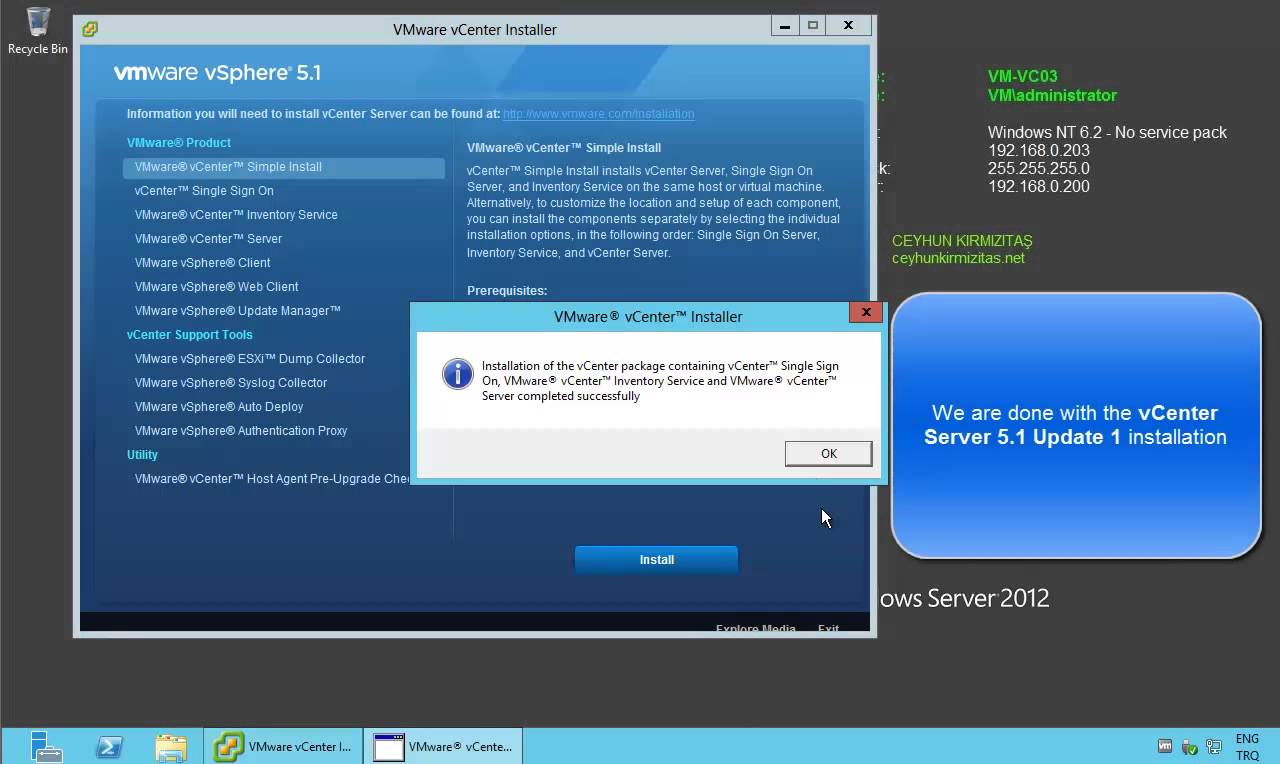
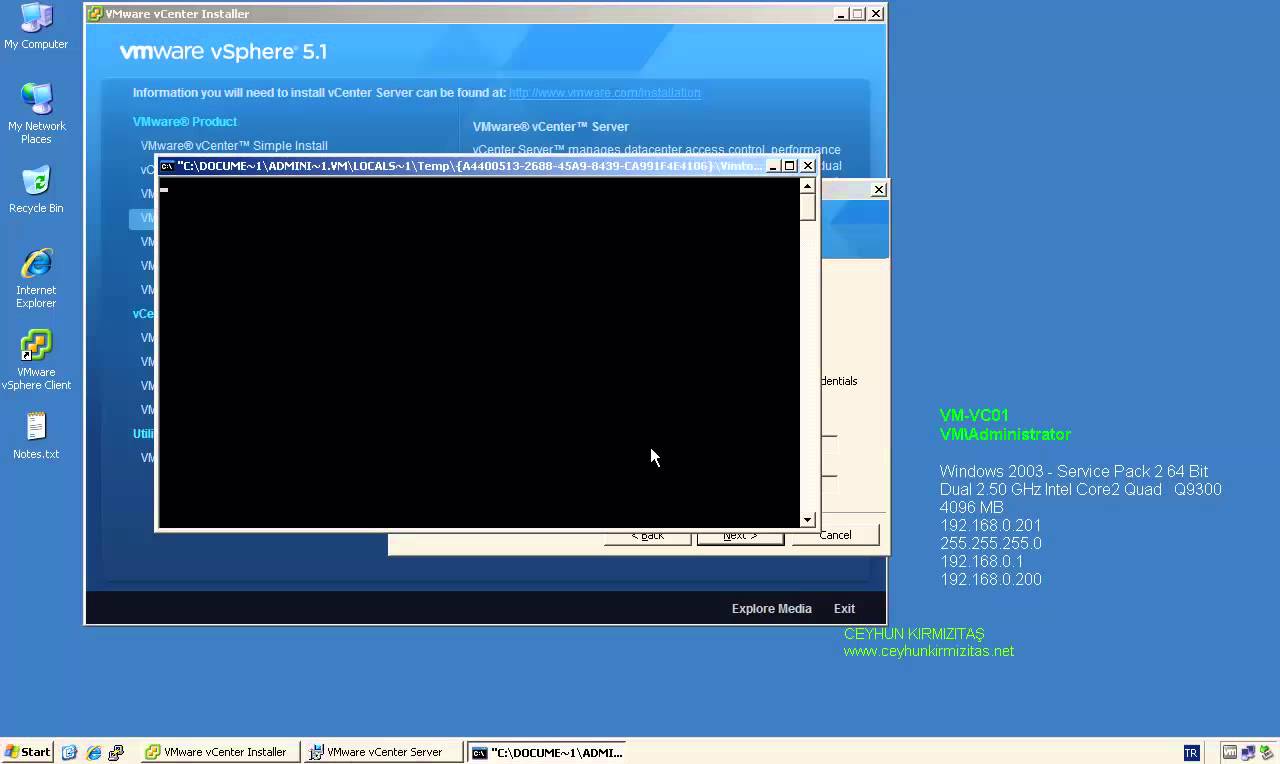
VMware released the new version of vCenter server which is 5.1 update 1, with new improvements and features. Such as:  vCenter Server is now supported on Windows Server 2012 Additional vCenter Server Database Support: vCenter Server now supports the following databases. Microsoft SQL Server 2012 Microsoft SQL Server 2008 R2 SP2 vCenter Essentials no longer enforces vRAM usage limit of 192 GB vCenter 5.1 Requirements VMware recommends 10GB of RAM if you are planning to install all components on a single server (which is what the simple install does). 64-bit dual logical CPU cores have been required since vSphere 4.1, so no change here. You will also need at least 40-60GB of free disk space after installation (100GB recommended). vCenter Server supports IBM DB2, Oracle, and Microsoft SQL Server databases.…
Read More

How to Install VMware vCenter Server 5.1 Update 1 on Windows Server 2008 R2 SP1

Video Tutorials, vSphere
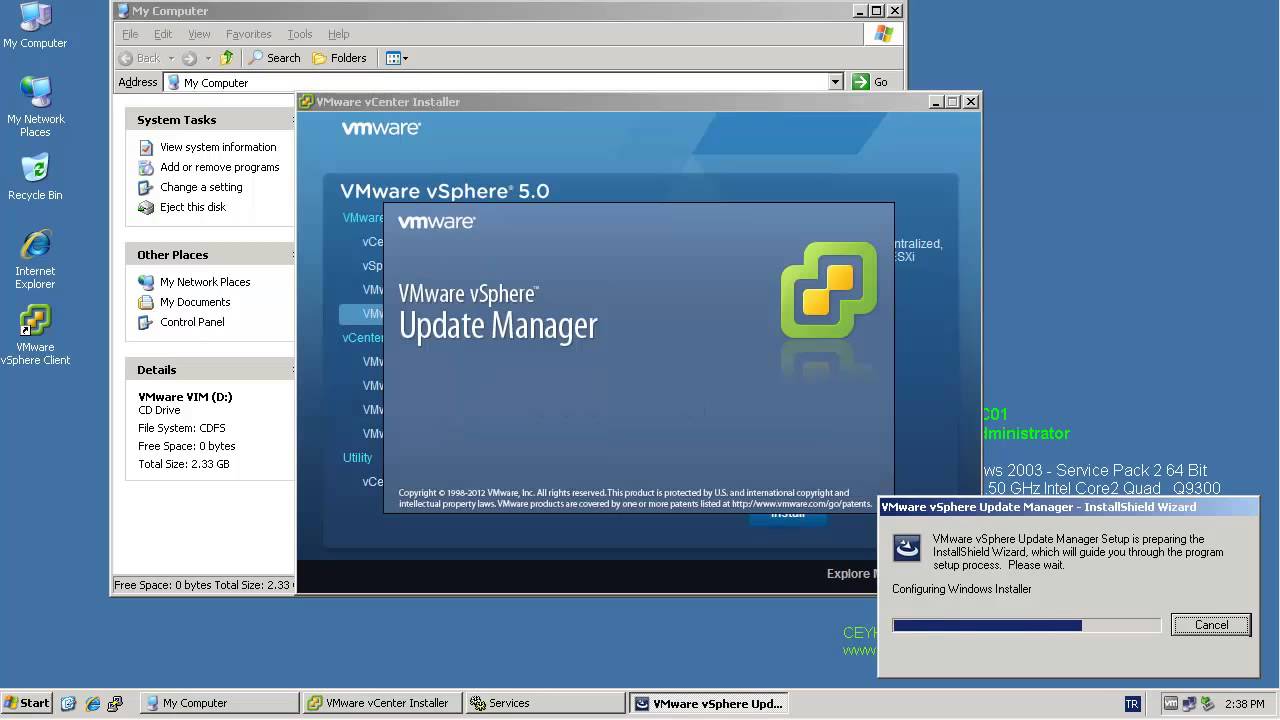
VMware released the new version of vCenter server which is 5.1 update 1, with new improvements and features. Such as: vCenter Server is now supported on Windows Server 2012 Additional vCenter Server Database Support: vCenter Server now supports the following databases. Microsoft SQL Server 2012 Microsoft SQL Server 2008 R2 SP2 vCenter Essentials no longer enforces vRAM usage limit of 192 GB vCenter 5.1 Requirements VMware recommends 10GB of RAM if you are planning to install all components on a single server (which is what the simple install does). 64-bit dual logical CPU cores have been required since vSphere 4.1, so no change here. You will also need at least 40-60GB of free disk space after installation (100GB recommended). vCenter Server supports IBM DB2, Oracle, and Microsoft SQL Server databases.…
Read More
Step by Step Upgrade from VMware vCenter Server 5.0 to vCenter Server 5.1.0b

Step by Step Upgrade from VMware vCenter Server 5.0 to vCenter Server 5.1.0b

Video Tutorials, vSphere
All vCenter Server Components have to be patched separately. The update process itself if strait forward and can usually been clicked through without answering much questions. Recommended Upgrade Sequence for VMware vCenter: Update vCenter Single Sign On Reboot Update VMware vCenter Inventory Service Update VMware vCenter Server Update VMware vSphere Web Client Update VMware vSphere Update Manager Update ESXi Hosts
Read More
How to Install VMware vCenter Server 5.0 on Windows Server 2003 X64 R2 SP2

How to Install VMware vCenter Server 5.0 on Windows Server 2003 X64 R2 SP2

Video Tutorials, vSphere
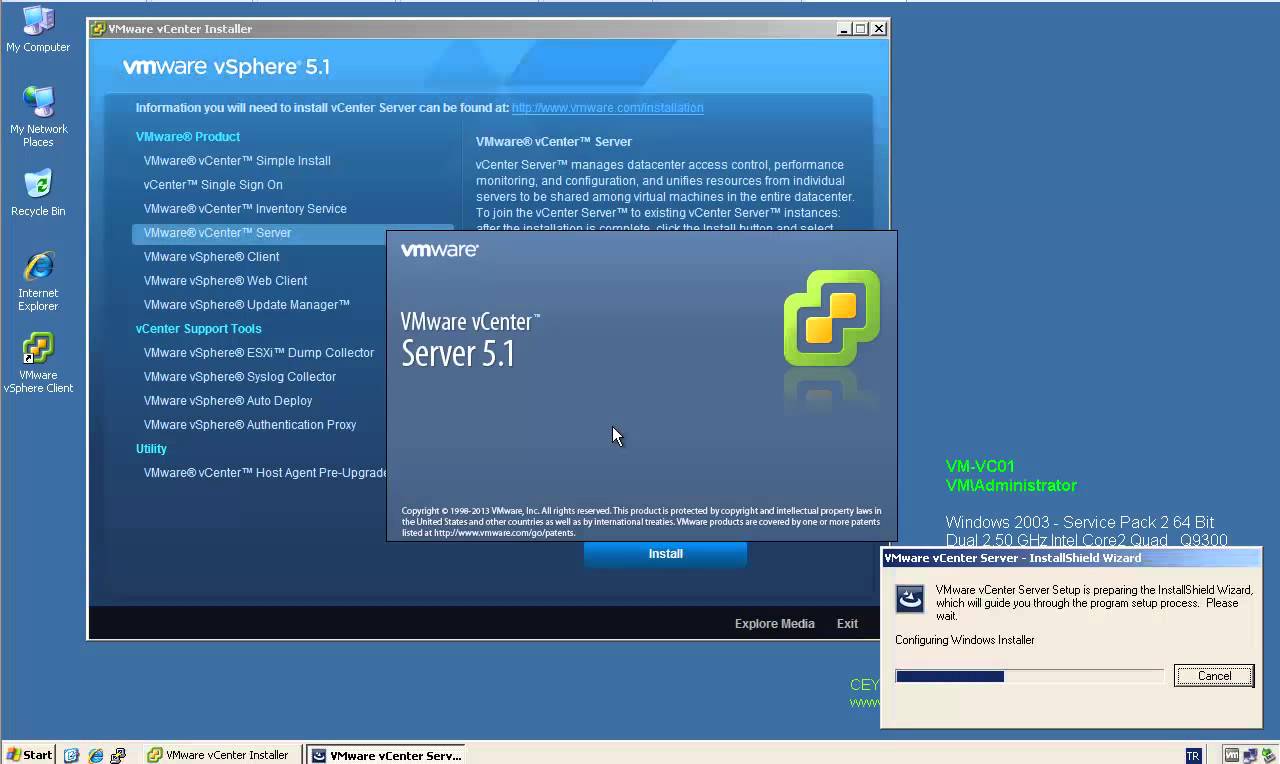
VMware vCenter Server is centralized management application and framework that serves as a proxy for managing ESXi hosts an their virtual machines. VMware vCenter Server allows you to centrally manage hosts from either a physical or virtual Windows machine, and enables the use of advanced features such as vSphere Distributed Resource Scheduler (DRS), vSphere High Availability (HA), vSphere vMotion, vSphere Storage vMotion, and vSphere Auto Deploy. VMware vCenter 5.0 comes in two flavors, one that is an “all-included” virtual appliance, and one that is a regular Windows installation package. Let’s take a look at vCenter installation. If you compare it to the vCenter 4 installation procedure you’ll see that VMware has added quite a few more things that can be installed. vCenter Server performs the following two key functions: Scalability:…
Read More

How to Install and Configure Microsoft SQL Server 2012 for VMware vCenter Server 5.1 Update 1

Video Tutorials, vSphere
Since vSphere 5.1 U1 it’s possible to install vCenter Server on Windows Server 2012. Also a Microsoft SQL 2012 is supported as an external database. Since the vSphere 5.1, the architecture of vCenter has changed and another database which name is Single Sign On is present. So there are three databases for vCenter: VMware vSphere 5.1 Single Sign-On VMware vSphere vCenter server VMware Update Manager All those database can be installed on a separate Microsoft SQL Server 2012 (this post) or on the same VM as vCenter server. SQL 2008R2 Express is still the database which is bundled with the VMware vSphere.
Read More
How to Install VMware vSphere vCenter Server 5.1.0b on Windows Server 2003 R2 X64 SP2

How to Install VMware vSphere vCenter Server 5.1.0b on Windows Server 2003 R2 X64 SP2

Video Tutorials, vSphere
One of most important components of the vSphere environment is vCenter Server. vCenter Server acts as a central management point for managing ESXi hosts. In this video we will install VMware vSphere vCenter Server 5.1.0b using the Simple Install method on Windows Server 2003 R2 X64 SP2. Minimum requirements for the vCenter server Processor: Intel or AMD x86 processor with two or more logical cores, each with a speed of at least 2GHz. Memory: 4GB RAM. RAM requirements may be higher if your database runs on the same machine. Disk storage: 4GB. Disk requirements may be higher if the vCenter Server database runs on the same machine. Supported operating systems Microsoft Windows Server 2003 SP2 64bit Microsoft Windows Server 2003 SP2 64bit Microsoft Windows Server 2008 SP2 64bit Microsoft Windows…
Read More
VMware vCenter Server 5.1 Update 1 and ESXi 5.1 Update 1 Released

VMware vCenter Server 5.1 Update 1 and ESXi 5.1 Update 1 Released

vSphere
[caption id="attachment_561" align="alignnone" width="303"] VMware vSphere 5.1 Update 1[/caption]   April 25th, VMware released vCenter Server 5.1 Update 1 and ESXi 5.1 Update 1. This release offers the following improvements: vCenter Server is now supported on Windows Server 2012 Additional vCenter Server Database Support: Microsoft SQL Server 2012 Microsoft SQL Server 2008 R2 SP2 Additional Guest Operating System Customization Support: Windows 8 Windows Server 2012 Ubuntu12.04 RHEL 5.9 Resolved Issues: This release delivers a number of bug fixes that have been documented in the Resolved Issues section in release notes. All new vSphere features are available only through the vSphere Web Client.  vSphere Client will continue to operate,  but not exposing any of the new features in vSphere 5.1. vSphere 5.1 and its subsequent update and patch releases are the…
Read More
Installing VMware ESXi 5.1 Update 1 in VMware Workstation 9.0.2

Installing VMware ESXi 5.1 Update 1 in VMware Workstation 9.0.2

Video Tutorials, vSphere
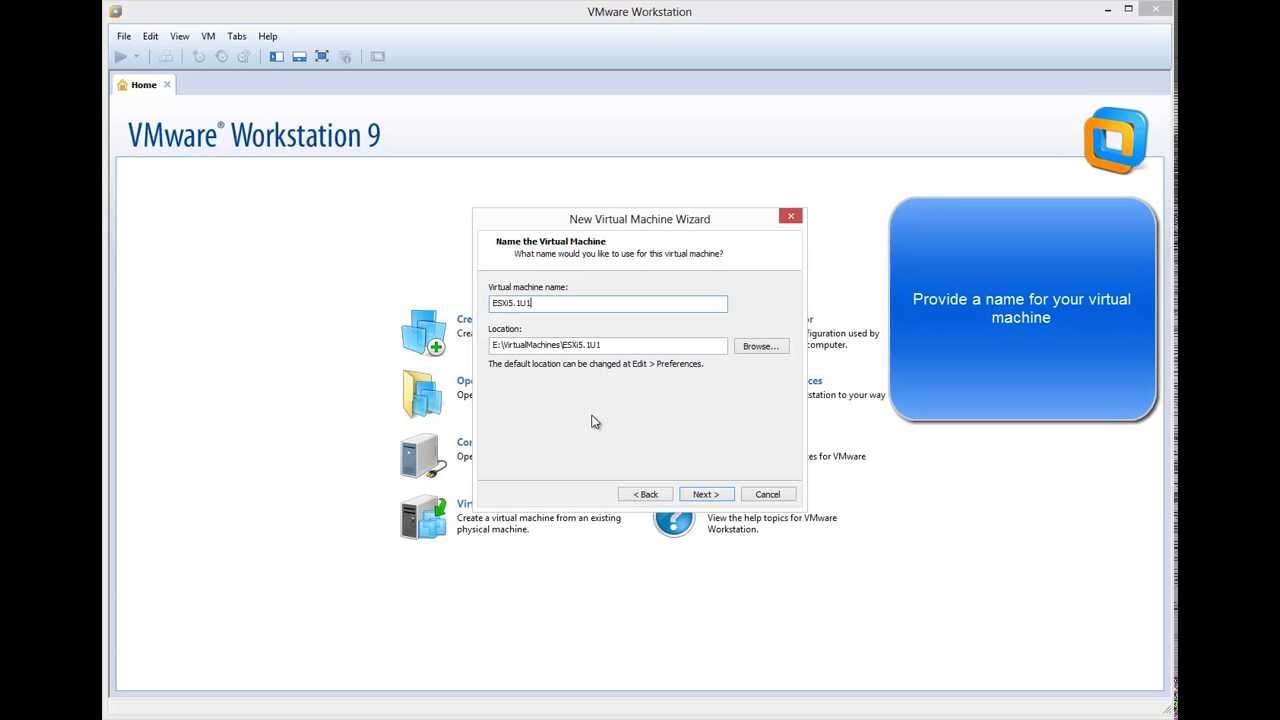
VMware Wosktation allows to run ESXi as virtual machine (virtual environment as virtual machine). It can be very useful to evaluate, experiment and learn vSphere at home.  I will show how easy is to install ESXi 5.1 as virtual machine on VMware Workstation 9. When you run ESXi 5.1 in a VMware Workstation 9 virtual machine you can run virtual machines in that virtualized ESXi-host if your CPU has virtualization support. (You might need to enable it in the BIOS) You will always be able to run 32 bit vm's in the virtual ESXi-host. But running 64 bit virtual machine requires the EPT feature in your Intel-processor (for AMD it's called RVI). Related Video: https://www.youtube.com/watch?v=DMkTJc7ivfQ Hope you found this informative and useful
Read More
How to Join VMware ESXi 5.1 to Active Directory Domain

How to Join VMware ESXi 5.1 to Active Directory Domain

Video Tutorials, vSphere
It’s important to join your ESXi host to a Windows domain if there is one present in your architecture. By allowing AD to authenticate, you can simply delegate permissions based on your AD groups such as the Domain Admins’ group. Steps to enable Active Directory authentication: Log in to your ESXi hosts locally and click on Configuration. On the left side of the dialog, select Authentication Services and then click Properties. From the Select Directory Services Type drop-down, choose Active Directory. In the domain settings, you can add your domain in one of two ways: Simply add mydomain.local; this will add the computer account for ESXi in the default Computers OU. To specify a different OU where you want the ESXi computer account to be located, use this format: mydomain.local/vsphere.…
Read More
Step by Step Upgrade from VMware vCenter Server 5.1 to vCenter Server 5.1 Update 1

Step by Step Upgrade from VMware vCenter Server 5.1 to vCenter Server 5.1 Update 1

Video Tutorials, vSphere
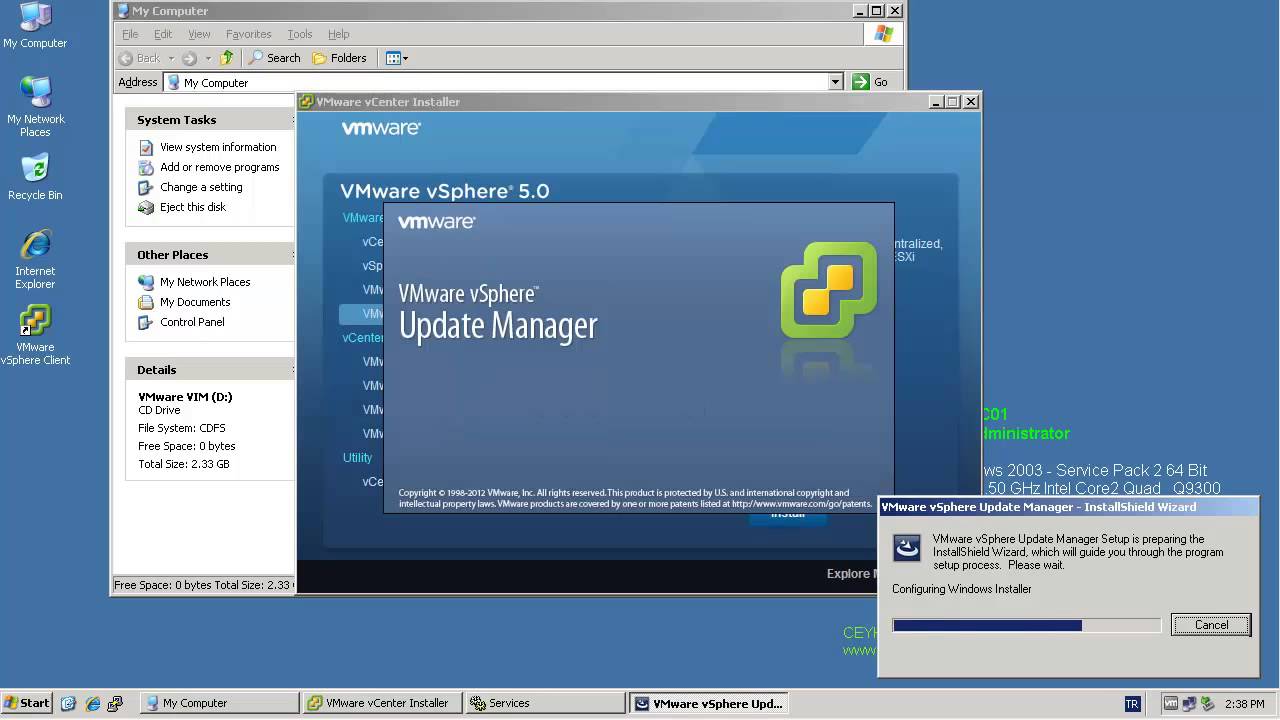
VMware vCenter Server has been split into 4 services: Single-Sign On, Inventory Service, vCenter Server and the vSphere Web Client. That makes the update process a little bit more more complex. All vCenter Server Components have to be patched separately. The update process itself if strait forward and can usually been clicked through without answering much questions. Recommended Upgrade Sequence for VMware vCenter: Update vCenter Single Sign On Reboot Update VMware vCenter Inventory Service Update VMware vCenter Server Update VMware vSphere Web Client Update VMware vSphere Update Manager Update ESXi Hosts
Read More