I will show you the exact steps which are necessary to be able to update ESXi 4.1 to ESXi 4.1 update 1 with using vihostupdate.pl utility inVMware vCLI.
You need the upgrade file and VMware vCLI.
Steps to Update from ESXi 4.1 to ESXi 4.1 Update 1:
1- First of all you need to download the update package for ESXi 4.1. Go to this adress and download the zip file from VMware Official Website (206 Mb).
2- Download VMware vCLI here from VMware and install it on your Windows box.
3- Copy the downloaded ZIP package update-form-esxi4.1-4.1_update01.zip to the bin directory of WMware vCli.
4- Open the vCLI command prompt and CD to the c:\Program Files\VMware\VMware vSphere CLI\bin directory.
5- Make sure Windows host is communicating to VMware ESXi Server ( just do a network ping).
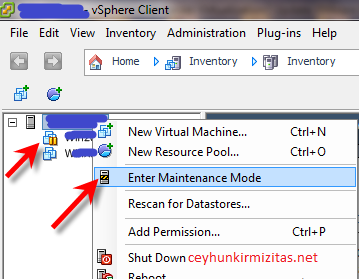
6- Connect to ESXi host via vSphere Client and Shutdown all virtual machines running on ESXi host and then put server into the Maintenance Mode.
5- Enter perl ” vihostupdate.pl -server 172.19.23.97 -i -b update-from-esxi4.1-4.1_update01.zip ”
Do not copy paste above command prompt, instead write it manually ( otherwise you may get an error message saying ” error connecting to server at ‘https localhost sdk webservice’ perhaps host is not a vCenter or ESX server ” ). This is typical perl behaviour 🙂
6- Reboot ESXi host.
7- Now, connect the ESXi host through VMware vSphere client utility. It may request to update the vSphere client to 4.1 update 1.
