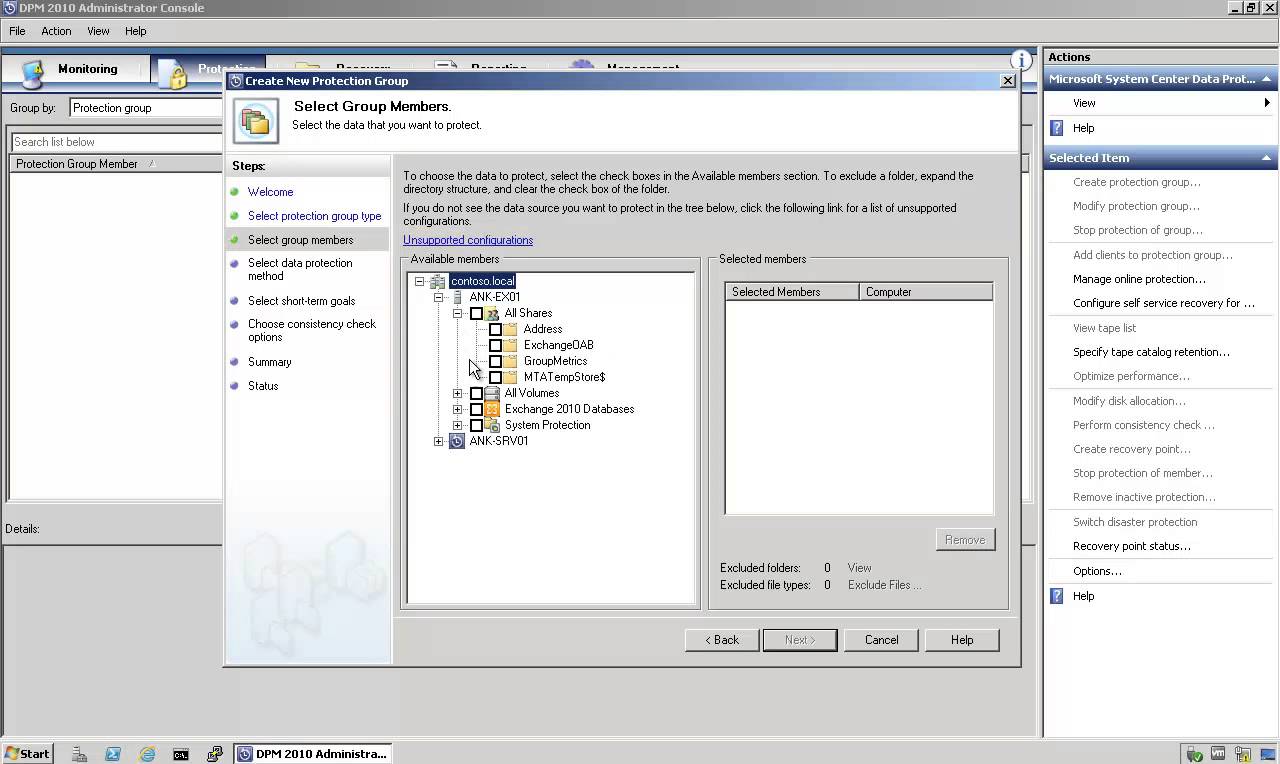
How to Backup and Restore Exchange 2010 Mailbox Database with DPM 2010

How to Backup and Restore Exchange 2010 Mailbox Database with DPM 2010

Exchange Server, System Center, Video Tutorials
DPM 2010 supports the following five types of recovery for Exchange Server 2010 mailbox databases: Recover the database to its original location: Overwrite the existing copy of the database. Recover the database to an alternate database: Restore to another database on an Exchange Server. Recover to an Exchange Recovery database: Recover to an Exchange Recovery database instead of a standard mailbox database. Recover to network location: Copy the database to a network folder. Copy to tape: Create an on-tape copy of the database.

Read More
Do you want to go to http://SiteName? – Disable One-word Intranet Site Suggestion – Internet Explorer

Do you want to go to http://SiteName? – Disable One-word Intranet Site Suggestion – Internet Explorer

Microsoft
Internet Explorer 9 will not navigate directly to an intranet site for a one-word entry in the Address bar. When you attempt to browse to this site using Internet Explorer 9, it responds by taking you to your default search engine to look for that word. Cause: Internet Explorer 9 combines the address bar and the search box. The default behavior is to use a single word entry as search criteria. This can be changed by Users or Group Policy Settings as described in the Solution section. Solution 1  - Using Tools Menu in IE9 : 1-  Click Internet Options 2- click the Advanced tab, check the option Go to an intranet site for a single word entry in the Address bar. Solution 2 - Using Group Policy : 1- Expand User Configuration,…
Read More

KB373931- Srv2.sys SMB 2.0 Server Driver Fix – Windows Server 2008 R2 BSoD Problem – Windows6.1-KB373931-x64

Windows Server
Some Windows 2008 R2 servers may experience BlueScreen and Reboot problem. If these servers are using File Share or SMB v.2, srv2.sys may cause this problem. There is problem related to Srv2.sys driver. This is SMB 2.0 server driver. You can install this hotfix KB373931 for Windows Server 2008 R2 SP1 with your own risk.  
Read More
WinRM service failed to create the following SPNs: WSMAN – Event ID:10154

WinRM service failed to create the following SPNs: WSMAN – Event ID:10154

Linux, Windows Server
I was getting an error " The WinRM service failed to create the following SPNs: WSMAN/hostname; WSMAN/hostname. " at startup on Windows 2008 R2 Domain Controllers. Additional Data Log Name: System Source:  Microsoft-Windows-WinRM Event ID: 10154 Level:  Warning Solution: WinRM runs under " Network Service " account. You can eliminate this problem by giving Validated Write to Service Principal Name  permission to the NETWORK SERVICE using the ADSIEDIT.msc. This will allow WinRM to auto create the necessary SPNs on that domain controller. After granting this permission, re-sync all DCs and do a reboot to each domain controller where you did the change,  after that reboot you will see that the warning is gone and the required SPNs were created successfully. Steps: 1- Use ADSIEDIT.msc 2- Choose Default naming context and…
Read More
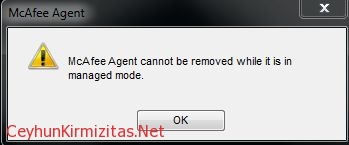
McAfee Agent cannot be removed while it is in managed mode

McAfee Agent cannot be removed while it is in managed mode

Security
This article shows how to uninstall McAfee Agent when it is in Managed Mode from computer. Problem: The following message displays when select Remove for the McAfee Agent through Add \ Remove Programs or Programs and Features on client computers: " McAfee Agent cannot be removed while it is in managed mode " As long as the agent is in Managed Mode or being managed by ePO server, this message appears. Solution: The computer must be removed from Managed Mode Steps to uninstall McAfee Agent: 1- Open Command Prompt 2- Go to the folder: C:\Program Files (x86)\McAfee\Common Framework on X64 systems C:\Program Files\McAfee\Common Framework on X86 systems 3- Run the " frminst.exe /remove=agent " command without quotes
Read More
How to Factory Reset IOmega StorCenter ix4-200d

How to Factory Reset IOmega StorCenter ix4-200d

Storage
You can reset the StorCenter by holding the reset button on the back panel for 15 seconds. The status light on the front panel will blink red once the reset process has started. If the StorCenter was properly reset you will be required to reperform the Initial Configuration steps. Resetting the StorCenter will return the device name, administrator password, date/time, network settings and email notifications to their default setting. Users, groups, and shares will not be affected by the reset with the exception that administrator users will be reset to non-administrator status. When you reconfigure the box you can enter the name of an existing user in the Administrator field and administrator privileges will be restored for that user. 1- High-Speed USB 2.0 Connectors: Supports devices such as USB storage…
Read More