How to Install VMware Tools in CentOS 6.4

How to Install VMware Tools in CentOS 6.4

Linux, Video Tutorials, Workstation
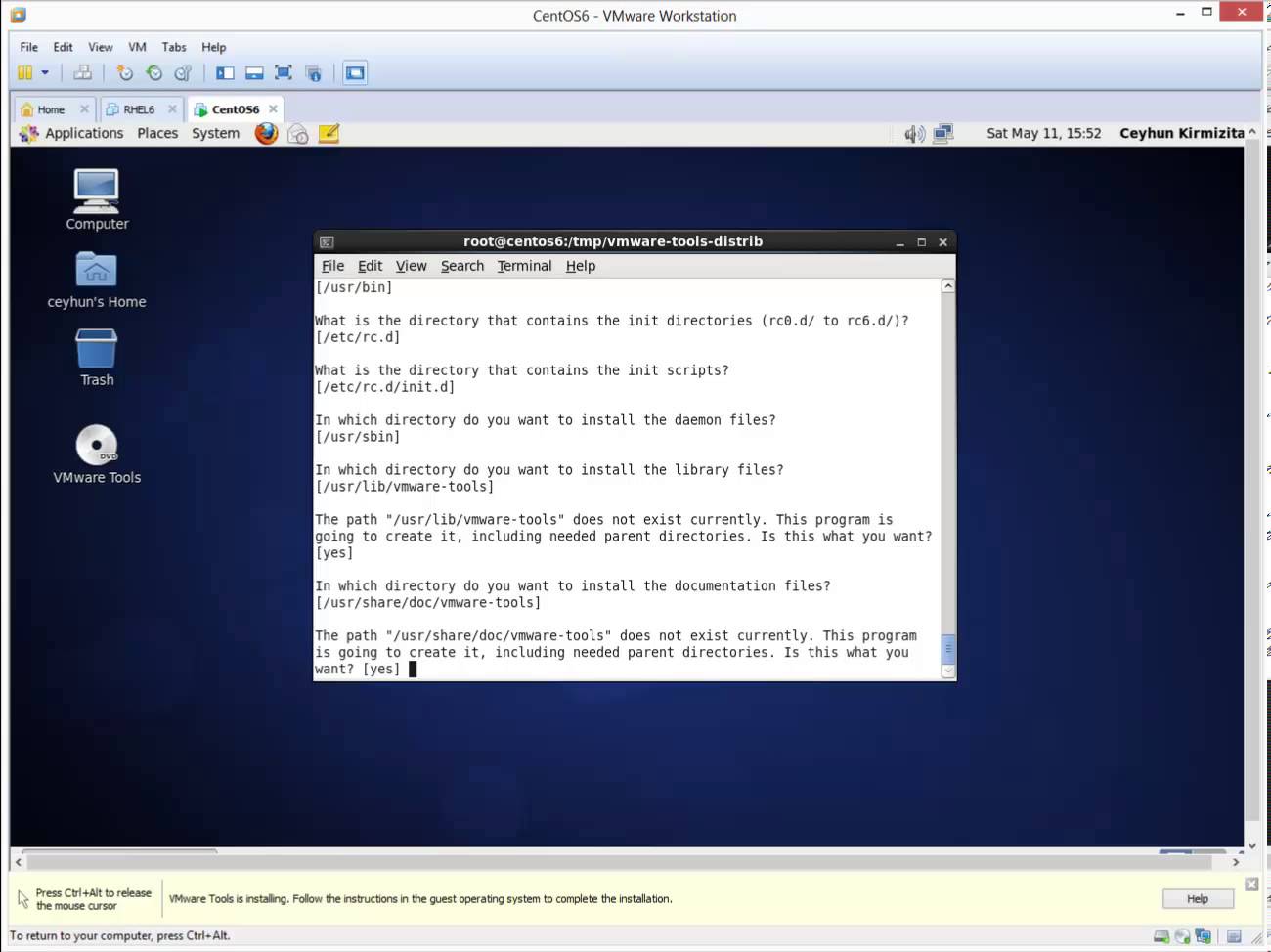
VMware Tools is an optional, free set of drivers and utilities that enhances both the performance of a virtual machine’s guest operating system and interaction between the guest and the host. From time to time I find clients have not installed the VMware tools in their virtual machine’s (VM) operating system. Although the guest operating system can run without VMware Tools, you lose important functionality and convenience. Related Video:  https://www.youtube.com/watch?v=pO7iZbuTYJU
Read More
Installing VMware vCenter Server 5.1 Update 1 on Windows Server 2012

Installing VMware vCenter Server 5.1 Update 1 on Windows Server 2012

Video Tutorials, vSphere
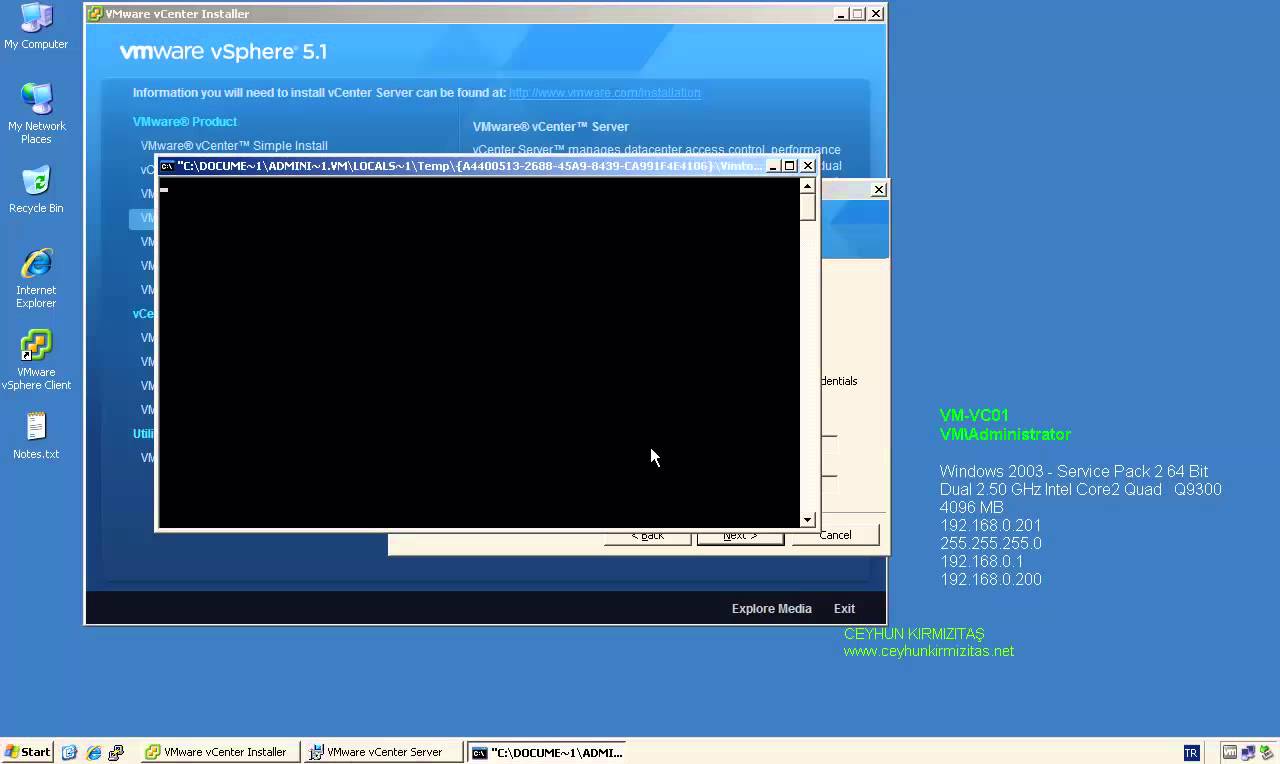
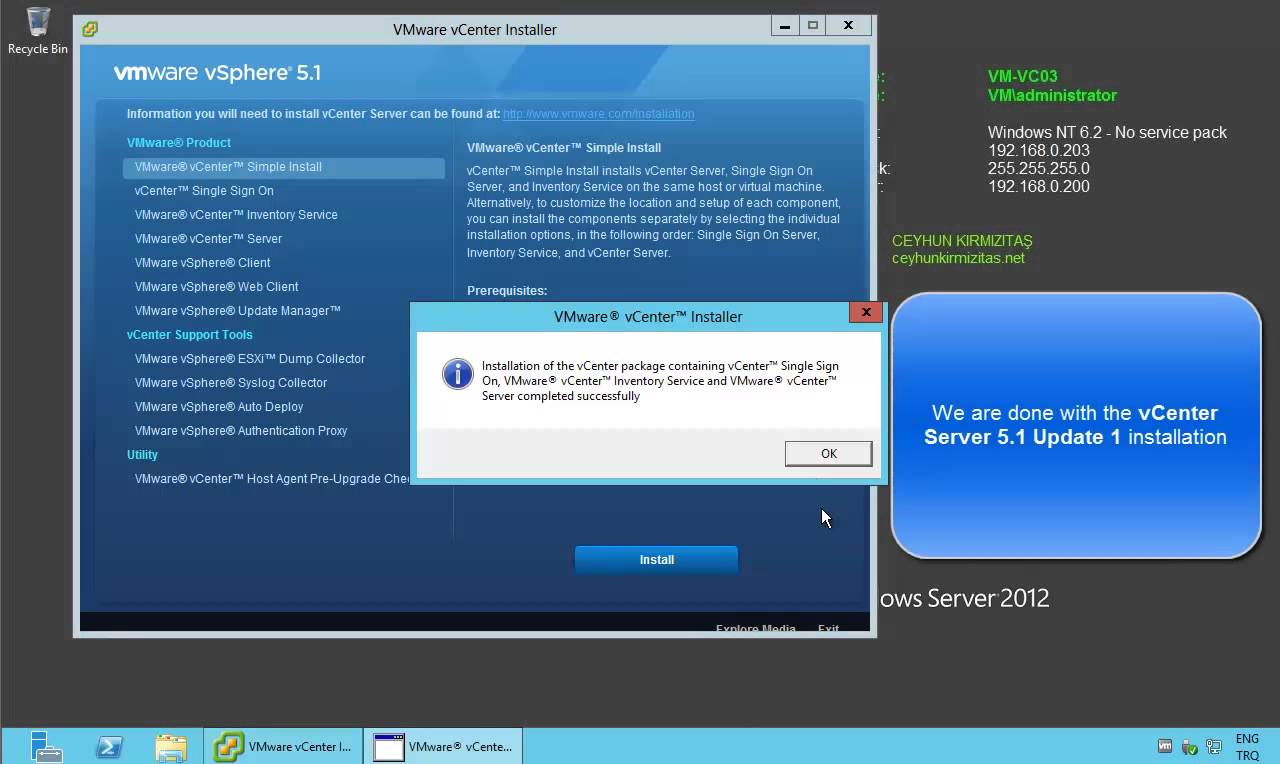
VMware released the new version of vCenter server which is 5.1 update 1, with new improvements and features. Such as:  vCenter Server is now supported on Windows Server 2012 Additional vCenter Server Database Support: vCenter Server now supports the following databases. Microsoft SQL Server 2012 Microsoft SQL Server 2008 R2 SP2 vCenter Essentials no longer enforces vRAM usage limit of 192 GB vCenter 5.1 Requirements VMware recommends 10GB of RAM if you are planning to install all components on a single server (which is what the simple install does). 64-bit dual logical CPU cores have been required since vSphere 4.1, so no change here. You will also need at least 40-60GB of free disk space after installation (100GB recommended). vCenter Server supports IBM DB2, Oracle, and Microsoft SQL Server databases.…
Read More
Installing CentOS 6.4 in VMware Workstation 9.0.2

Installing CentOS 6.4 in VMware Workstation 9.0.2

Linux, Video Tutorials, Workstation
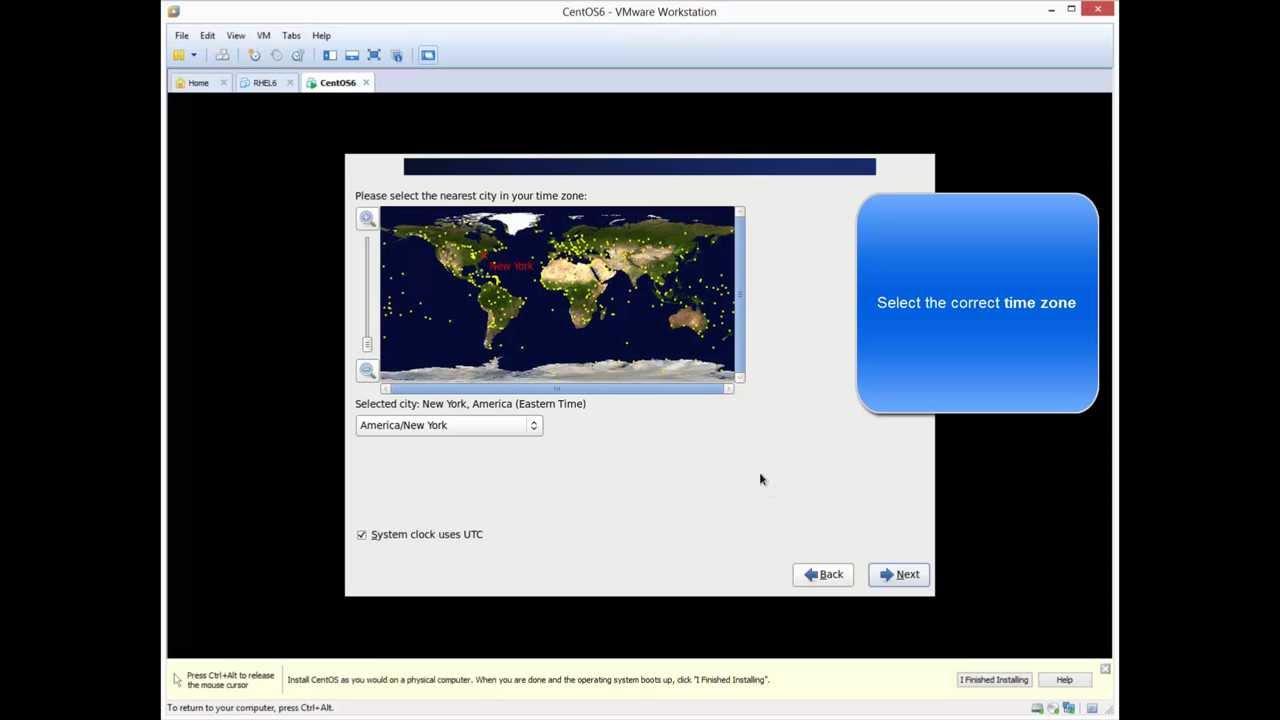
What is CentOS? CentOS, which stands for the Community Enterprise Operating System, is a distribution of the Linux operating system based on Red Hat Enterprise Linux (RHEL). It is currently the most popular Linux distribution for web servers. CentOS uses the Red Hat source code base to create a product similar to RHEL. Unlike RHEL however, CentOS does not require a paid subscription. In January 2014, Red Hat announced that it would sponsor the CentOS project. As the result of these changes, ownership of CentOS trademarks was transferred to Red Hat. Related Video:  https://www.youtube.com/watch?v=pO7iZbuTYJU
Read More
Moved Mailboxes Are Shown in Disconnected Mailbox – Exchange 2010 SP1 SP2 SP3

Moved Mailboxes Are Shown in Disconnected Mailbox – Exchange 2010 SP1 SP2 SP3

Exchange Server
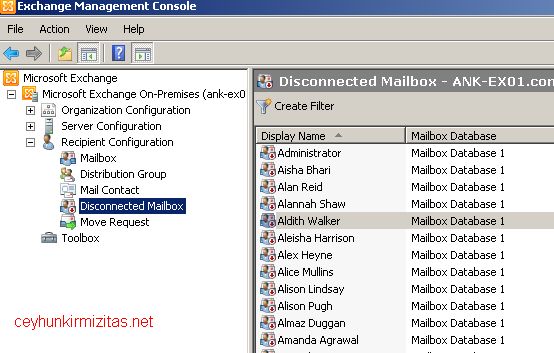
You have just moved some mailboxes from one Exchange 2010 SP1 ( or later ) mailbox database to another mailbox database but all the moved mailboxes are shown in disconnected mailboxes. This happens because of the "Soft Deleted mailboxes". Exchange doesn?t fully delete the mailbox from the source database immediately after completion of the move. Instead, the mailbox in the source mailbox database is switched to a soft-deleted state. The soft-deleted mailboxes are retained in the source database until either the deleted mailbox retention period expires or you use the Remove-StoreMailbox cmdlet to purge the mailbox.   You can see soft-deleted mailbox by running the following shell command Get-MailboxStatistics ?Database ?Mailbox Database Name? | Where-Object {$_.DisconnectReason ?eq ?Softdeleted?} You can delete all soft deleted mailboxes from a particular Mailbox Database by…
Read More
Managing Partitions in RHEL 6.x – CentOS 6.x

Managing Partitions in RHEL 6.x – CentOS 6.x

Red Hat - CentOS - Fedora
The fdisk command is a text-based utility for viewing and managing hard disk partitions on Linux. It’s one of the most powerful tools you can use to manage partitions, but it’s confusing to new users. Using fdisk you can create a new partition, delete an existing partition, or change existing partition. Using fidsk you are allowed to create a maximum of four primary partition, and any number of logical partitions, based on the size of the disk. This video tutorial will go through the basics of using fdisk to manage a partition table. After using fdisk, we will have see how to use a mkfs command to format new partitions with a file system. Tasks: 1. Identify current storage configuration fdisk -l 2. Provision 1 or more usable partitions parted…
Read More

How to Install VMware vCenter Server 5.1 Update 1 on Windows Server 2008 R2 SP1

Video Tutorials, vSphere
VMware released the new version of vCenter server which is 5.1 update 1, with new improvements and features. Such as: vCenter Server is now supported on Windows Server 2012 Additional vCenter Server Database Support: vCenter Server now supports the following databases. Microsoft SQL Server 2012 Microsoft SQL Server 2008 R2 SP2 vCenter Essentials no longer enforces vRAM usage limit of 192 GB vCenter 5.1 Requirements VMware recommends 10GB of RAM if you are planning to install all components on a single server (which is what the simple install does). 64-bit dual logical CPU cores have been required since vSphere 4.1, so no change here. You will also need at least 40-60GB of free disk space after installation (100GB recommended). vCenter Server supports IBM DB2, Oracle, and Microsoft SQL Server databases.…
Read More
Installing and Configuring Data Protection Manager 2010 for Exchange Server 2010 SP2

Installing and Configuring Data Protection Manager 2010 for Exchange Server 2010 SP2

Exchange Server, System Center, Video Tutorials
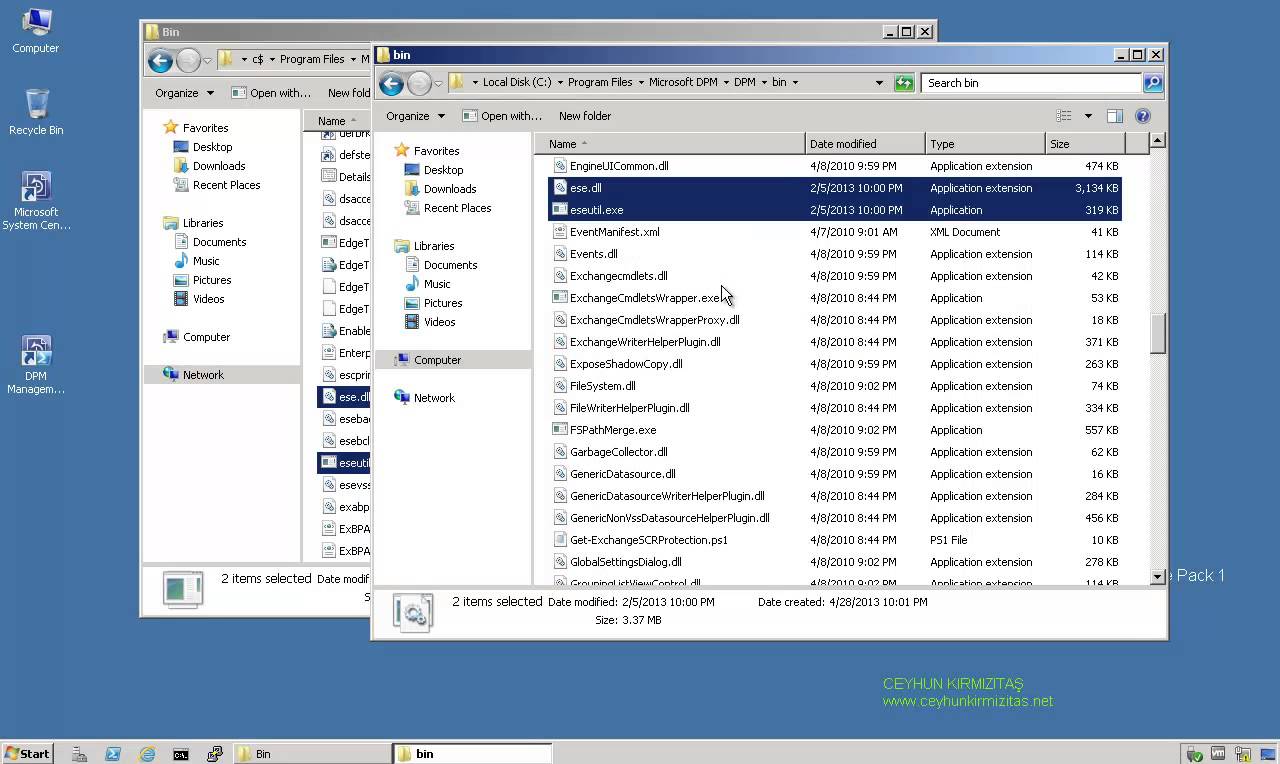
A System Center Data Protection Manager (DPM) 2010 installation includes two primary tasks: installing the DPM prerequisite software and installing the DPM application. The DPM Setup Wizard guides you through the process of specifying the DPM installation settings, and automatically installs the prerequisite software as part of an integrated DPM installation process. Important Note: DPM 2010 is not supported on the Turkish language version of Windows Server 2008 or Windows Server 2008 R2. If the automatic installation of one or more of the DPM prerequisite software products fails, you can install the prerequisite software manually. Before installing DPM, note the following: All computers that you use for your DPM installation must meet at least the minimum hardware and software requirements. DPM Setup stops the Removable Storage service before installing DPM. After you install DPM, you…
Read More
Step by Step Upgrade from VMware vCenter Server 5.0 to vCenter Server 5.1.0b

Step by Step Upgrade from VMware vCenter Server 5.0 to vCenter Server 5.1.0b

Video Tutorials, vSphere
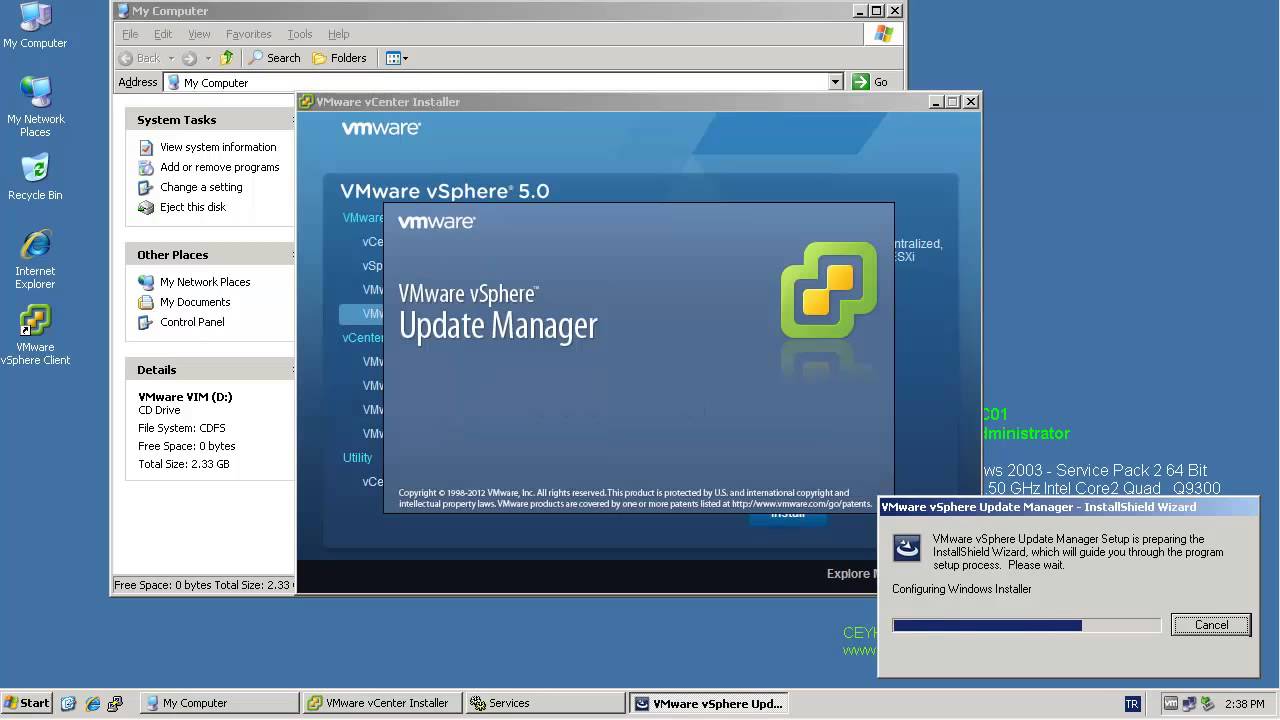
All vCenter Server Components have to be patched separately. The update process itself if strait forward and can usually been clicked through without answering much questions. Recommended Upgrade Sequence for VMware vCenter: Update vCenter Single Sign On Reboot Update VMware vCenter Inventory Service Update VMware vCenter Server Update VMware vSphere Web Client Update VMware vSphere Update Manager Update ESXi Hosts
Read More
How to Install VMware vCenter Server 5.0 on Windows Server 2003 X64 R2 SP2

How to Install VMware vCenter Server 5.0 on Windows Server 2003 X64 R2 SP2

Video Tutorials, vSphere
VMware vCenter Server is centralized management application and framework that serves as a proxy for managing ESXi hosts an their virtual machines. VMware vCenter Server allows you to centrally manage hosts from either a physical or virtual Windows machine, and enables the use of advanced features such as vSphere Distributed Resource Scheduler (DRS), vSphere High Availability (HA), vSphere vMotion, vSphere Storage vMotion, and vSphere Auto Deploy. VMware vCenter 5.0 comes in two flavors, one that is an “all-included” virtual appliance, and one that is a regular Windows installation package. Let’s take a look at vCenter installation. If you compare it to the vCenter 4 installation procedure you’ll see that VMware has added quite a few more things that can be installed. vCenter Server performs the following two key functions: Scalability:…
Read More

How to Install and Configure Microsoft SQL Server 2012 for VMware vCenter Server 5.1 Update 1

Video Tutorials, vSphere
Since vSphere 5.1 U1 it’s possible to install vCenter Server on Windows Server 2012. Also a Microsoft SQL 2012 is supported as an external database. Since the vSphere 5.1, the architecture of vCenter has changed and another database which name is Single Sign On is present. So there are three databases for vCenter: VMware vSphere 5.1 Single Sign-On VMware vSphere vCenter server VMware Update Manager All those database can be installed on a separate Microsoft SQL Server 2012 (this post) or on the same VM as vCenter server. SQL 2008R2 Express is still the database which is bundled with the VMware vSphere.
Read More