Installing Exchange Update Rollups on DAG (Database Availability Group) Members

Exchange Server
Installing update rollups on DAG members is a straight forward task. We have to make sure that all the active databases have been moved to a different DAG member, activation of all databases on the server to be patched is blocked, mailbox database copy is suspended etc. Basically, the procedure is straightforward and should be followed per DAG member: 1.Appoint (next) DAG member; 2.Move away all active copies on that DAG member; 3.Prevent copies from activating on that DAG member; 4.Perform maintenance, e.g. down or upgrade DAG member; 5.Enable possible activation on that DAG member again; 6.Optionally redistribute database copies. Microsoft has two new scripts in the ?C:\Program Files\Microsoft\Exchange Server\v14\Scripts? folder of Exchange 2010 SP1. StartDAGServerMaintenance.ps1 and StopDAGServerMaintenance.ps1. In order to install a rollup on 2010 SP1 , follow the…

Read More

Envy: A Fast and Easy Way to Install Video Drivers for Ubuntu

Linux
If you have an advanced Video Card, you can sometimes have trouble installing the drivers. A fast and easy way to install your Video drivers is to use a program called Envy. Envy can help you with your initial installation, and any time you have to reinstall because of a Kernel update. 1- Open your favorite terminal 2- type in sudo apt-get install envyng-gtk 3- Launch EnvyNG's GUI by selecting it in the "Applications/System Tools" menu.
Read More
Managing SWAP Partitions – RHEL 6.x – CentOS 6.x

Managing SWAP Partitions – RHEL 6.x – CentOS 6.x

Red Hat - CentOS - Fedora, Video Tutorials
If the system needs more memory resources and the RAM is full, inactive pages in memory are moved to the swap space. Swap space is a portion of a hard disk drive (HDD) that is used for virtual memory. It can be whole disk partition or just a file inside an existing partition or a combination of swap partitions and swap files. We will see how to manage SWAP Partitions on RHEL 6.x or CentOS 6.x Steps: 1. Show current SWAP allocation free -m swapon -s 2. Create additional SWAP space from new partition Reboot is required at this step 3. Make swap mkswap /dev/sdb2 UUID=8bced662-e967-4861-9bac-6df8957b3eb5 4. Update /etc/fstab UUID=8bced662-e967-4861-9bac-6df8957b3eb5 swap swap defaults 0 0 5. Re-reads /etc/fstab for swap swapon -a 6. Show swap usage summary by device swapon -s free…
Read More

How to Configure Manual Failover – Activation – for DAG Member Exchange Server 2010

Exchange Server
Configure Manuel Failover for Entire Mailbox Server Let?s say you want to disable entire DAG member node from being considered in the Automatic Activation Process. In other words, you want to configure manual failover for DAG member. You can use the following command to prevent any databases on a specific mailbox server in DAG from being considered in the Automatic Activation (automatic failover) Process: Set-MailboxServer -Identity MailboxServerName -DatabaseCopyAutoActivationPolicy Blocked To allow database copies to be activated again, I would replace ?Blocked? with ?Unrestricted?: Set-MailboxServer -Identity MailboxServerName -DatabaseCopyAutoActivationPolicy Unrestricted  
Read More
How to Configure Local Continuous Replication (LCR) in Exchange Server 2007

How to Configure Local Continuous Replication (LCR) in Exchange Server 2007

Exchange Server
Local Continuous Replication (LCR) is a single server solution that provides high availability for Exchange Server 2007. Once you enable a local replica of a storage group, LCR copies any changes to the storage group to the replica. This process is called Log Shipping. In this how-to, you will learn how to configure Local Continuous Replication (LCR) in Exchange Server 2007 Mailbox Server Role. Log on to Exchange Server 2007. Click Start, and then point to All Programs, then Microsoft Exchange and click Exchange Management Console. Expand Microsoft Exchange and click the Server Configuration in the Console Tree. Click the server name that has mailbox server role in the results pane. And in the action page, click Manage Mailbox Role. In the work pane, right click  First Sorage Group and click…
Read More
How to Change Command Prompt CMD Default Startup Directory

How to Change Command Prompt CMD Default Startup Directory

Microsoft
The default Command Prompt (CMD.exe) directory is usually your Documents and Settings \ Username directory. Most of the time you navigate away from it because you need to access files that cannot be accessed from there. If you wish to change the default startup directory for Command Prompt, use the steps listed below To change the default Command Prompt directory: 1- Click Start, Run and type Regedit.exe 2- Navigate to the path HKEY_CURRENT_USER \ Software \ Microsoft \ Command Processor 3- In the right-pane, double-click Autorun and set the startup folder path, for example by " CD /d C:\ " without quotes. If Autorun value is missing, you need to create one, of type REG_SZ (String Value) in the above location. Example1: To set the startup directory to C:\Windows, set the Autorun…
Read More
Install and Configure Secondary (Slave) BIND DNS Server – RHEL 6 – CentOS 6

Install and Configure Secondary (Slave) BIND DNS Server – RHEL 6 – CentOS 6

Red Hat - CentOS - Fedora, Video Tutorials
After we have installed BIND as a master DNS server (centos01) (as explained in my recent video), we can now set up a secondary DNS server (centos02) with BIND on CentOS. centos02 acts as a backup if there are problems with centos01. This tutorial will show you how to setup and configure Secondary (Slave) BIND DNS Server on RHEL 6.x or CentOS 6.x Note: centos01.linuxlab.local is Primary (Master) DNS server for linuxlab.local domain We'll make centos02.linuxlab.local ( 192.168.0.22) as secondary dns server for linuxlab.local domain Steps: 1. Define centos02 as Name Server in the primary zone 2. Install bind on other server 3. Configure /etc/named.conf on centos02 (secondary dns server) 4. Allow zone transfer to only our secondary dns server in primary dns server allow-transfer { 192.168.0.22; }; 5. start…
Read More
How to Perform SYSVOL Migration from FRS to DFRS Replication

How to Perform SYSVOL Migration from FRS to DFRS Replication

Video Tutorials, Windows Server
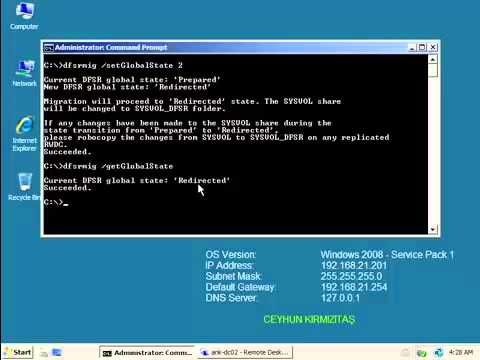
Domain controllers use a special shared folder named SYSVOL to replicate logon scripts and Group Policy object files to other domain controllers. Windows 2000 Server and Windows Server 2003 use File Replication Service (FRS) to replicate SYSVOL, whereas Windows Server 2008 uses the newer DFS Replication service when in domains that use the Windows Server 2008 domain functional level, and FRS for domains that run older domain functional levels. To use DFS Replication to replicate the SYSVOL folder, you can use the procedure that is discussed in this video tutorial to migrate replication to DFS Replication. Pre-Requisites: Check Active Directory health using DCDiag and Repadmin and make sure there are not errors. Use net share from elevated command prompt on all DCs to check Netlogon and SYSVOL share status. Change…
Read More
How to Install Data Protection Manager 2010 on Windows Server 2008 R2 SP1

How to Install Data Protection Manager 2010 on Windows Server 2008 R2 SP1

System Center, Video Tutorials
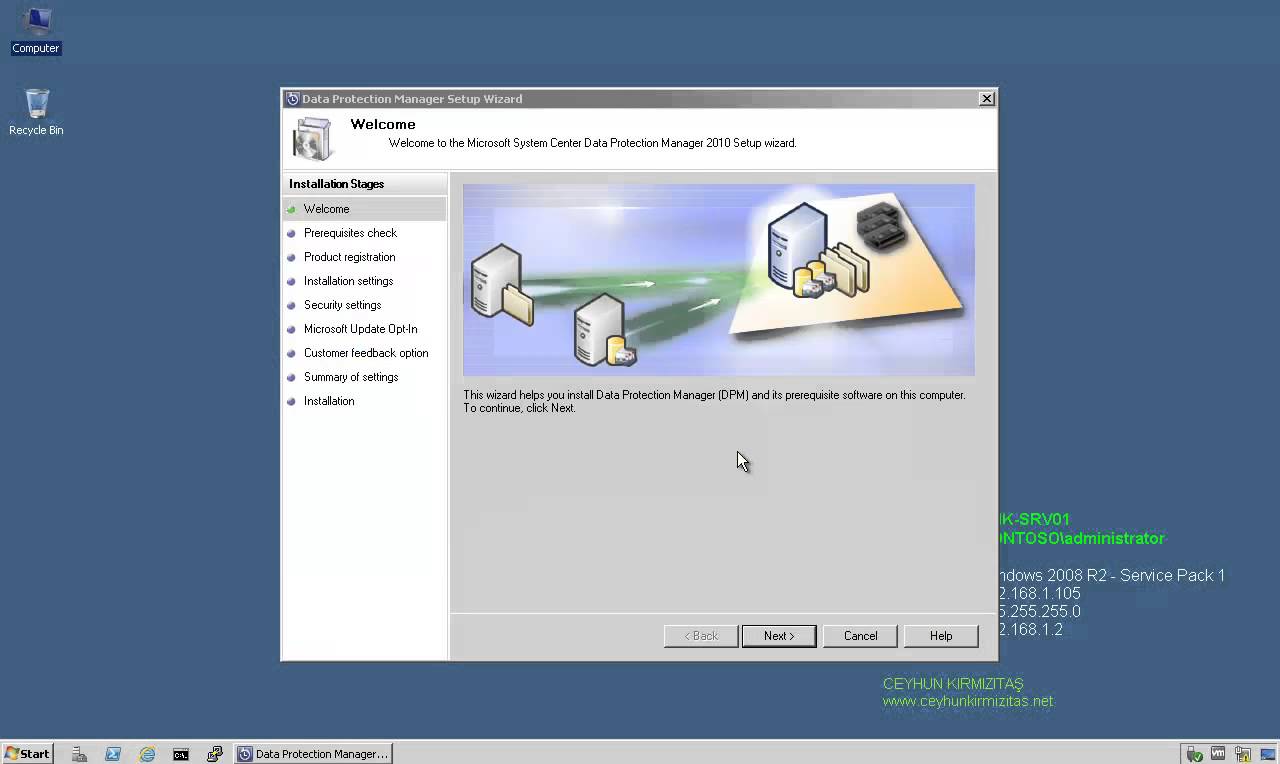
A System Center Data Protection Manager (DPM) 2010 installation includes two primary tasks: installing the DPM prerequisite software and installing the DPM application. The DPM Setup Wizard guides you through the process of specifying the DPM installation settings, and automatically installs the prerequisite software as part of an integrated DPM installation process. Important Note: DPM 2010 is not supported on the Turkish language version of Windows Server 2008 or Windows Server 2008 R2. If the automatic installation of one or more of the DPM prerequisite software products fails, you can install the prerequisite software manually. Before installing DPM, note the following: All computers that you use for your DPM installation must meet at least the minimum hardware and software requirements. DPM Setup stops the Removable Storage service before installing DPM. After you install DPM, you…
Read More
How to Enable Local or Remote Tech Support Mode TSM from vSphere Client

How to Enable Local or Remote Tech Support Mode TSM from vSphere Client

VMware
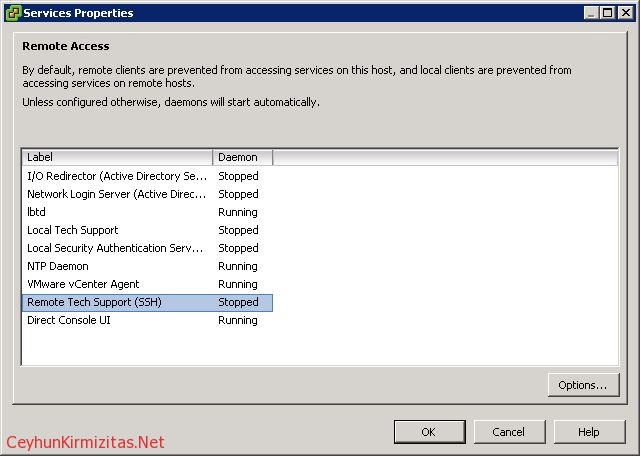
Tech Support Mode or TSM is a sort of simple version of the system console that was available on the classic versions of ESX. Except that the TSM mode is not Linux based and does not have all the capabilities that the old COS had. But you can now access Tech Support Mode locally or via SSH if you follow the instructions below to enable them. To Enable Local or Remote Tech Support Mode - TSM - From vSphere Client: Select the host and click the Configuration tab. Click Security profile > Properties. Click Local Tech Support or Remote  Tech Support (SSH) and click Options. Choose the desired startup policy and click Start,  then click OK. Verify that the daemon selected in step 3 shows as running in  the Services Properties window.…
Read More