Tech Support Mode (TSM) provides a command-line interface that can be used by the administrator to troubleshoot and correct abnormal conditions on VMware ESXi hosts.
To access the local TSM:
- At the main DCUI screen, press ALT+F1 simultaneously. This opens a virtual console window to the host.
- Provide credentials when prompted.Note: When typing the password, characters are not displayed on the console.
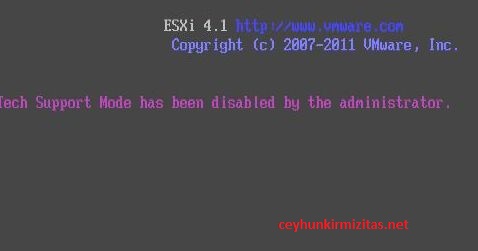
Tech Support Mode has been disabled by the Administrator on ESXi 4.1
If ” Local Tech Support ” daemon does not running, you get ” Tech Support Mode has been disabled by the Administrator ” when accessing to the local TSM.
To enable local TSM from the vSphere Client:
- Select the host and click the Configuration tab.
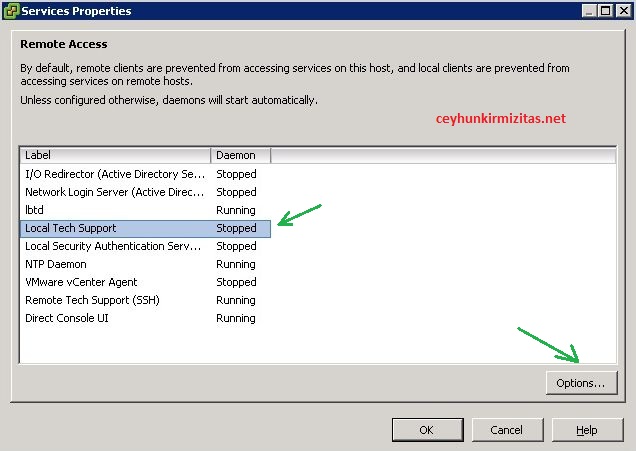
- Click Security profile > Properties.
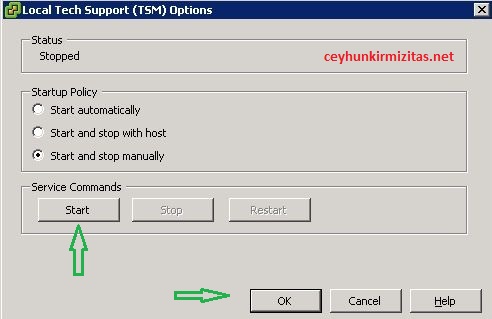
- Click Local Tech Support and click Options.
- Choose the desired startup policy and click Start, then click OK.
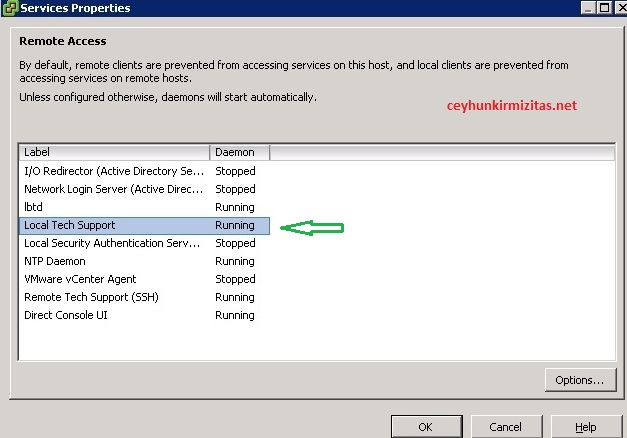
- Verify that the daemon selected in step 3 shows as running in the Services Properties window.